Customize Live Chat
1. Open Live Chat settings and turn chat on
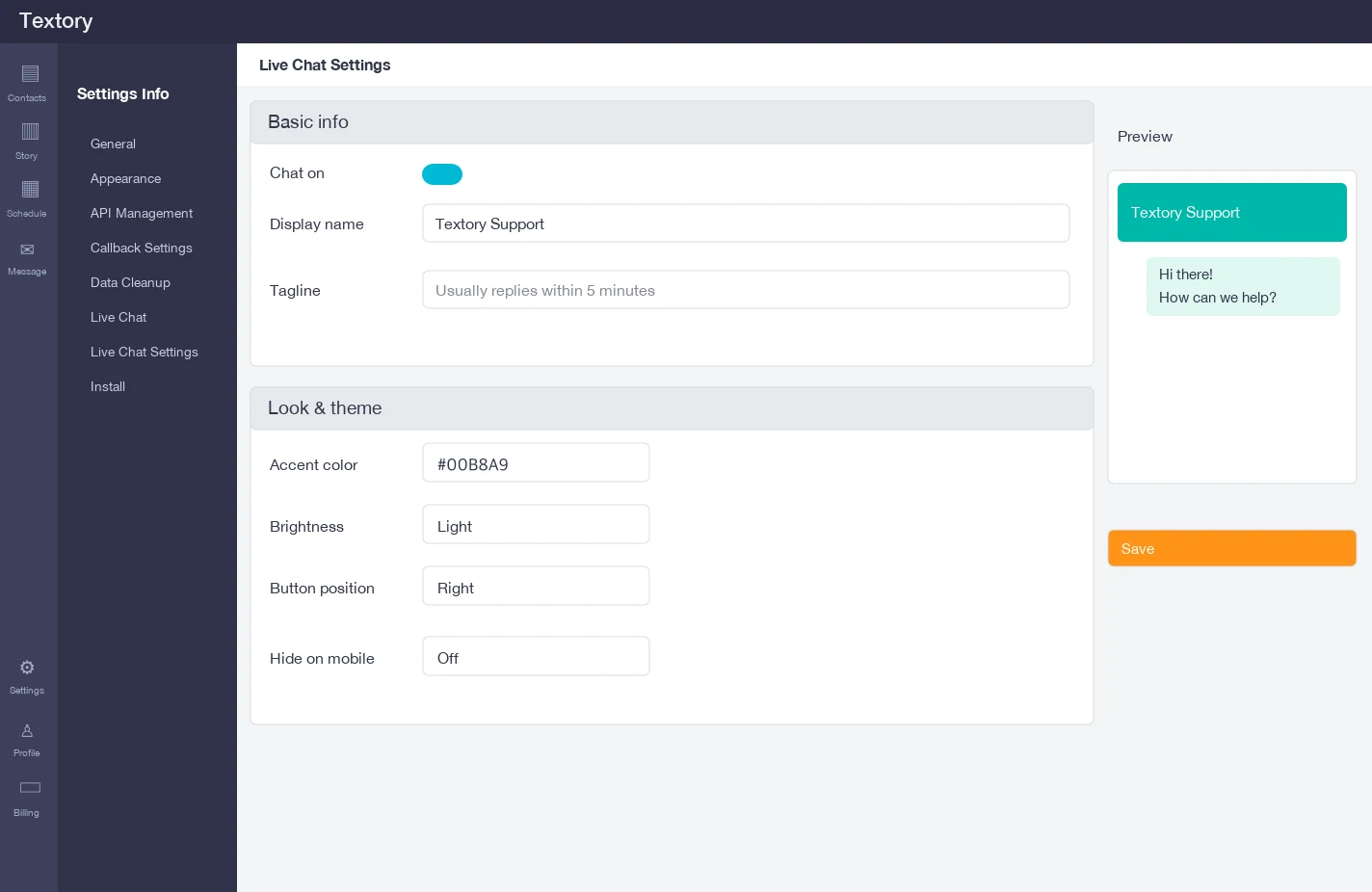
Open Settings → Live Chat → Live Chat settings. If Chat on under Basic info is off, visitors don’t see the chat button. Turn it off only temporarily, such as during holidays.
2. Set the display name and tagline
Enter the name shown at the top of the chat window (e.g. “Salon XYZ support”) and a note like “usually replies within 5 minutes”. Use the shop name customers recognize rather than the company name.
3. Choose the color, theme and button position
Enter the accent color as #RRGGBB, choose Light or Dark, and choose Right or Left for the button. If your website already has a button at the bottom right, move it to the left.
4. Check the preview and save
The preview matches the real chat window’s colors and shape. Check it, then click Save. Opening it on your live website once makes sure.
Next guides
Still stuck?