Getting started
1. Install the Android app
Search for “Textory” in Google Play and install it. Check that the developer is TexTory. Once installed, open the app and keep it open.
2. Sign in on the app and PC with the same account
Sign in to the phone app and to www.textory.com on your PC with the same email, phone number or Google account. If the accounts differ, messages and contacts won’t be linked.
3. Import contacts
There are two ways to import contacts.
1. Add from the phone address book
In the app, open Settings → Contact Settings (Manage Contacts) and make sure Contacts Sync, Auto-add call numbers and Auto-add text numbers are on. Turn on Contacts Sync, press Back once and wait — your phone contacts are added to Textory one by one.
2. Add from Excel on PC
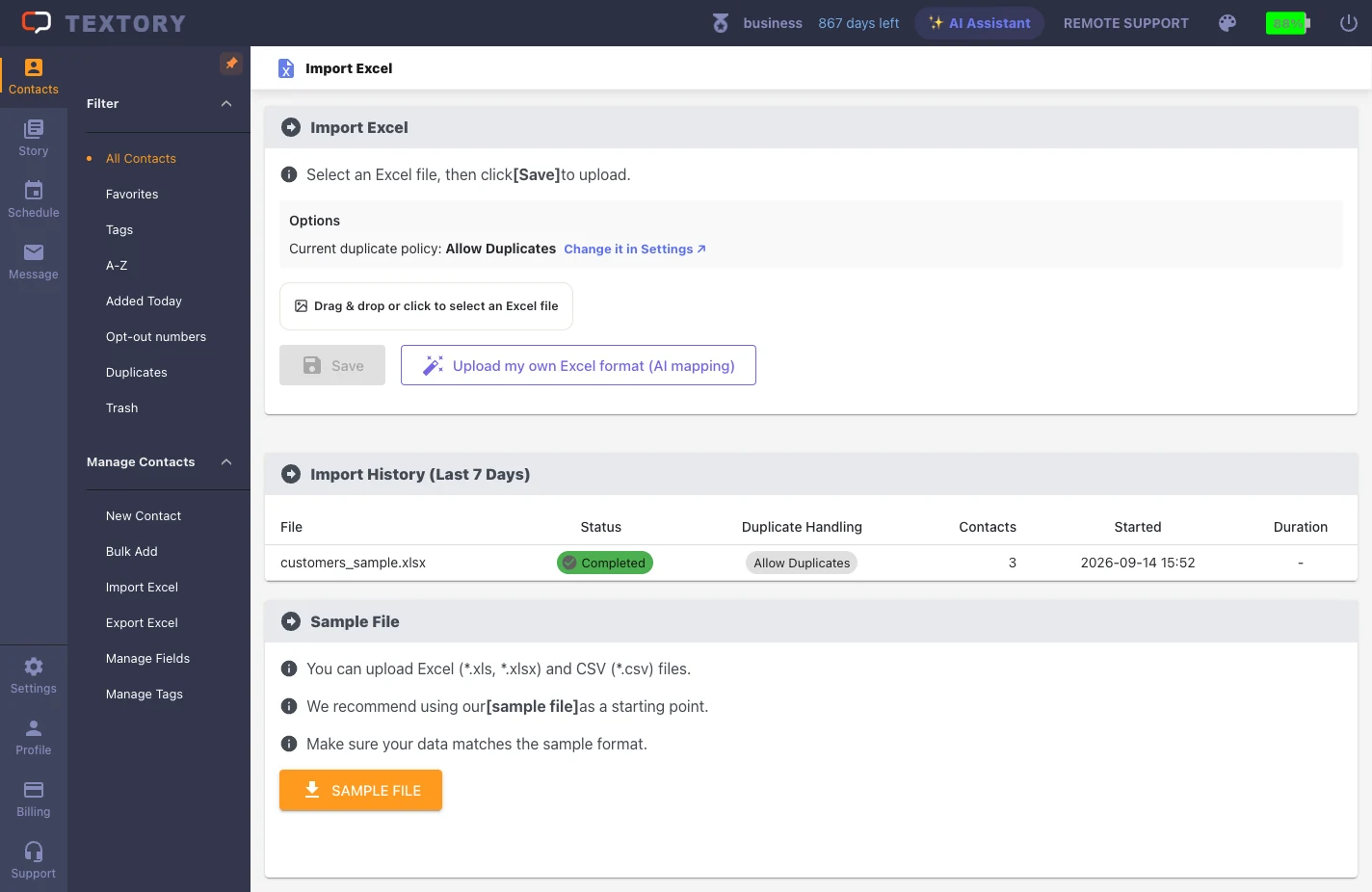
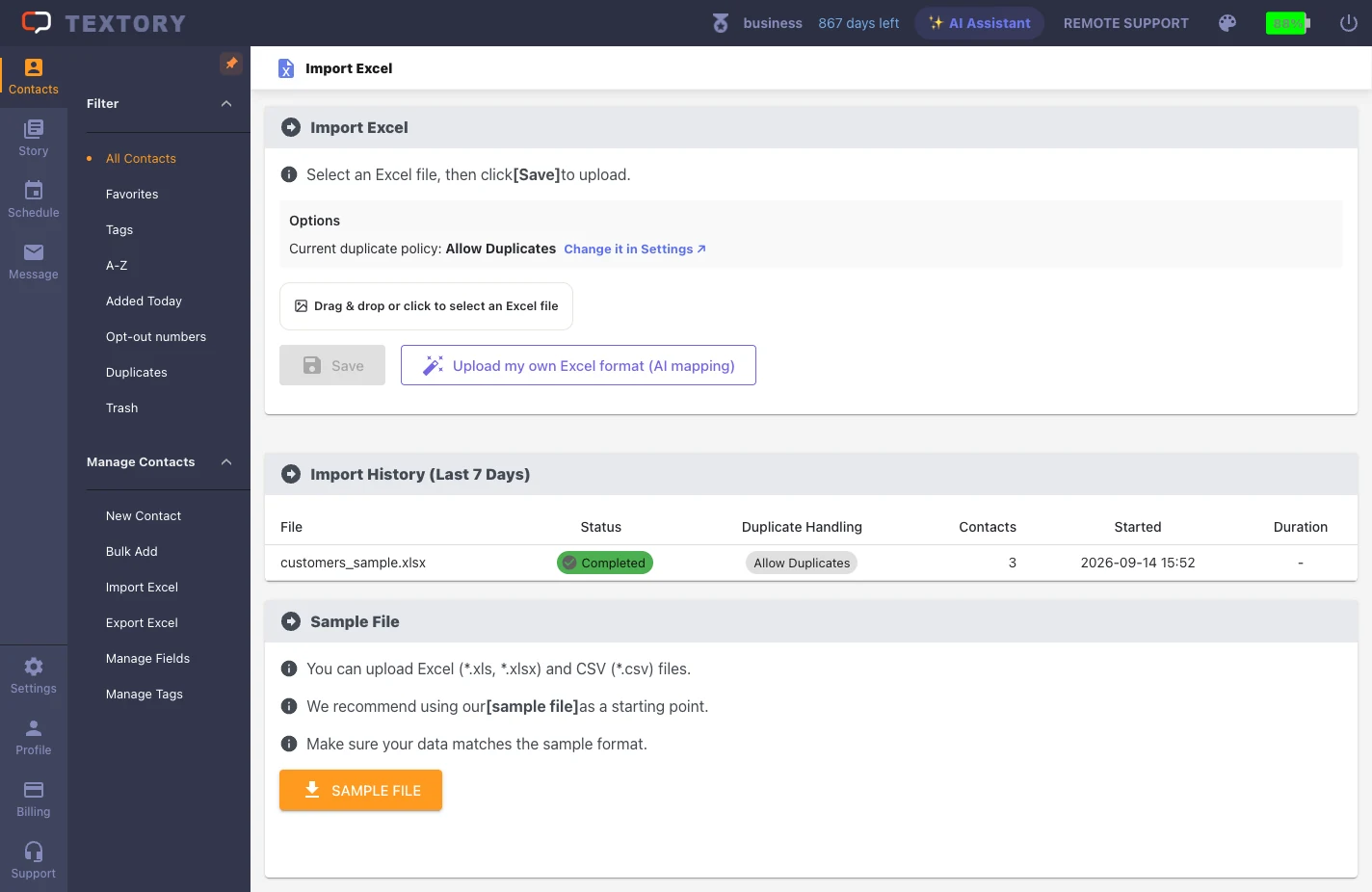
On PC, open Contacts → Import Excel, click Upload my own Excel format and choose a file. See “Add contacts in bulk from Excel” for details.
4. Send your first message
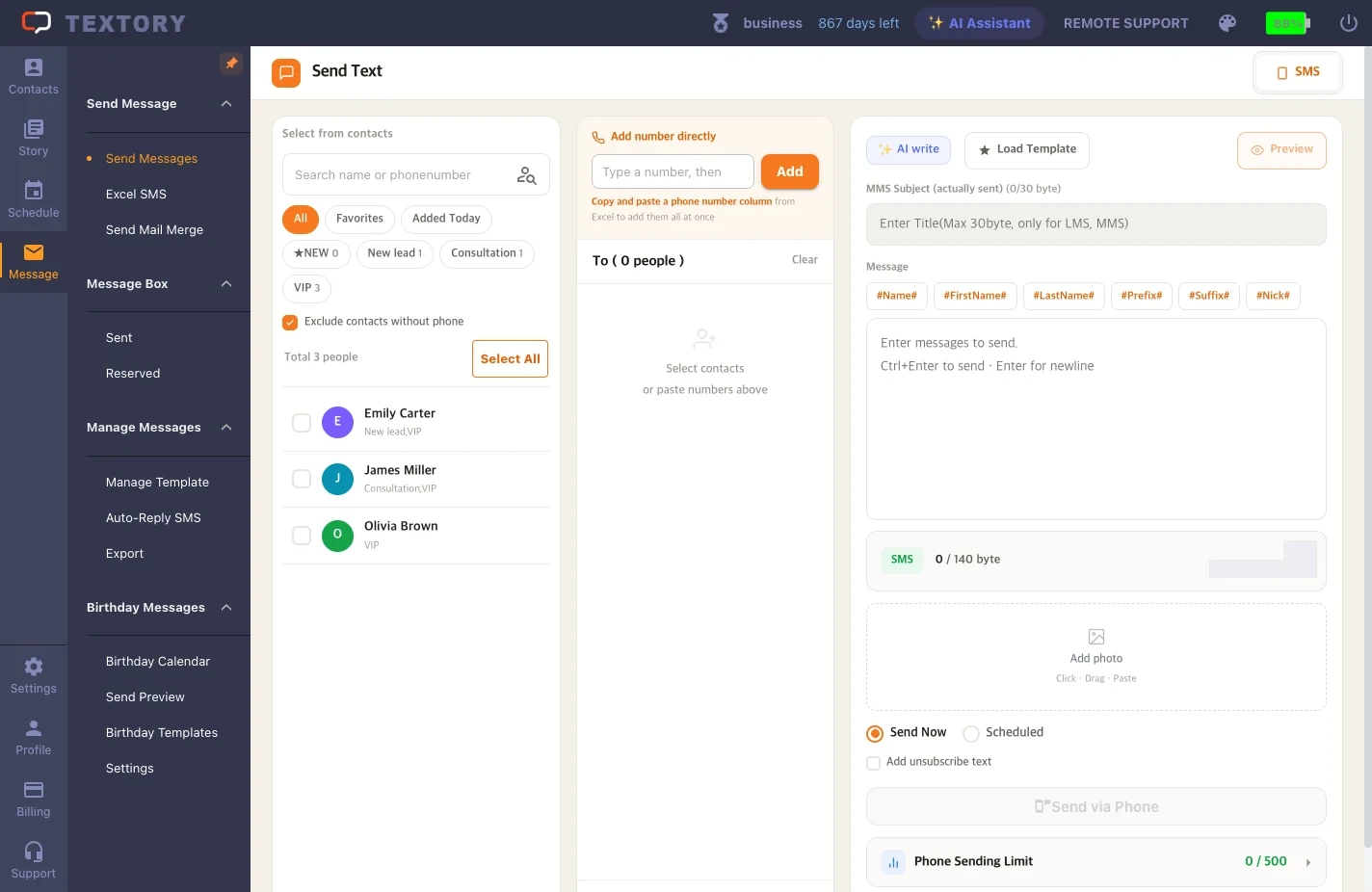
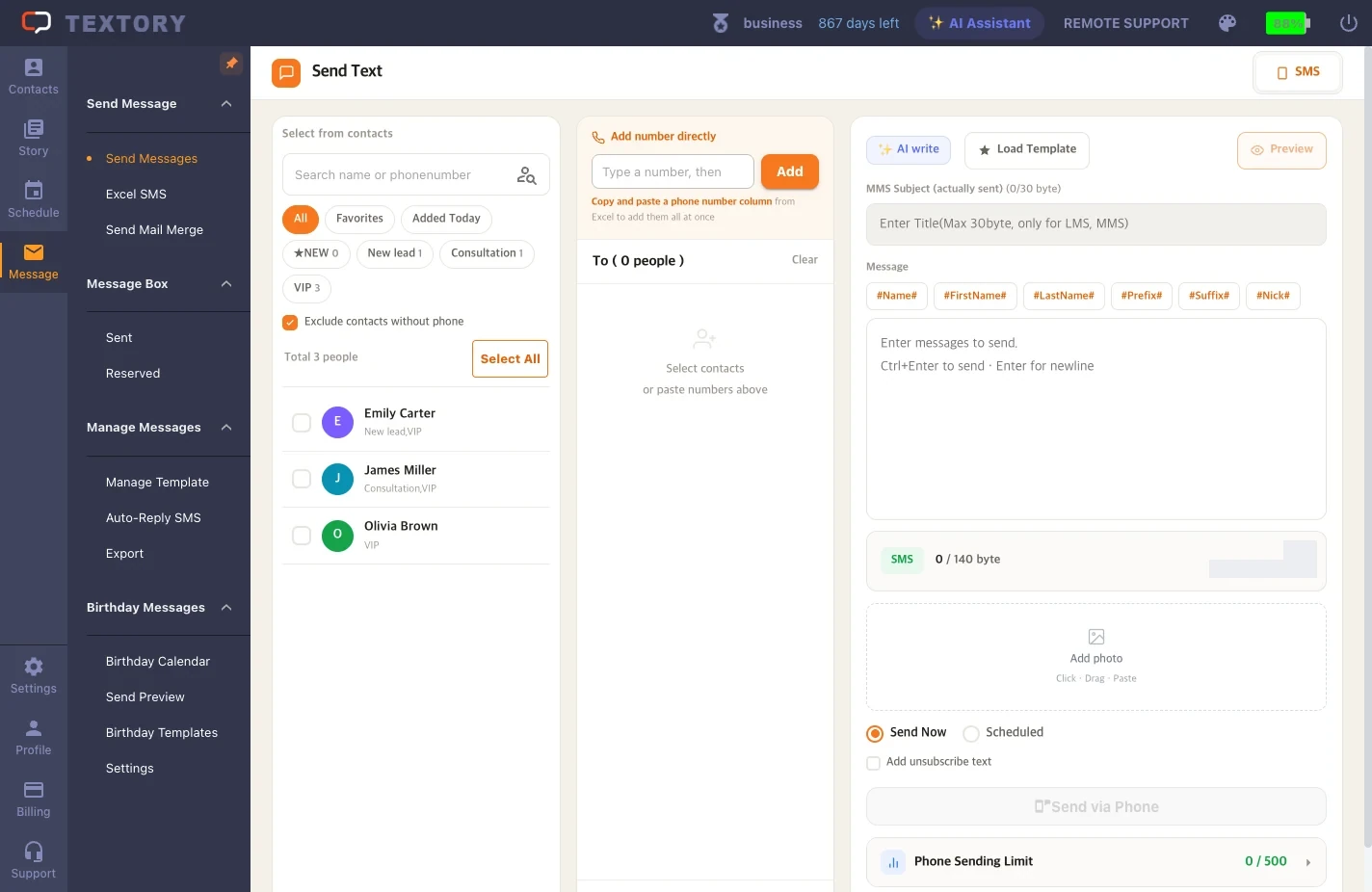
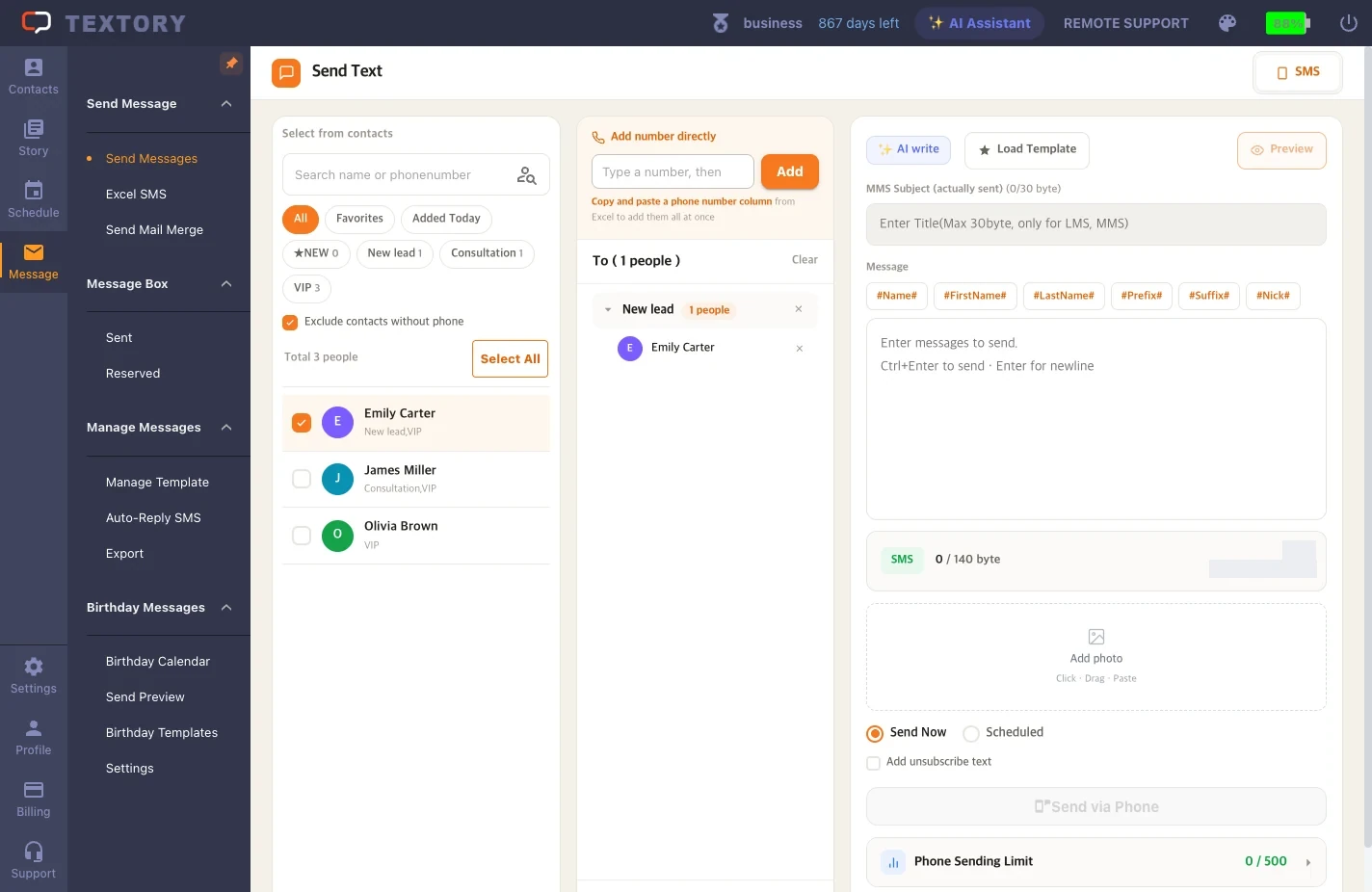
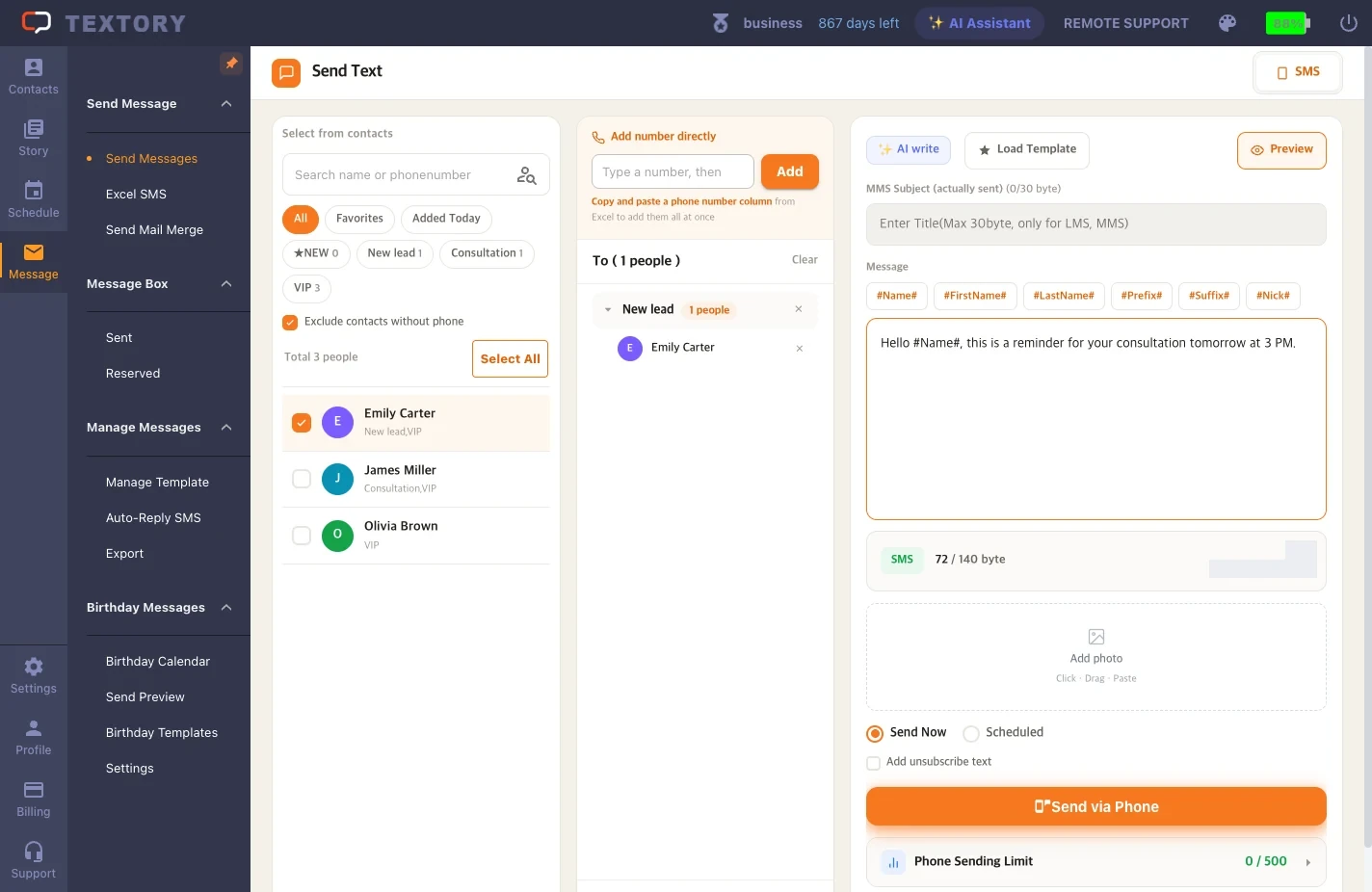
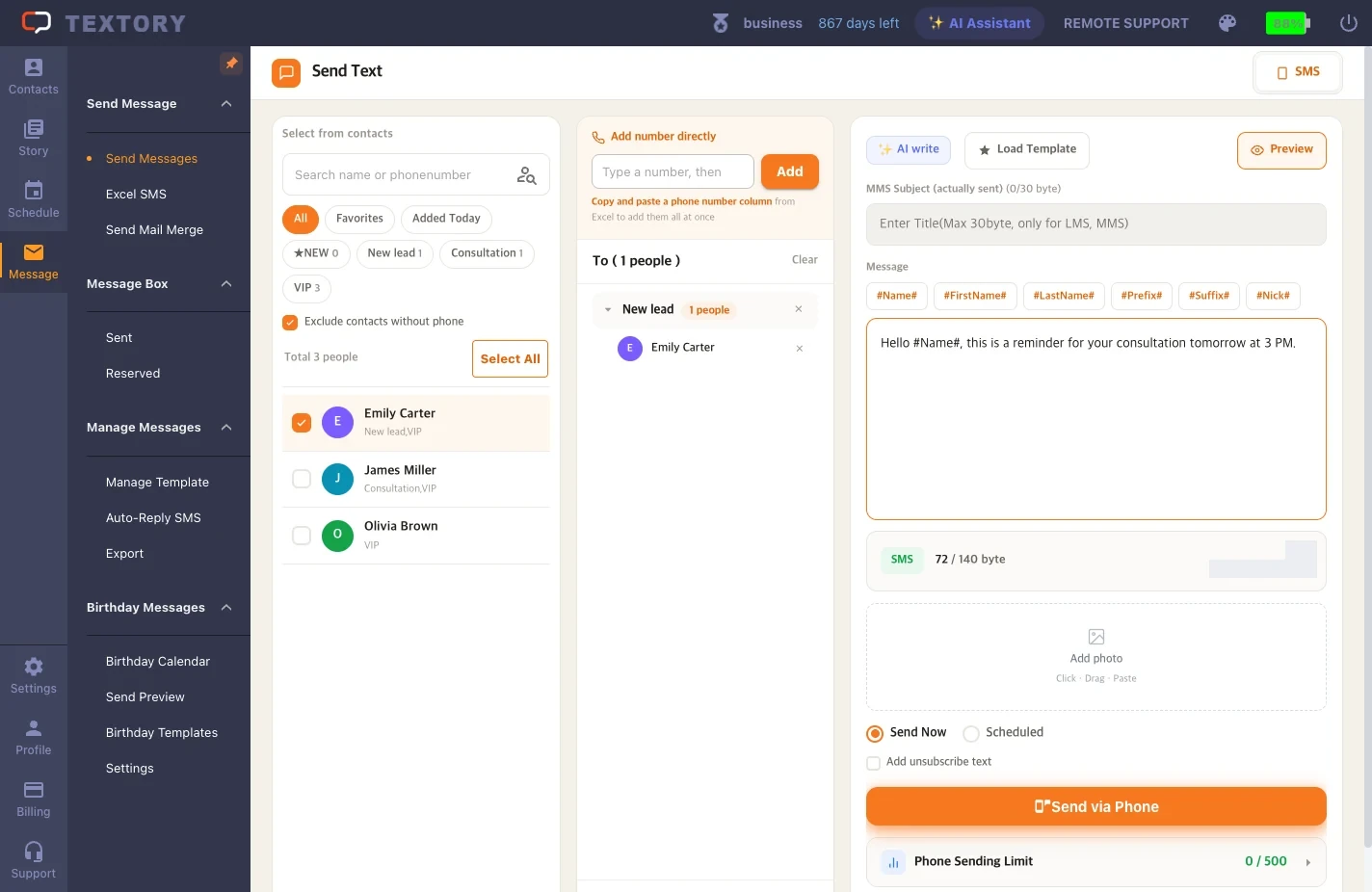
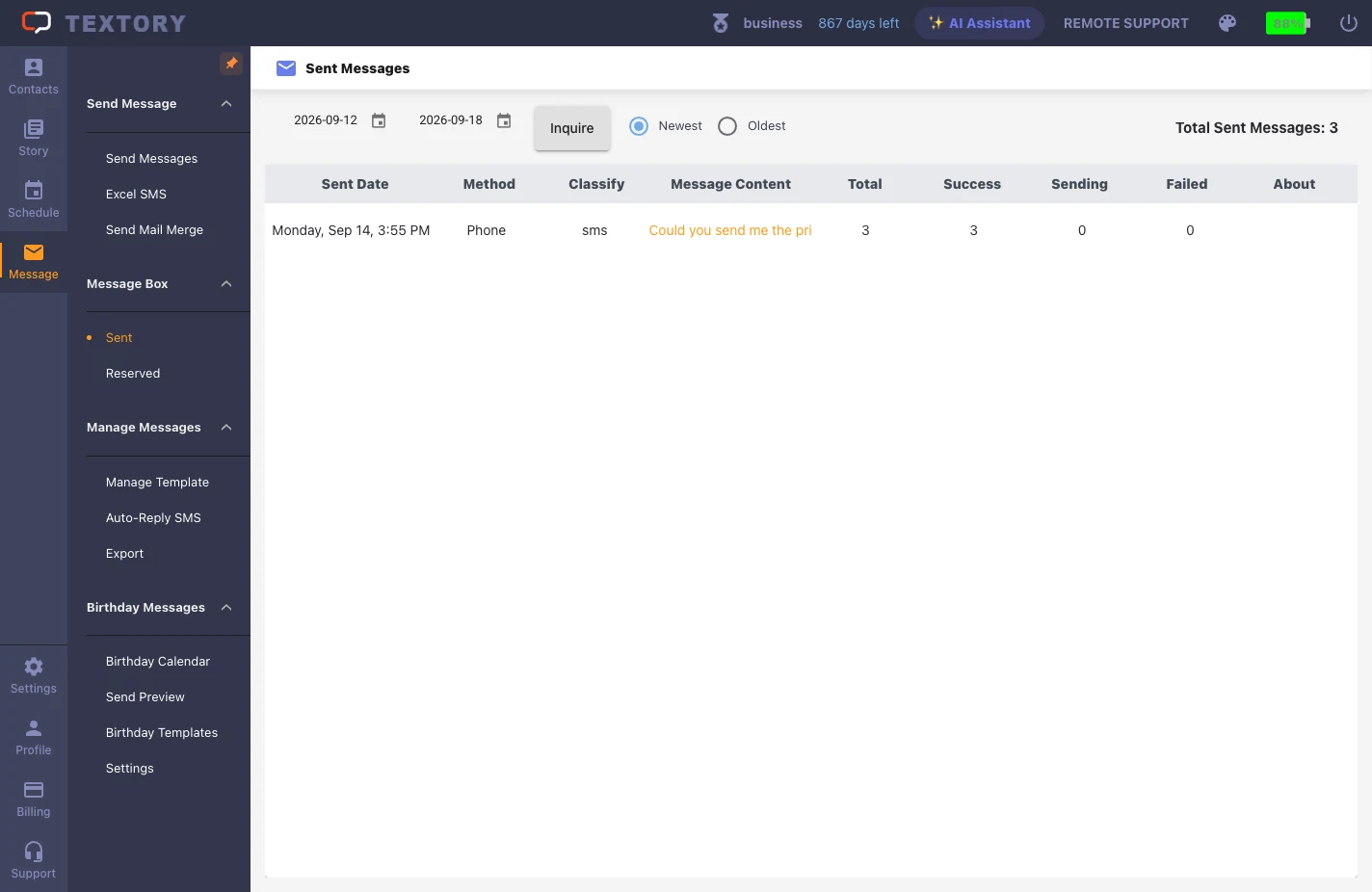
On PC, open Message → Send Messages and choose SMS at the top right. Select a customer from the contacts on the left and they appear under Recipients. Write your text on the right, check the recipients and content, then click Send via Phone. For the first send, use one number you can check, then confirm the result in Message → Sent.
Next guides
Still stuck?