Add contacts in bulk from Excel
1. Open Import Excel
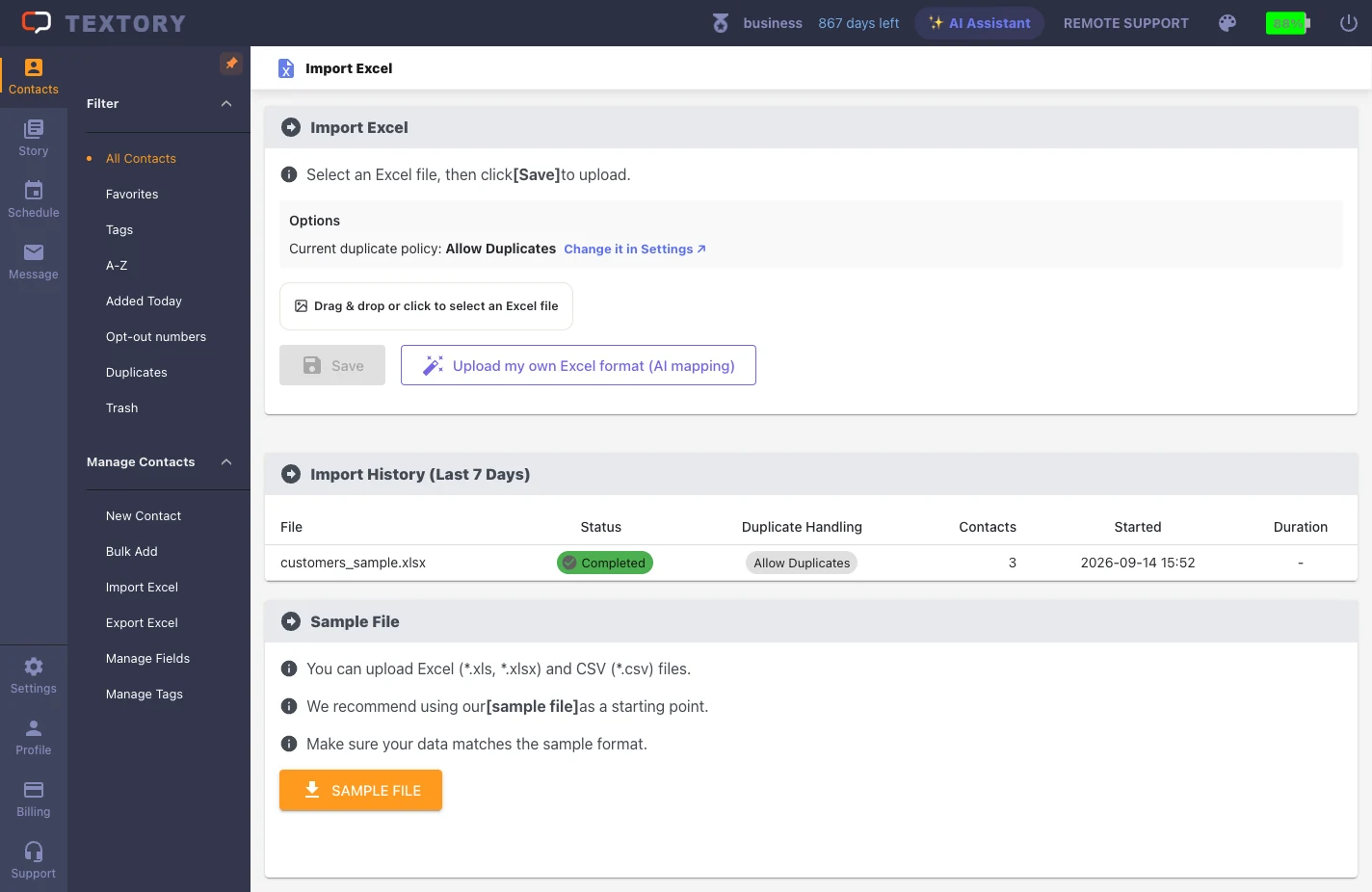
In the Contacts menu on the left, click Manage Contacts → Import Excel. Any Excel (.xls, .xlsx) or CSV file with names and phone numbers works — no need to change your format.
2. Click Upload my own Excel format and choose a file
Click Upload my own Excel format (AI mapping) and a file picker opens. Choose the file to upload. Use SAMPLE FILE below only if you want to build a list in the fixed format.
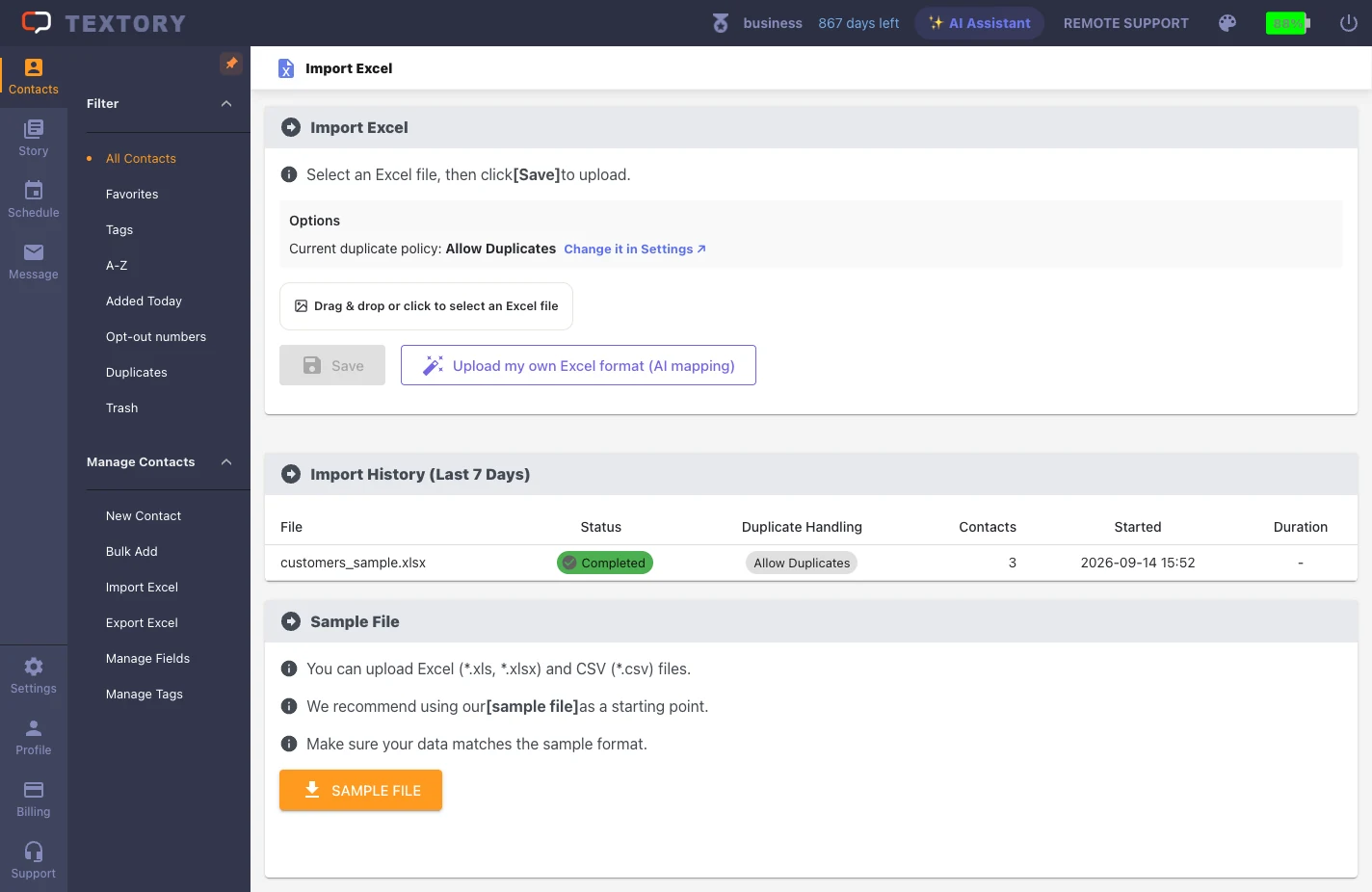
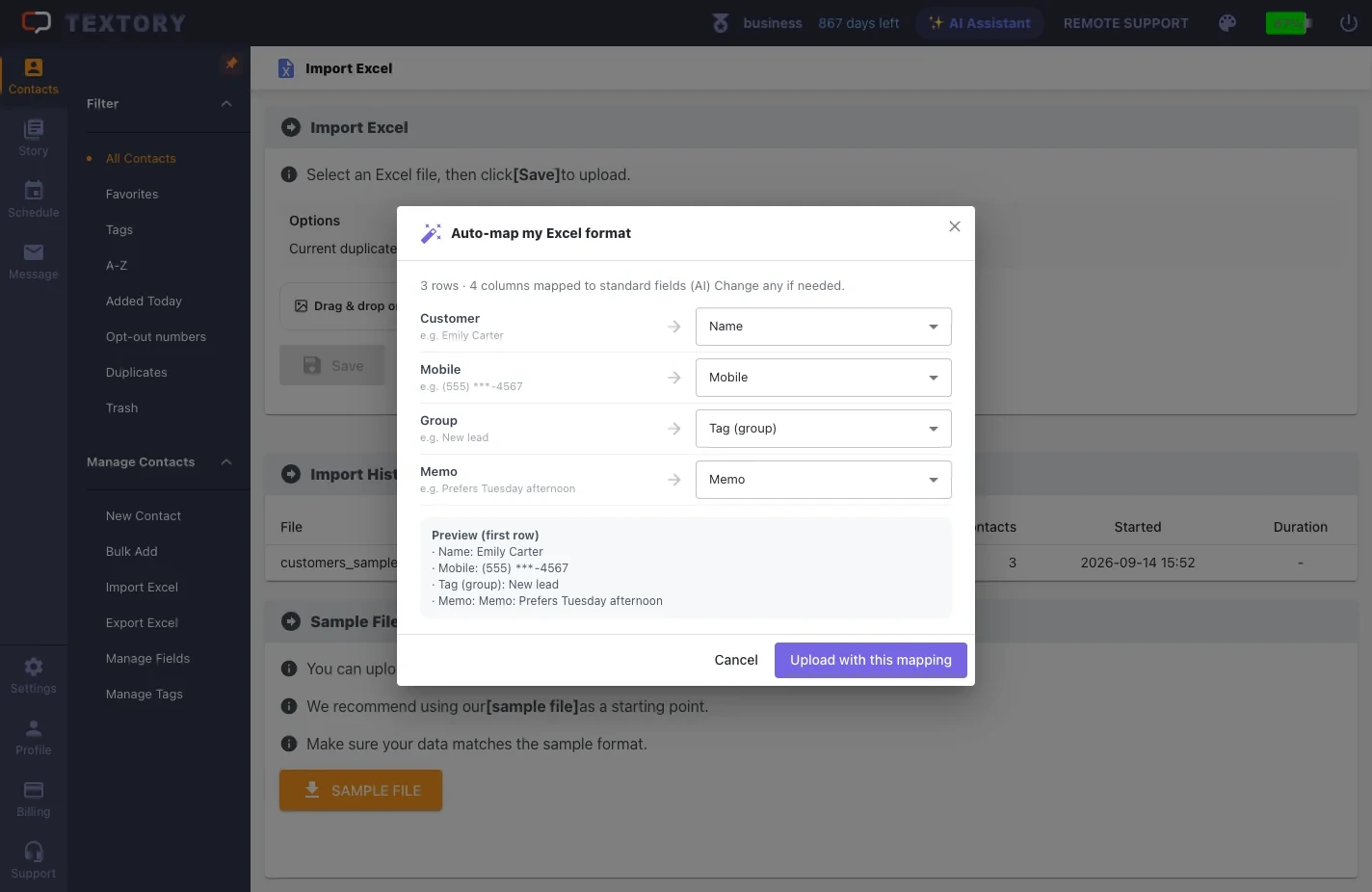
3. Check the auto-mapped columns and upload
AI maps each column of your file to a Textory field. In Preview (first row), check that the first customer’s name and phone number land correctly, fix only the wrong rows from the list on the right, then click Upload with this mapping.
4. Check the upload result
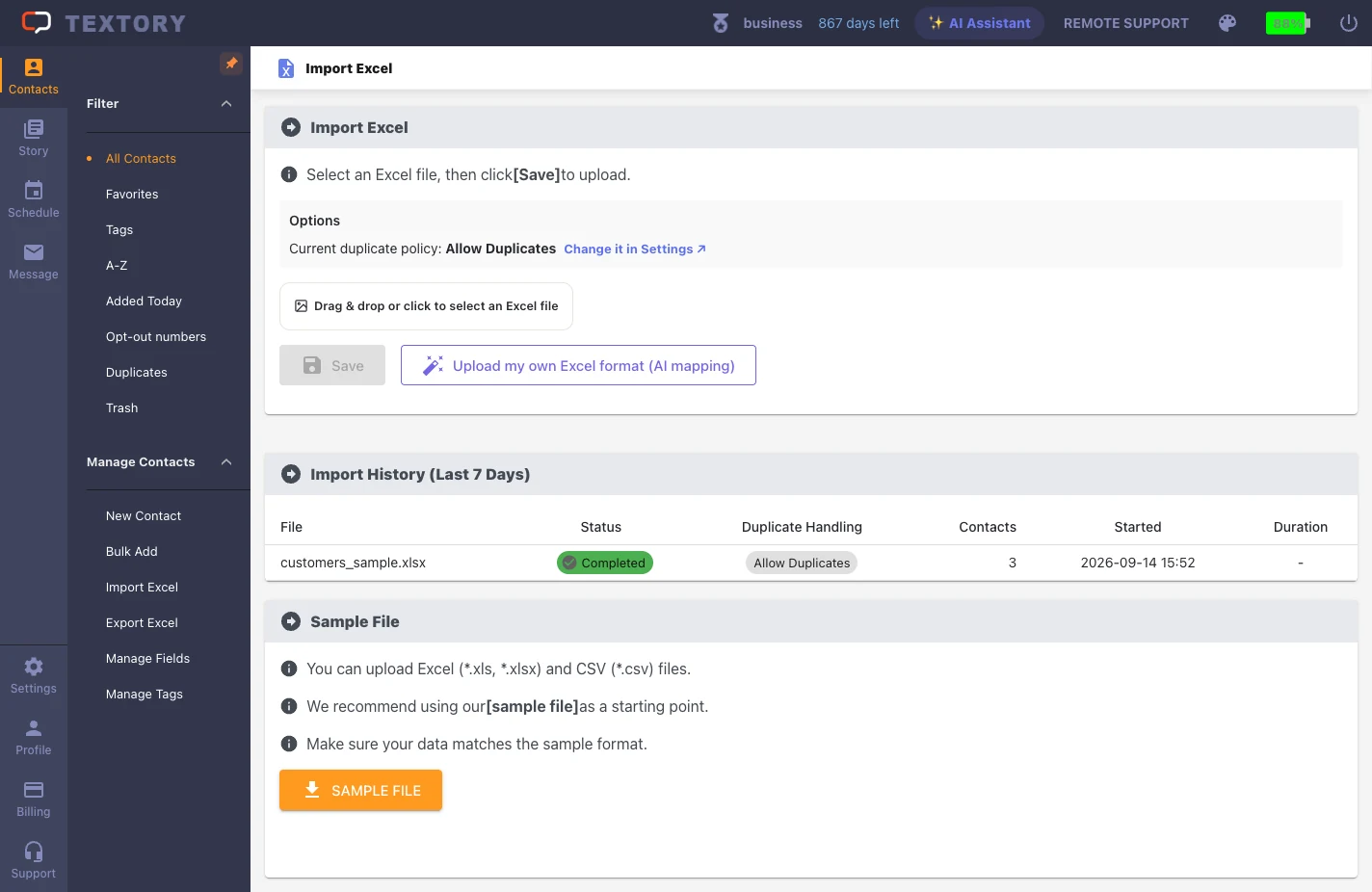
The upload result shows total, new, merged and failed counts. If any rows failed, fix just those rows and upload again. Import History below keeps the files and status from the last 7 days.
Next guides
Still stuck?