Send a message
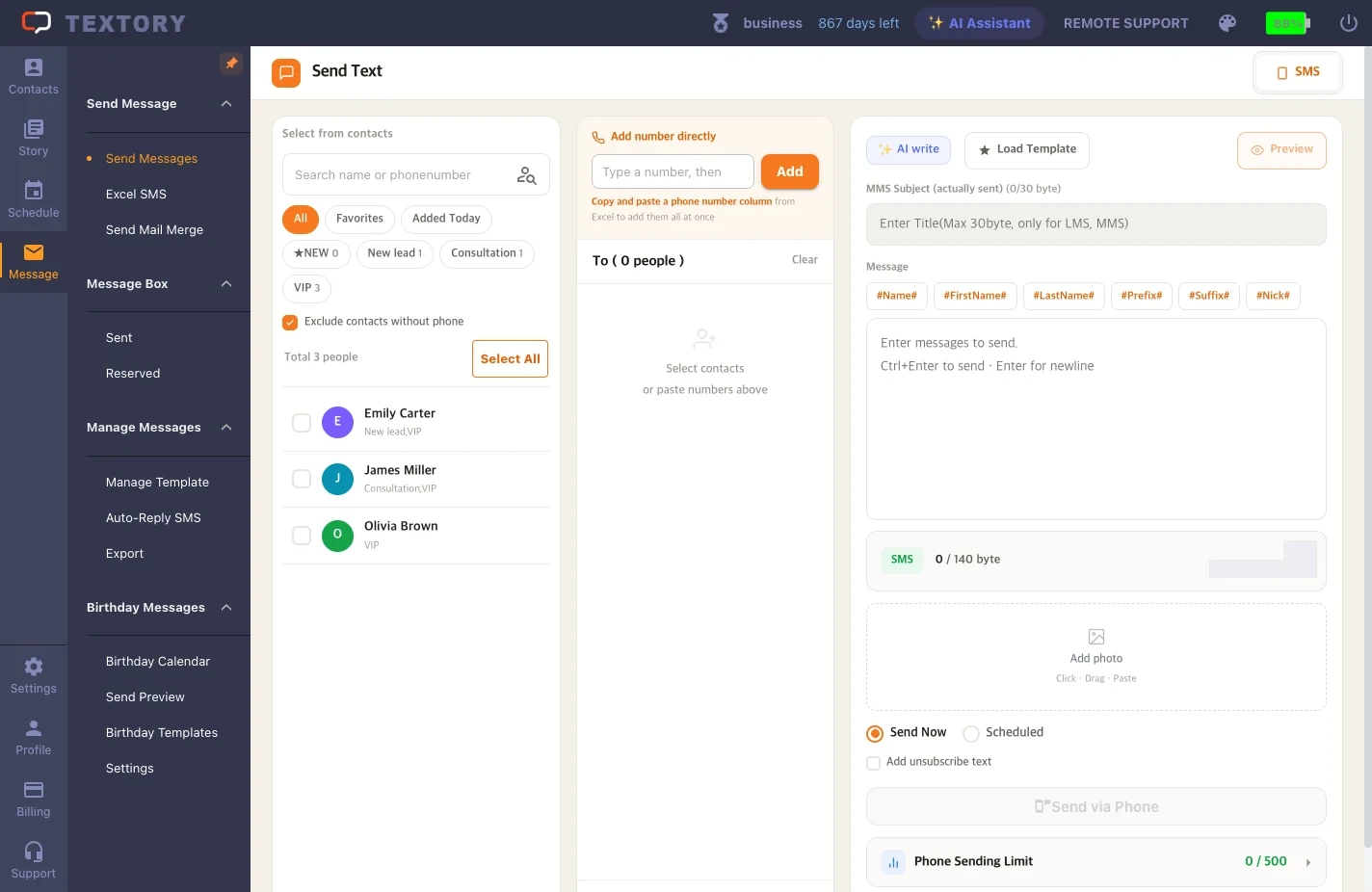
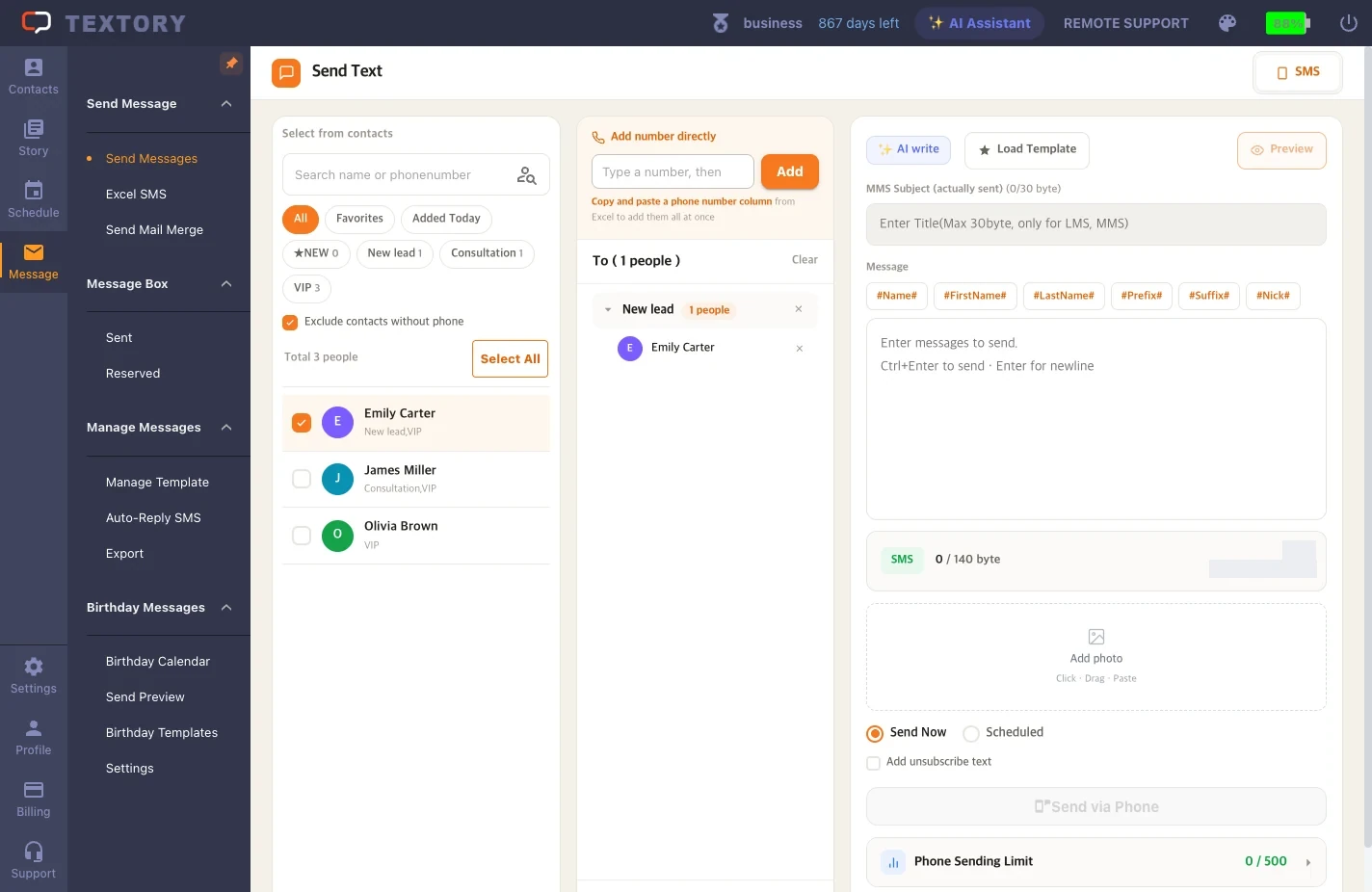
1. Open Send Messages and choose recipients
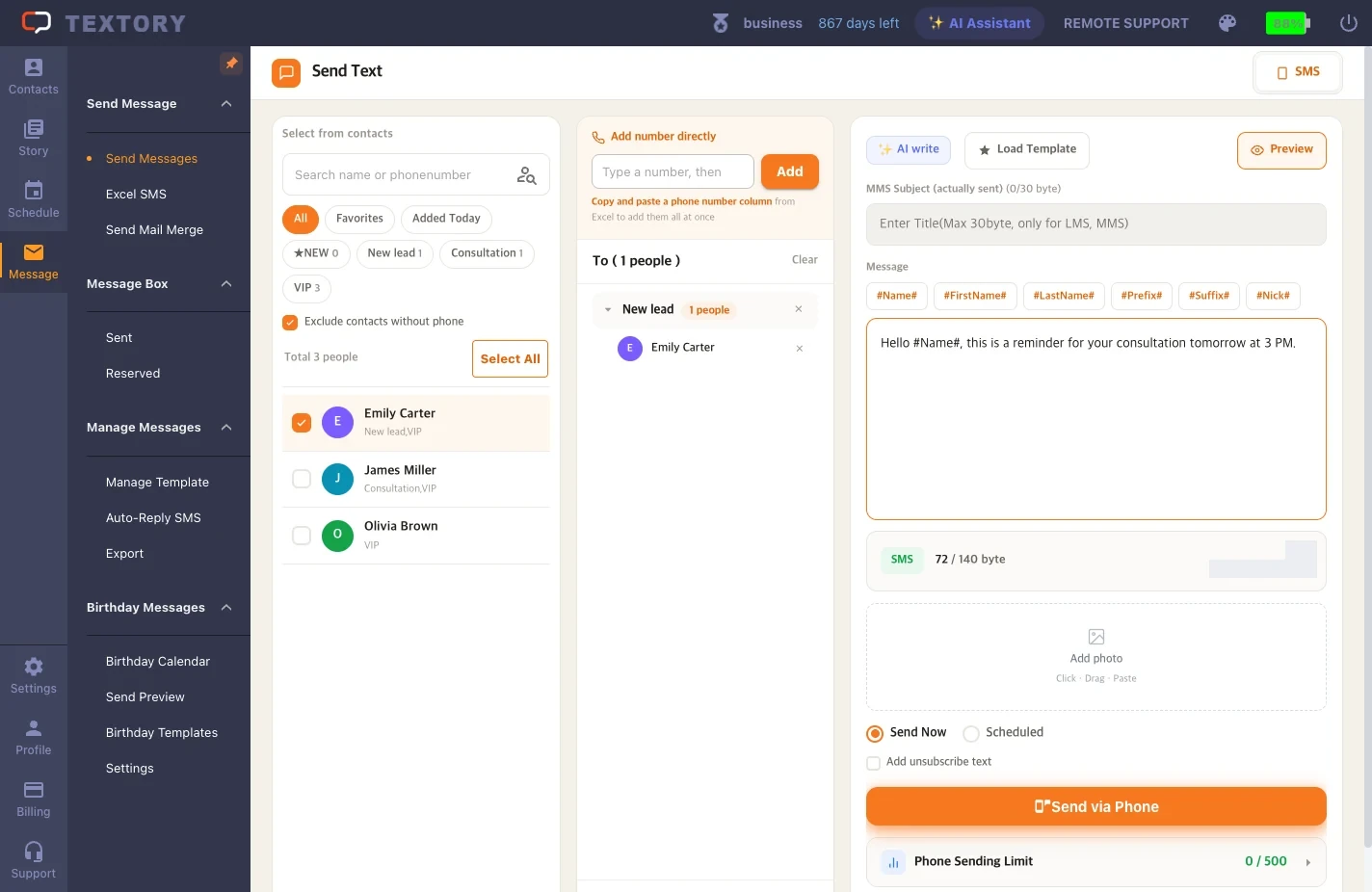
Open Message → Send Messages. Messages go out from your connected Android phone’s number. Check contacts on the left or add numbers directly, and they go into the Recipients list in the middle.
2. Write the text and preview
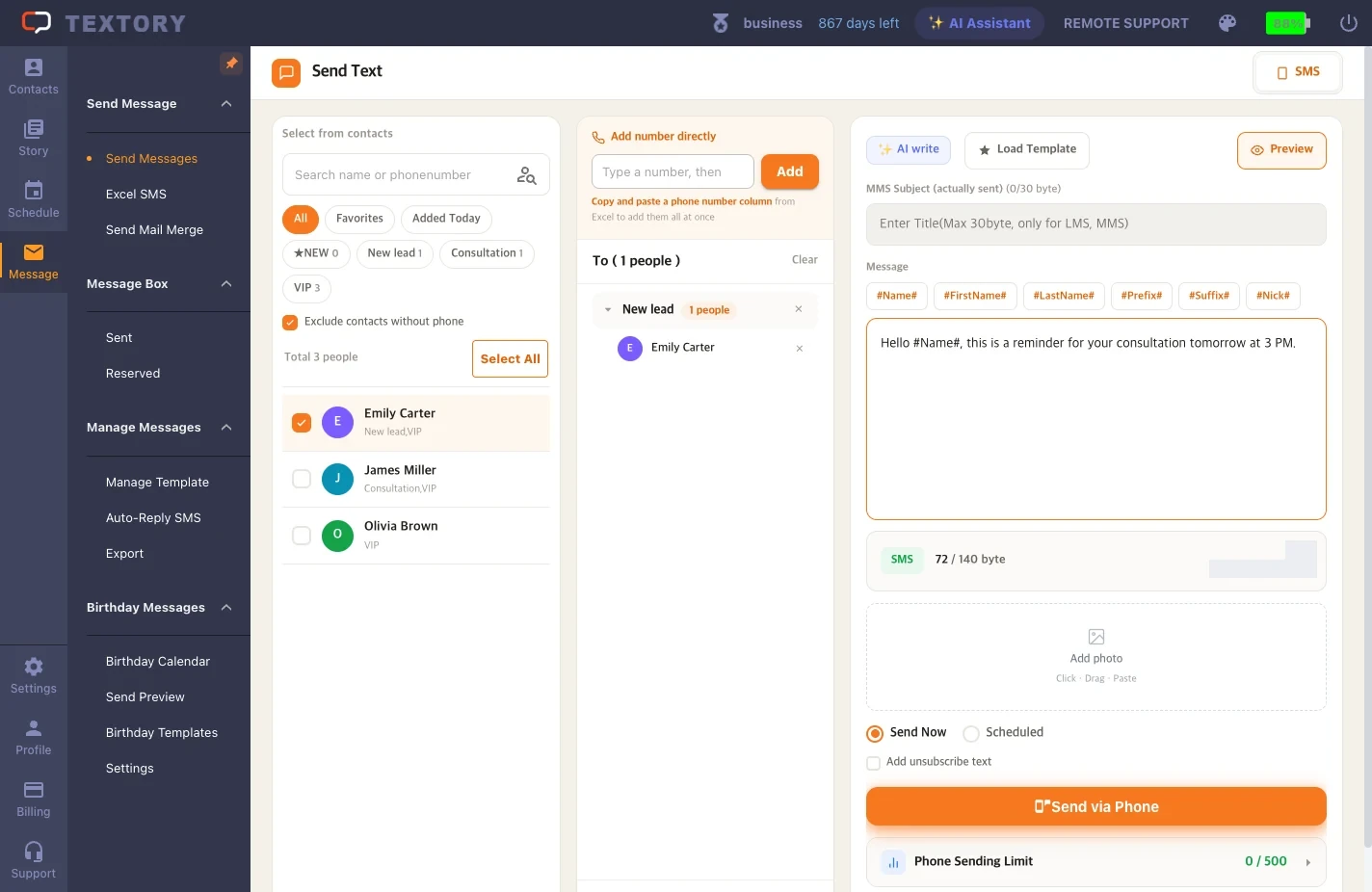
Write your message and click Preview. If you used a variable like #name#, check that no value is empty. Longer messages may go out as MMS or in several parts. Any charges follow your mobile plan.
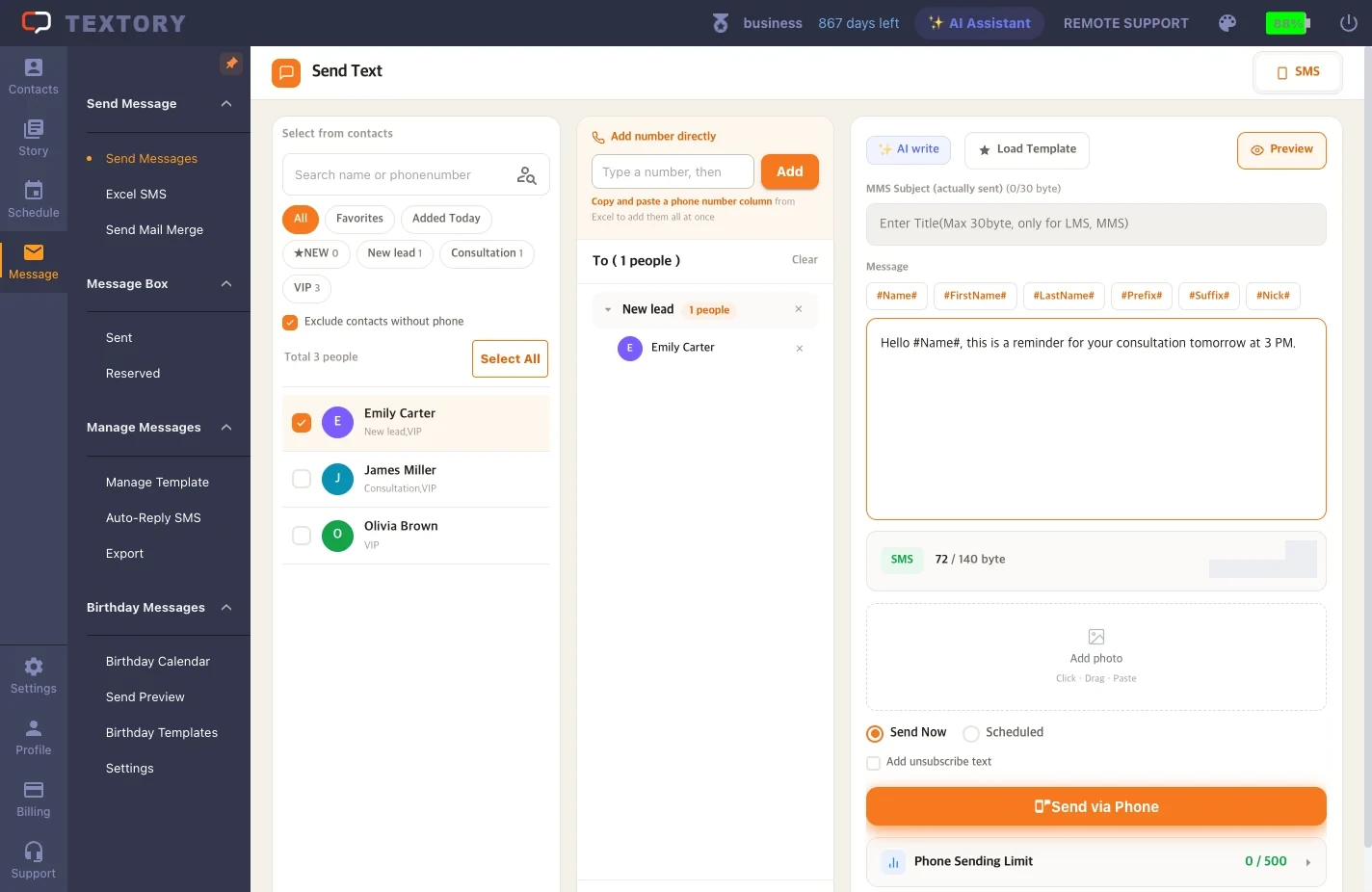
3. Choose Send now or Schedule, then send
Choose Send now or Schedule. If scheduling, double-check the date and time. Click the send button only once.
4. Check the result
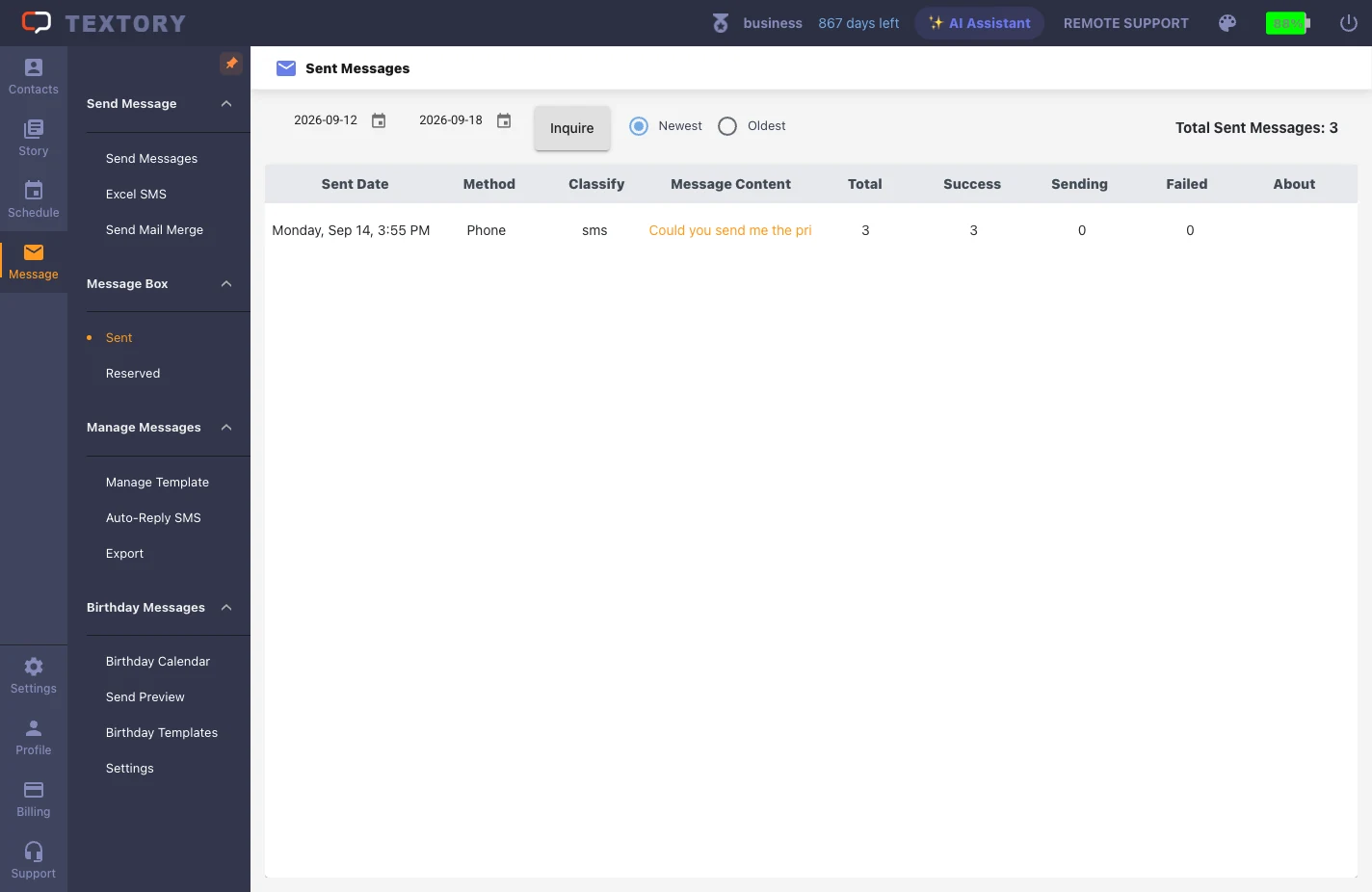
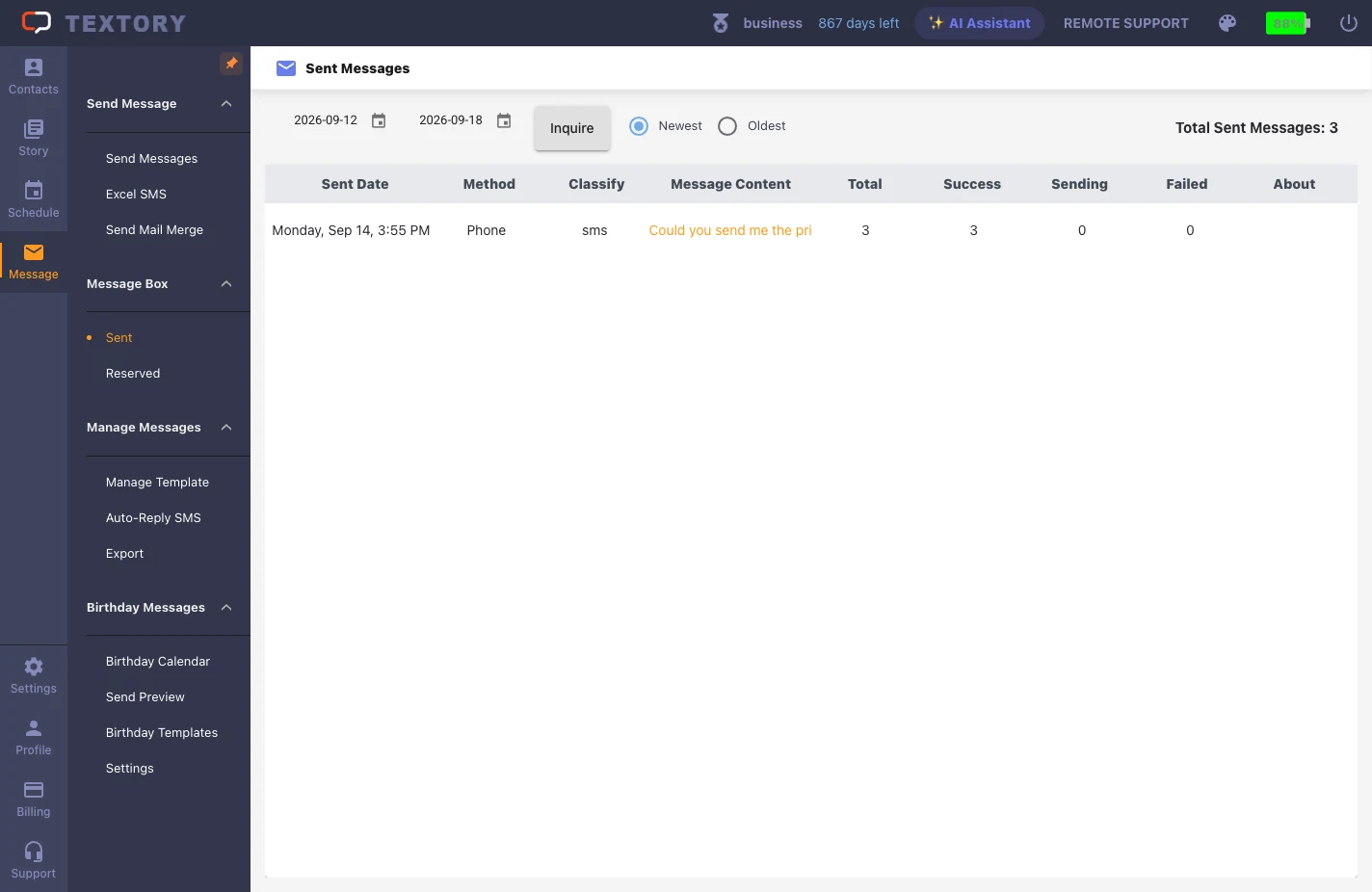
In Message → Sent, set the period and check Success, Sending and Failed. If it’s still sending, wait — resending could deliver it twice. For failures, use the Resend link in the About column to resend only those numbers.
5. Check reserved messages
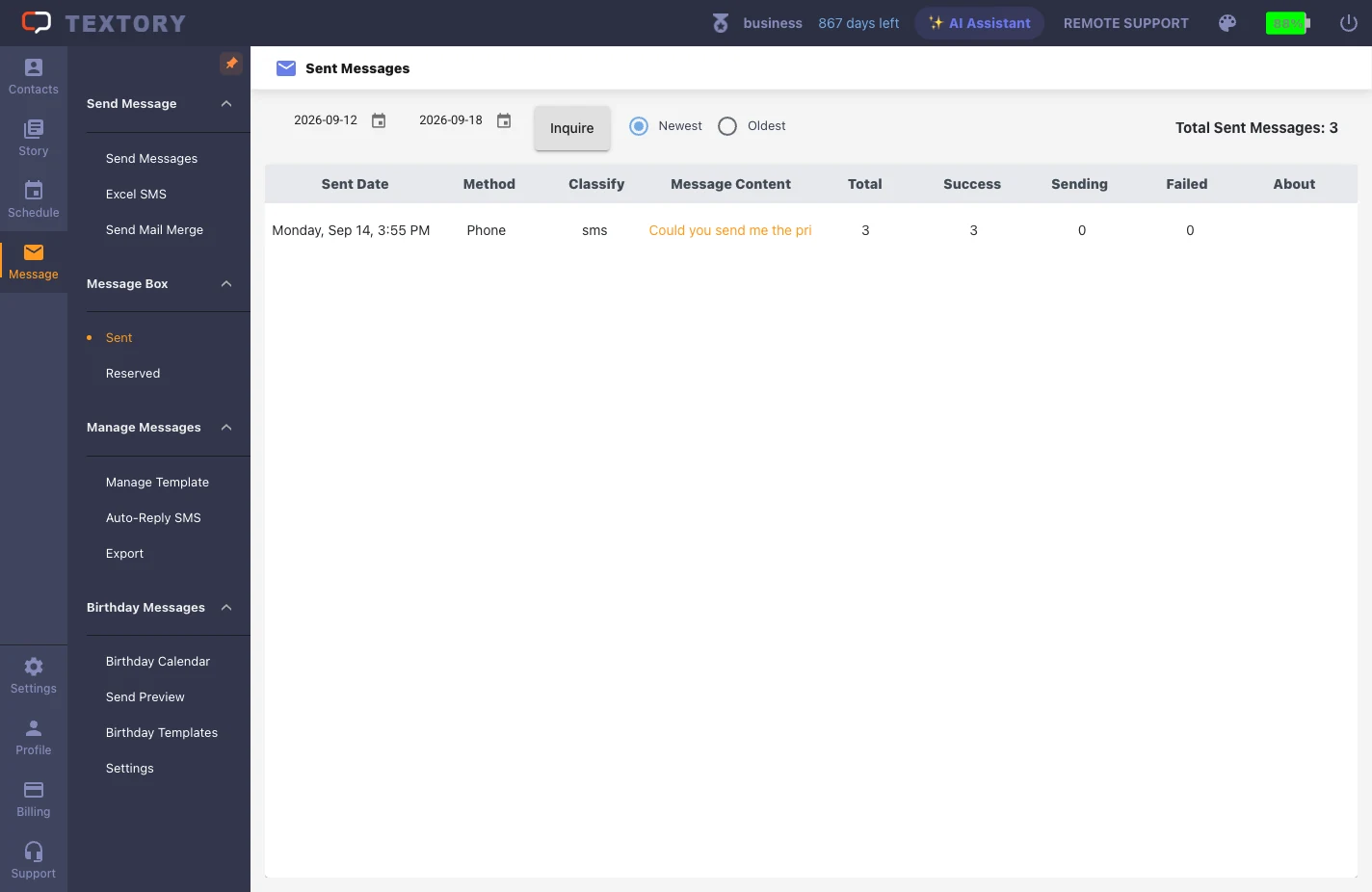
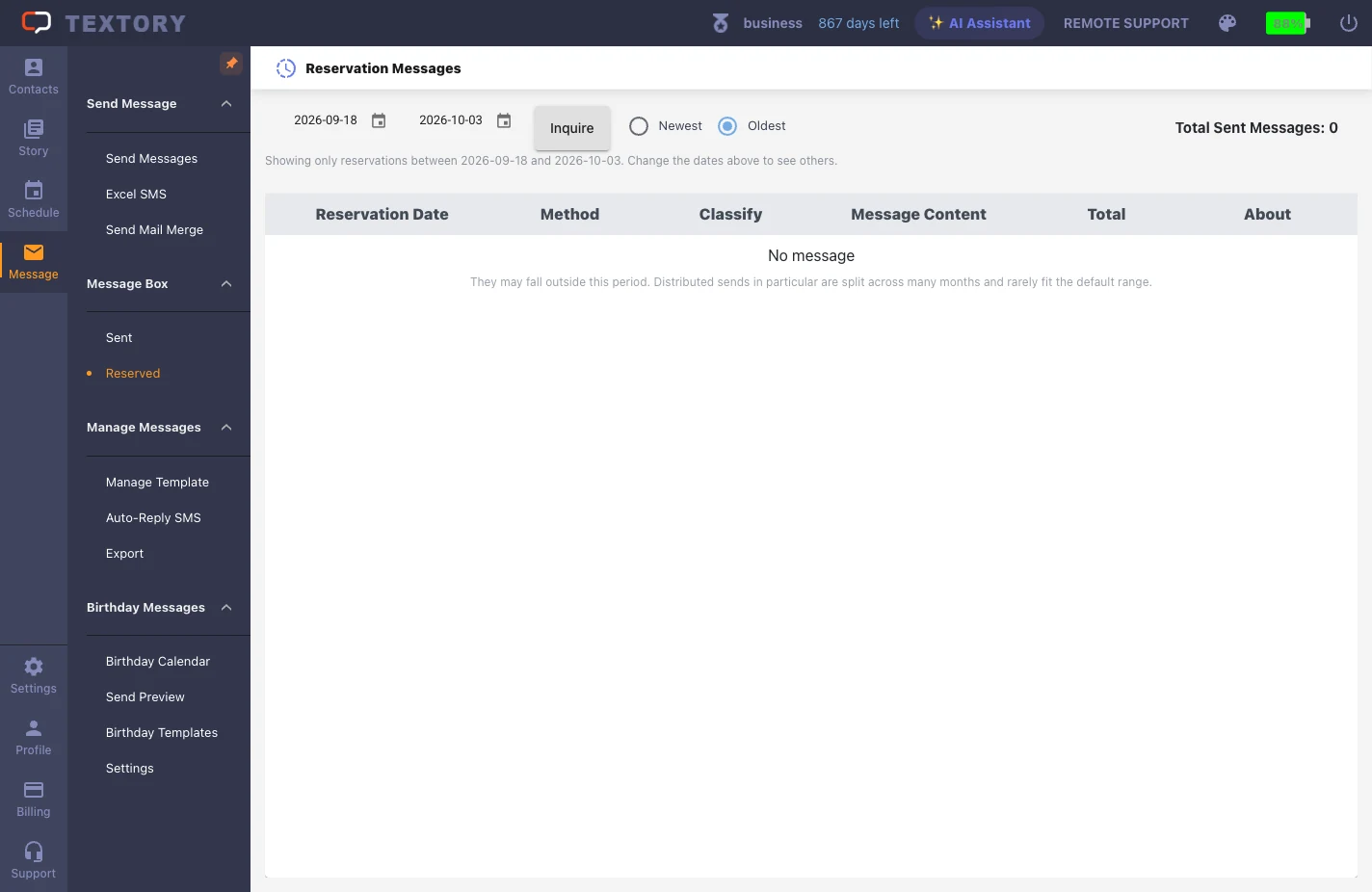
In Message Box → Reserved, set the period and check. If it’s empty, widen the period first.
Next guides
Still stuck?