Create and use templates
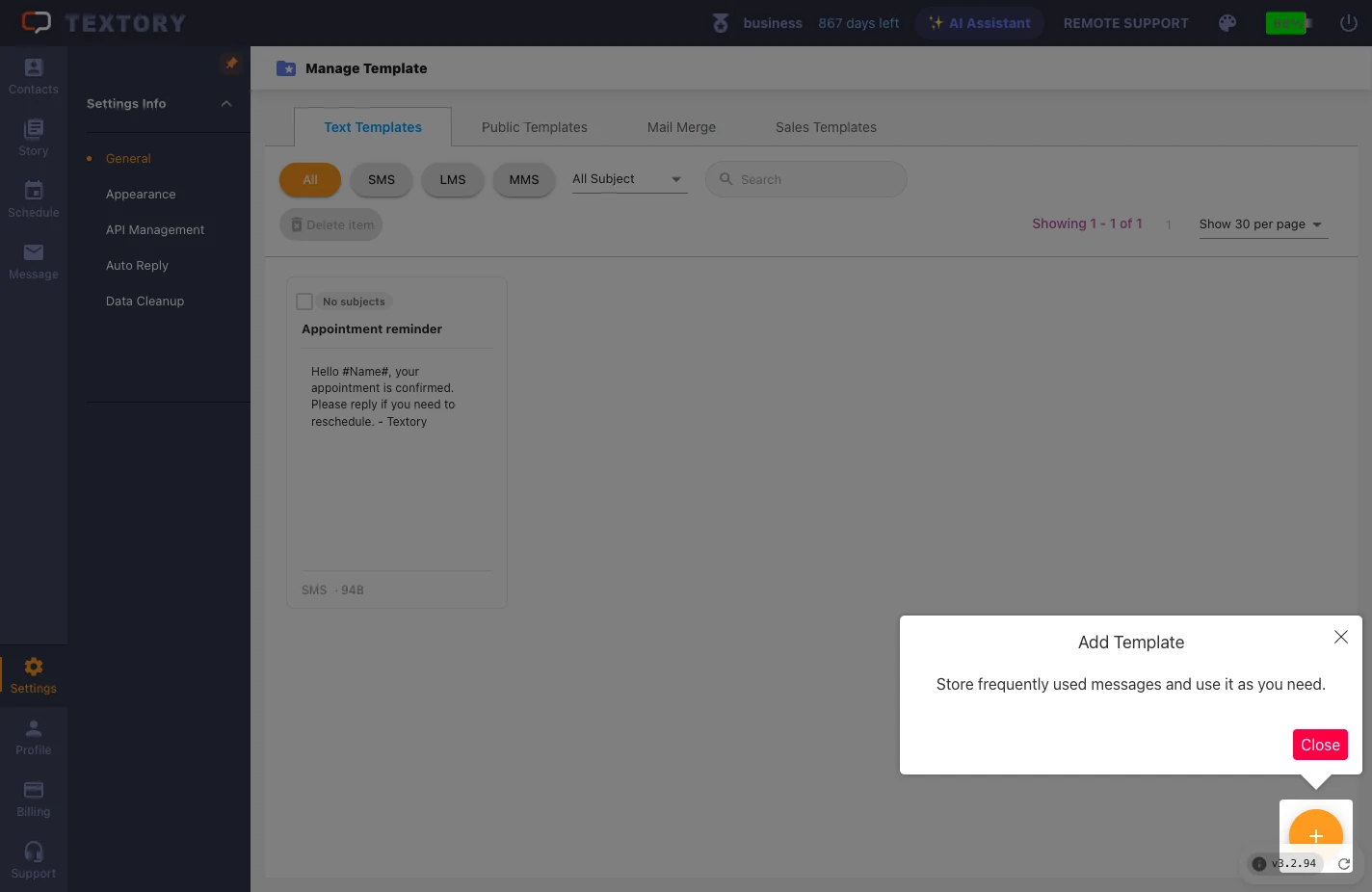
1. Open Manage Template and click +
In Message → Manage Messages → Manage Template, click + at the bottom right.
2. Enter the name and body
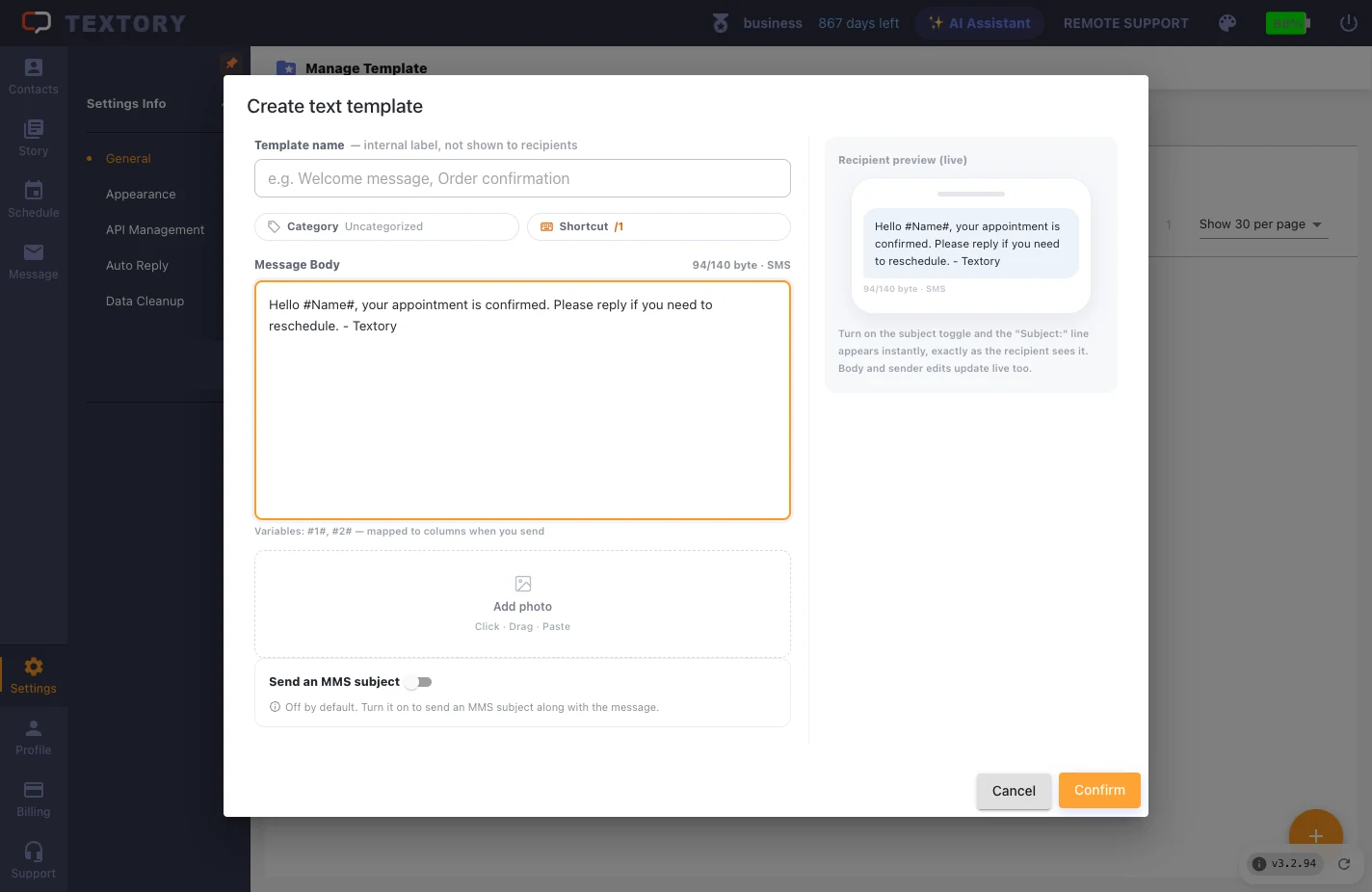
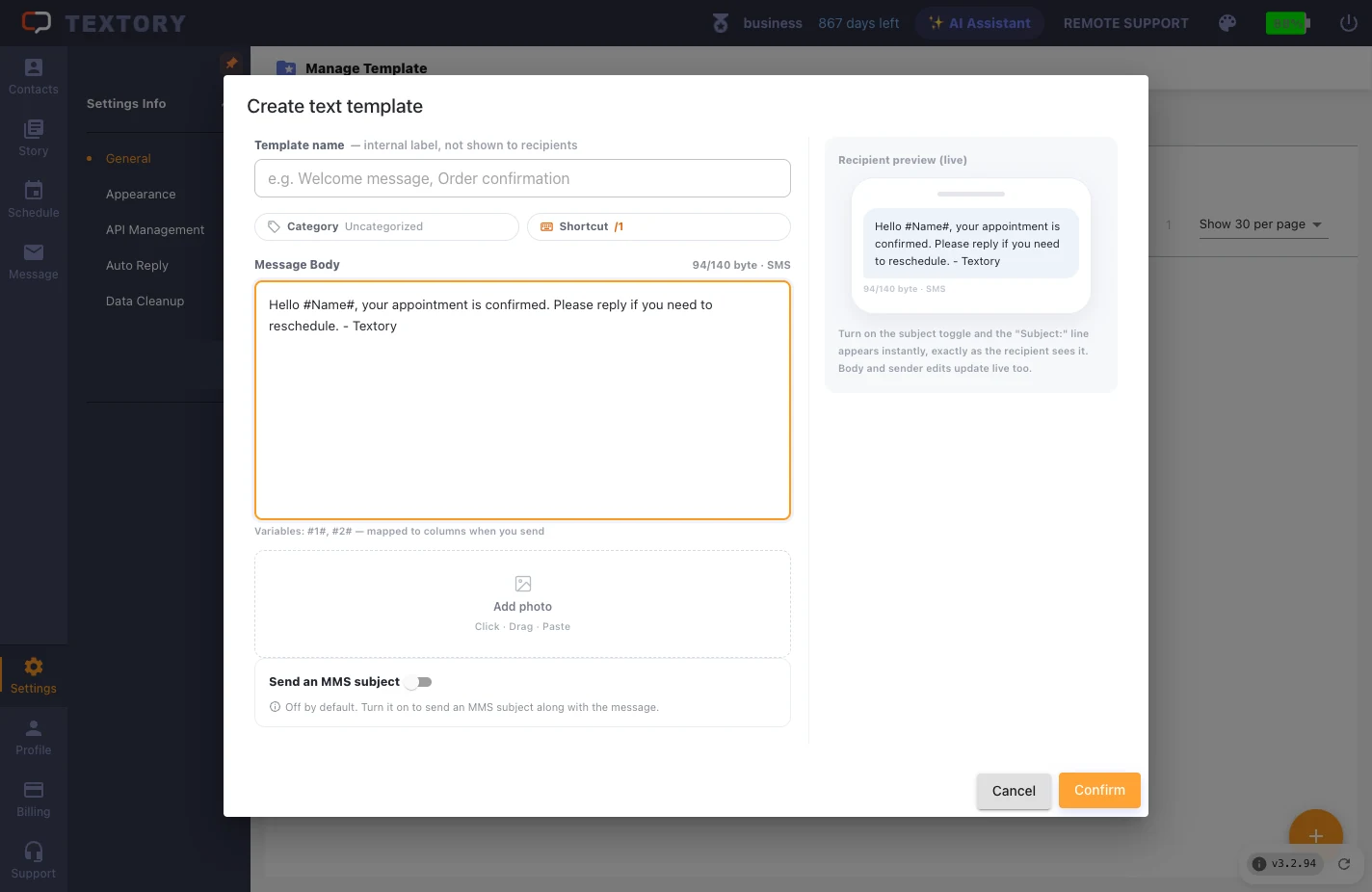
The template name is for your reference and isn’t shown to recipients. Write the text in the body. #name# becomes the customer’s name, and the preview on the right shows what the recipient sees.
3. Save and check the list
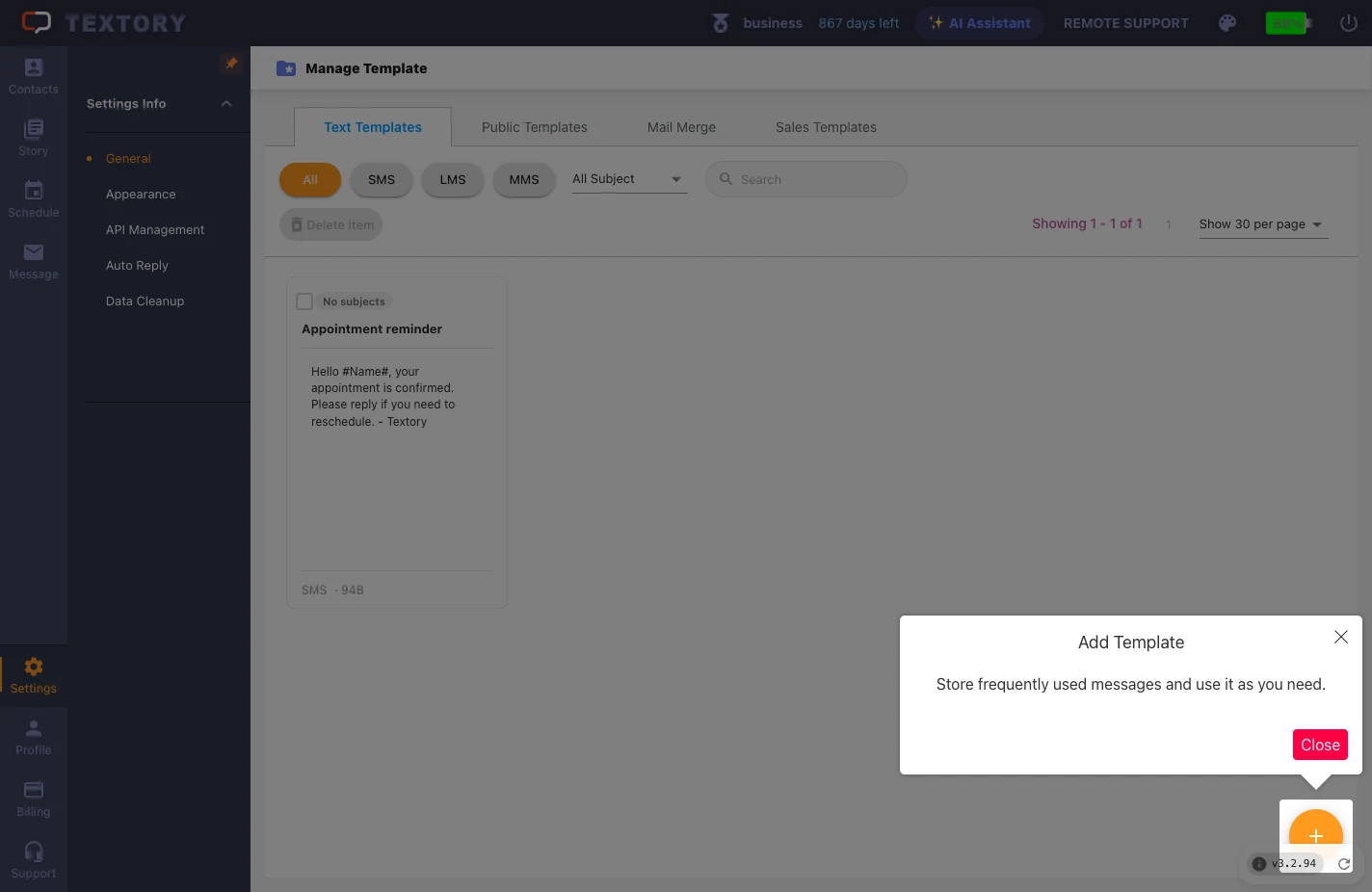
Click Confirm and a new template card appears in the list. Ready-made texts from Textory are on the Public Templates tab.
4. Load it in Send Messages
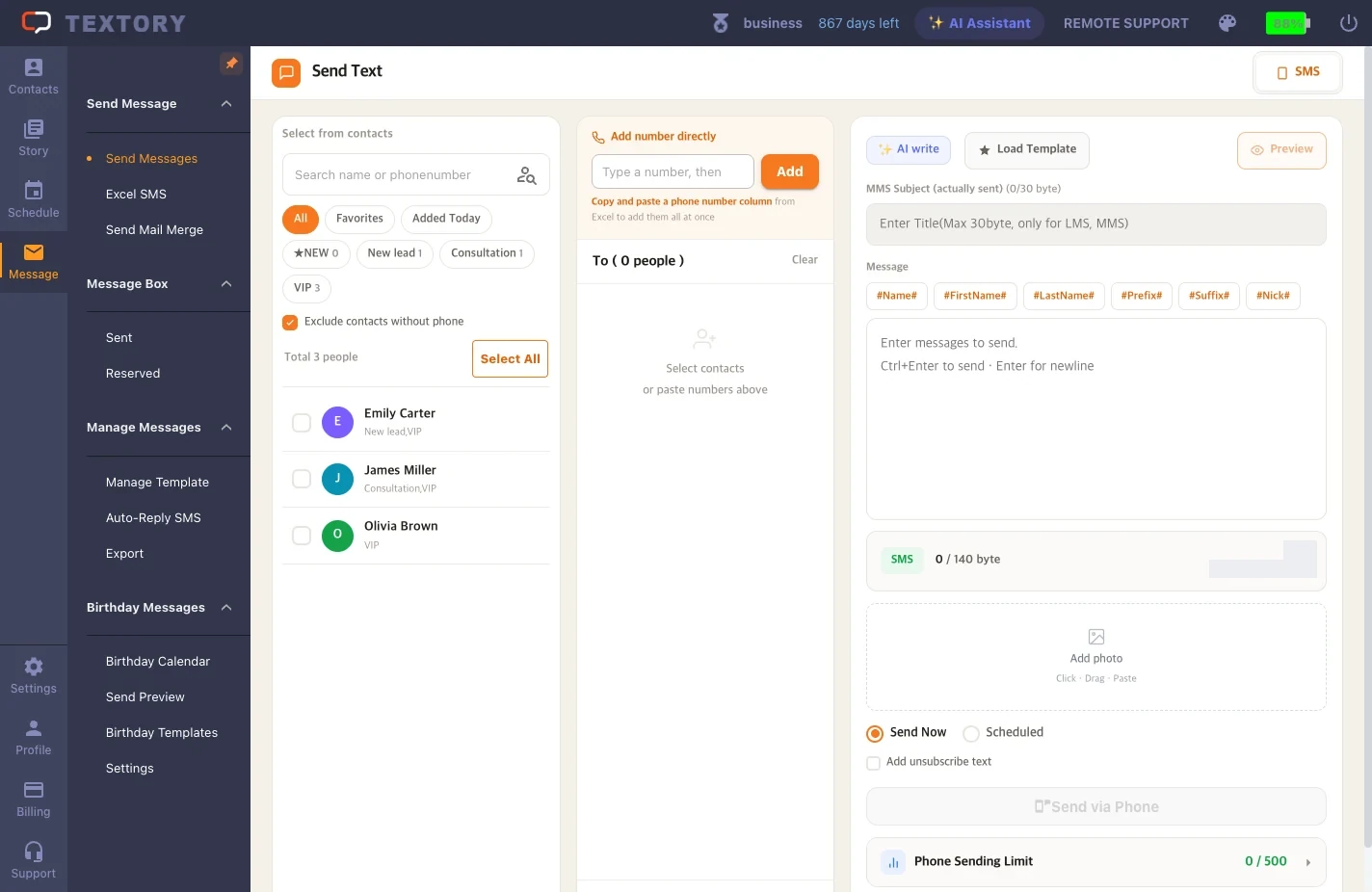
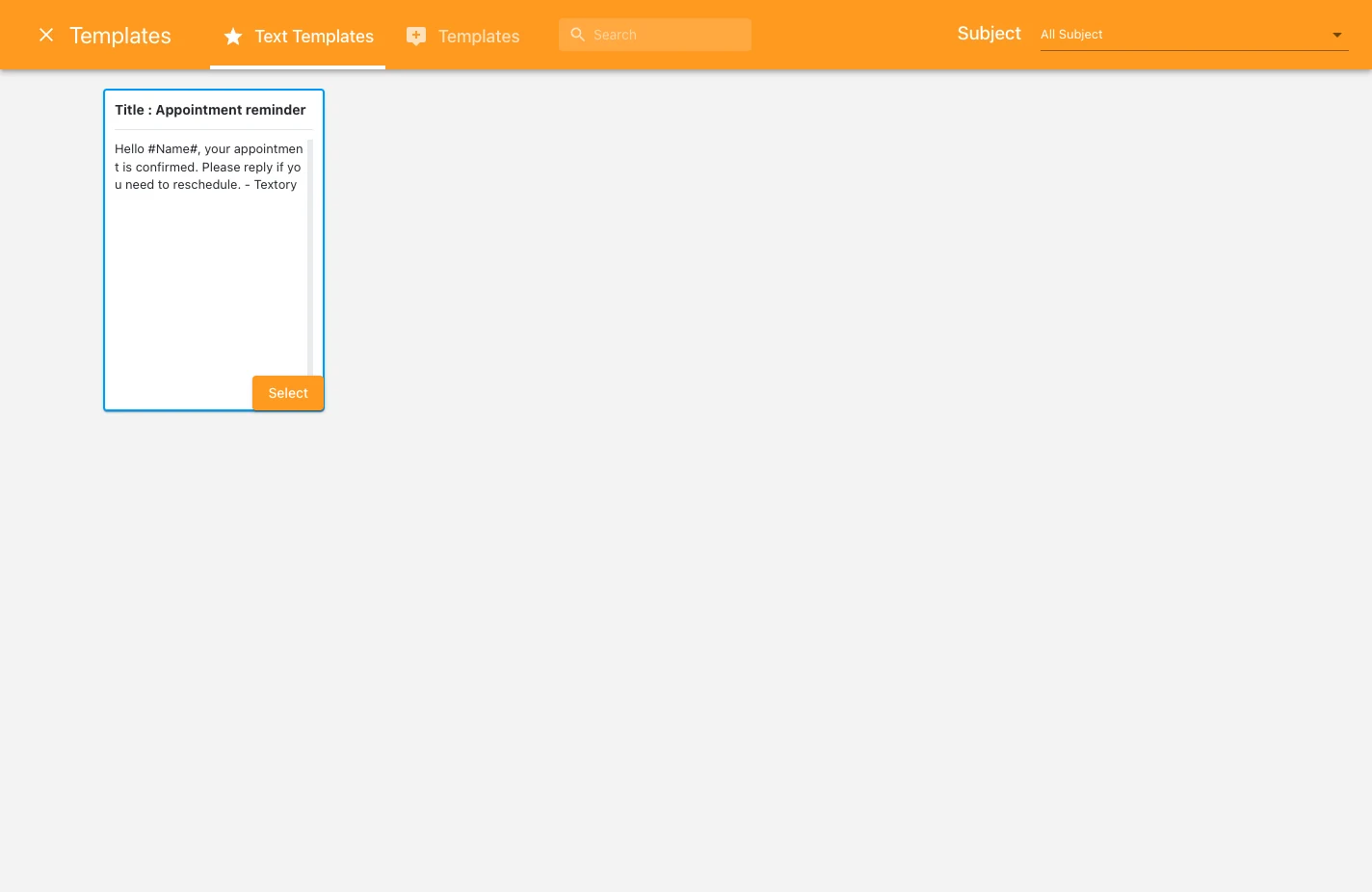
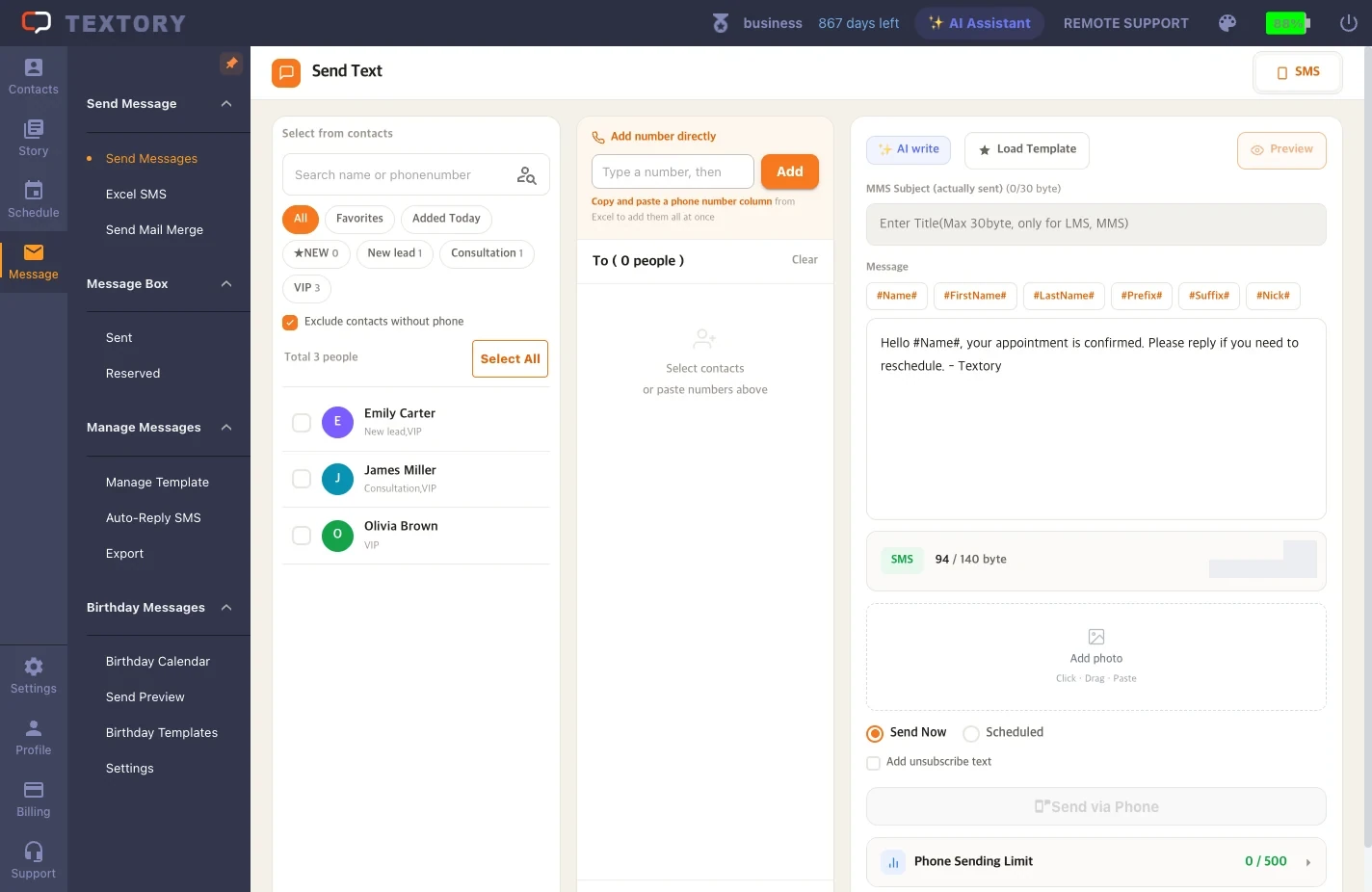
In Send Messages, click Load Template, pick a card and click Select. The message body fills in and the byte count updates. Edits here don’t change the saved template.
Next guides
Still stuck?