Set up automatic birthday messages
1. Open Birthday Templates and add a template
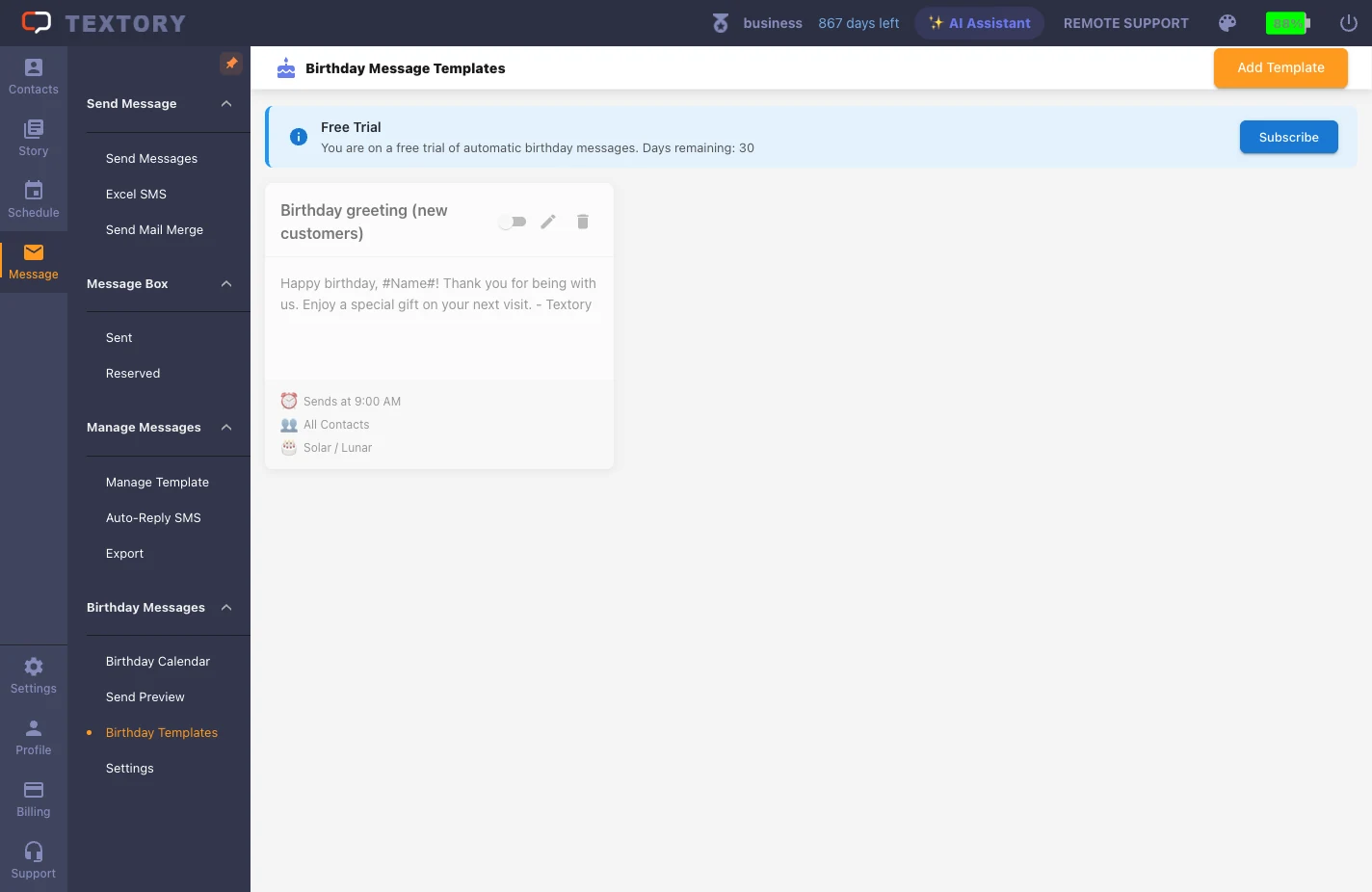
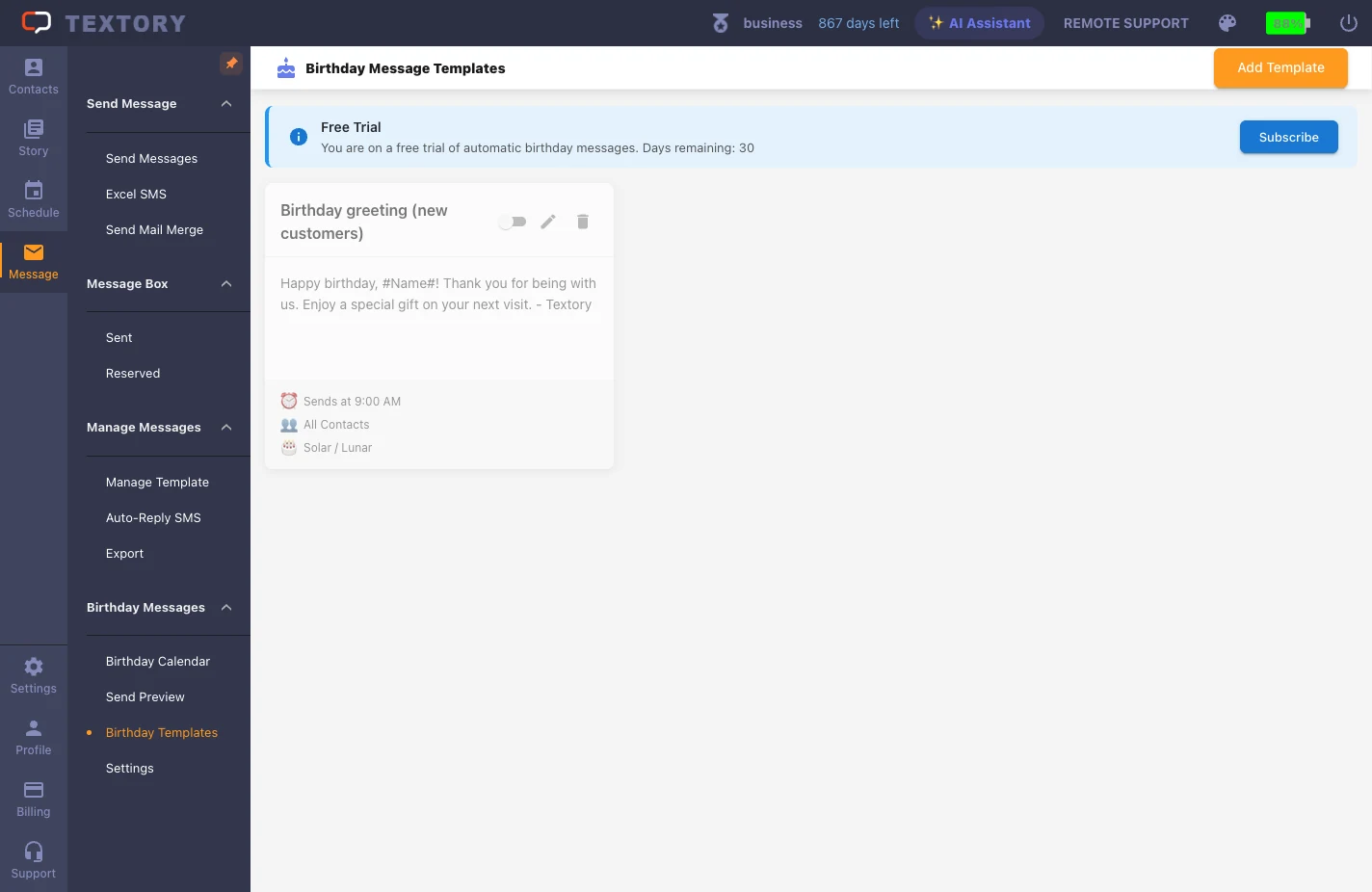
Customers with a birthday in their contact are eligible. In Message → Birthday Messages → Birthday Templates, click New Template.
2. Enter the title and text
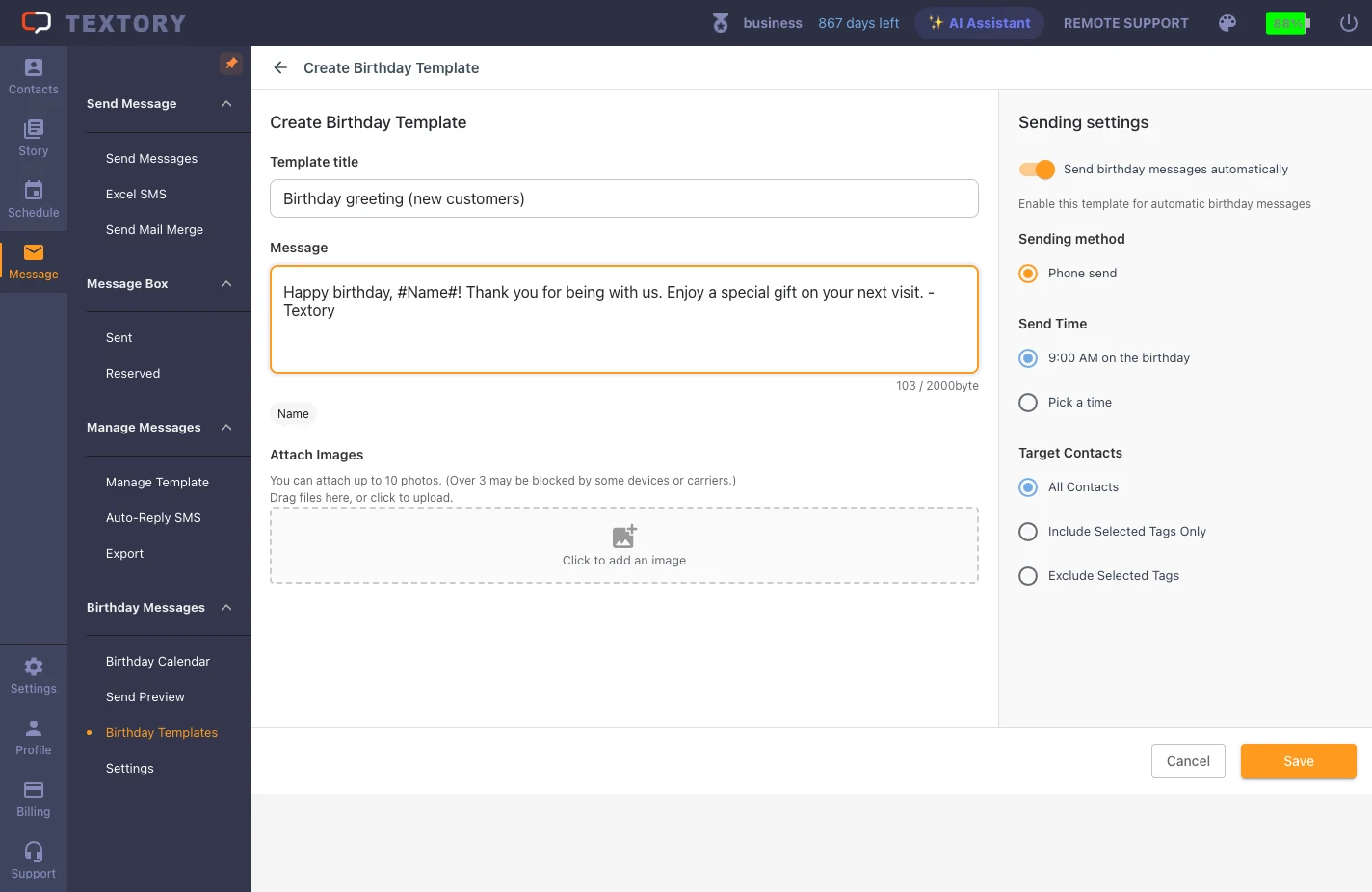
The title is for your reference; the text is what’s sent. Use the Name button to insert #name#, which becomes each customer’s name.
3. Turn on auto-send and set the time and recipients
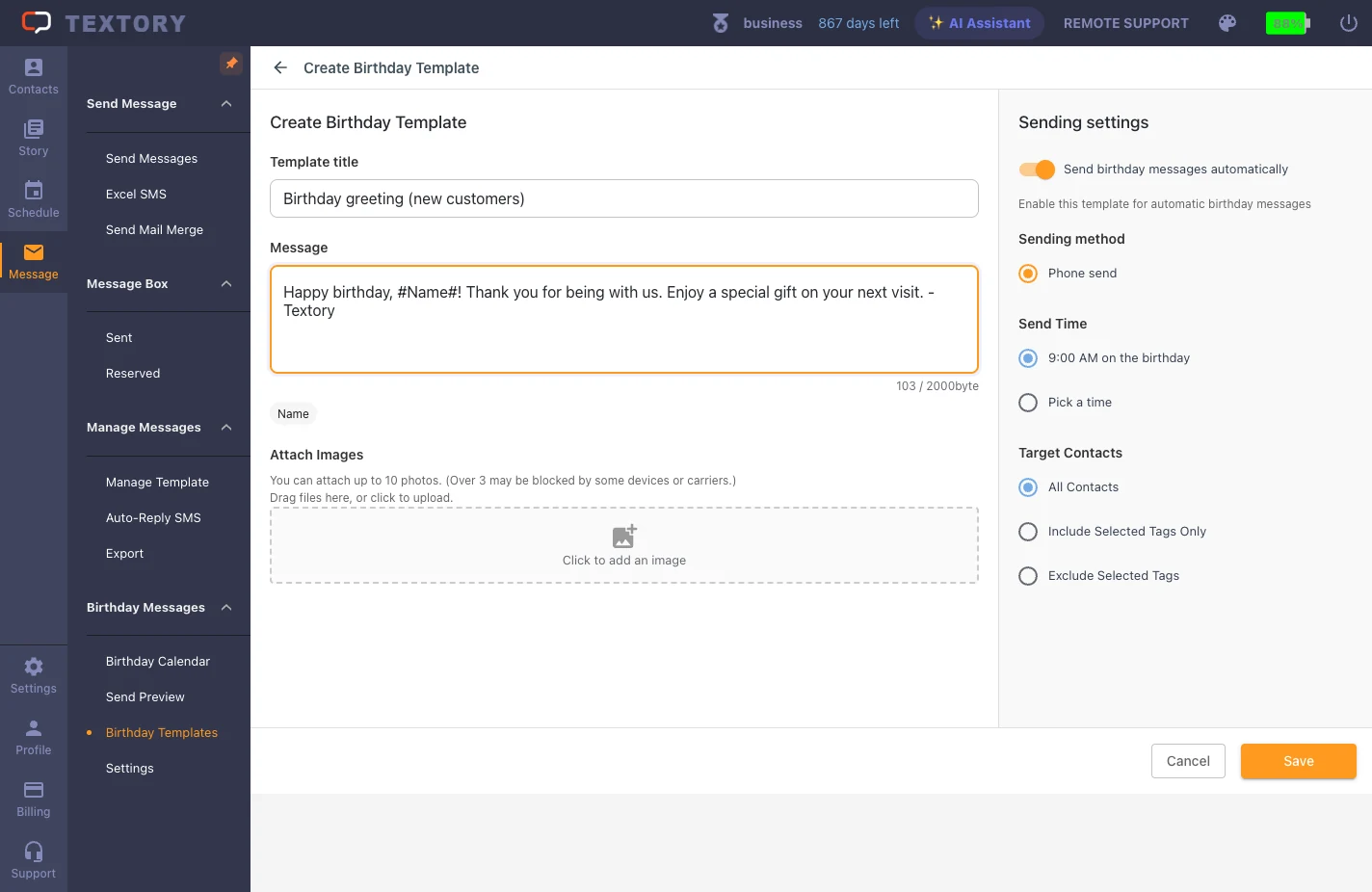
Turn on the Send birthday messages automatically switch, then set the time (default 9 am on the day) and recipients (all contacts, include tags, exclude tags). Messages go out from your connected phone.
4. Save
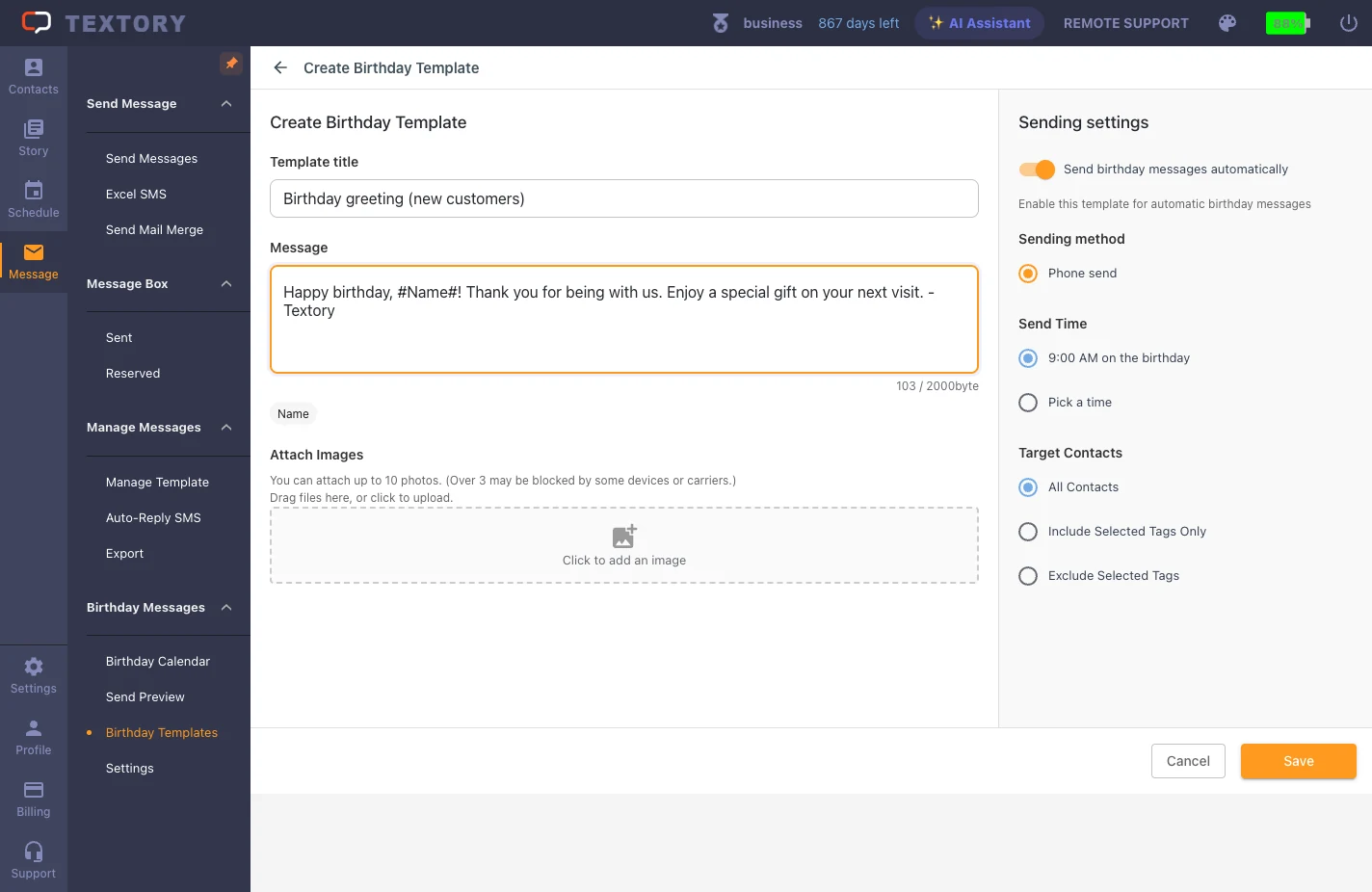
Click Save.
5. Check it’s on in the list
Only one auto-send template can be on, so turning on a new one turns off the previous one. The Send Preview menu shows customers with birthdays coming up.
Next guides
Still stuck?