Add a single contact
1. Open New Contact
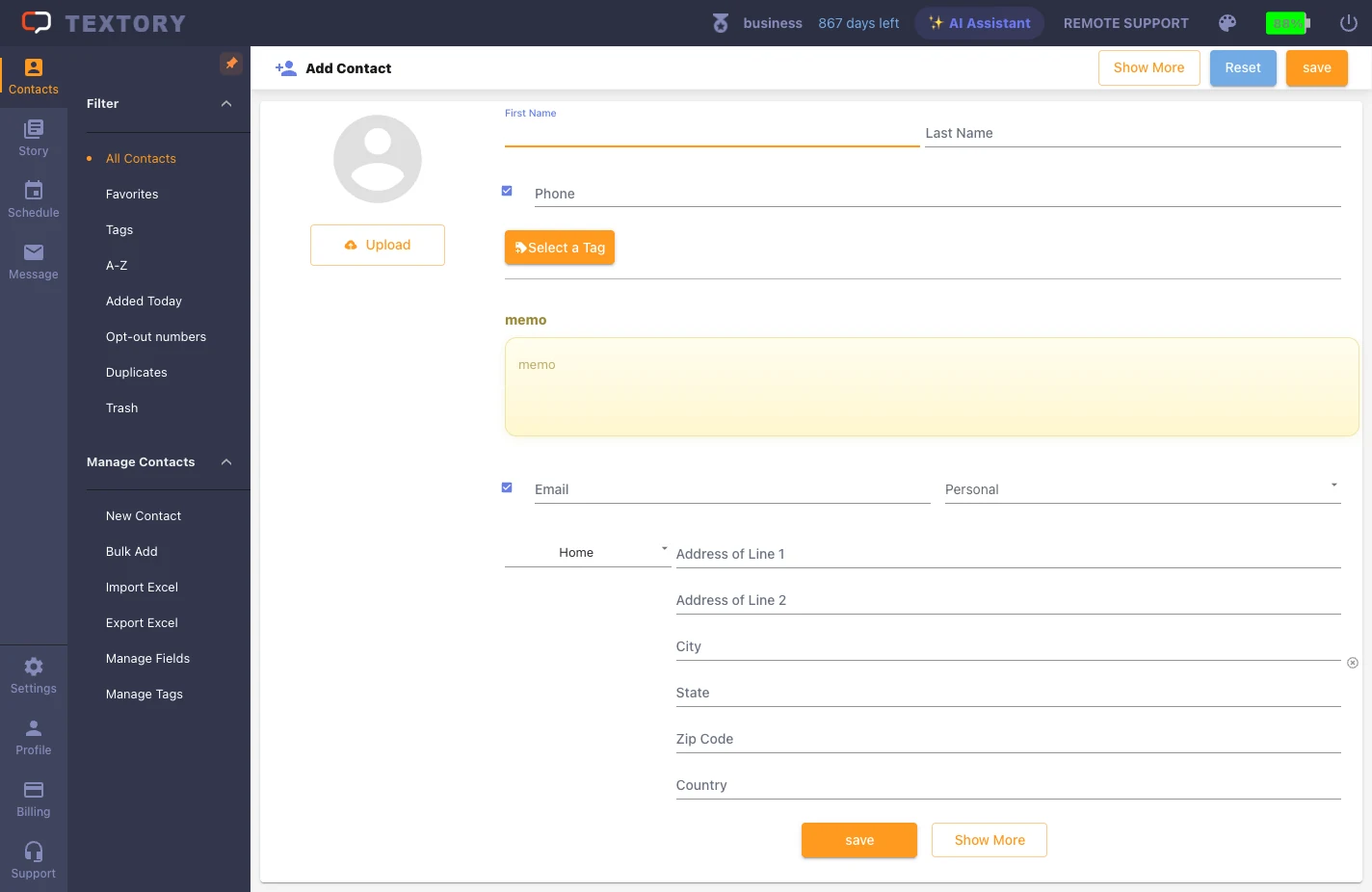
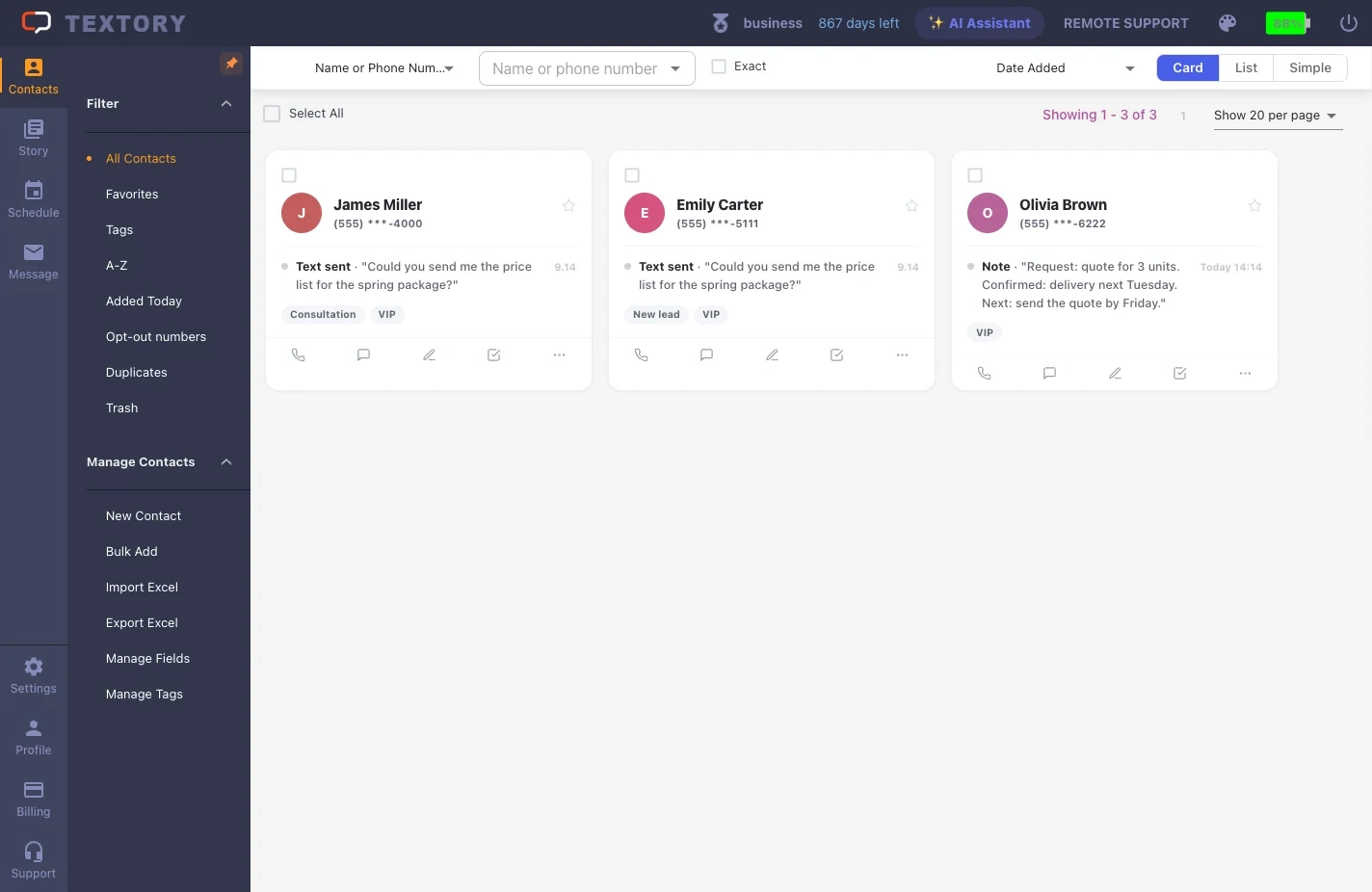
In the Contacts menu on the left, click Manage Contacts → New Contact. The “New Contact” screen opens on the right.
2. Enter the name and phone number
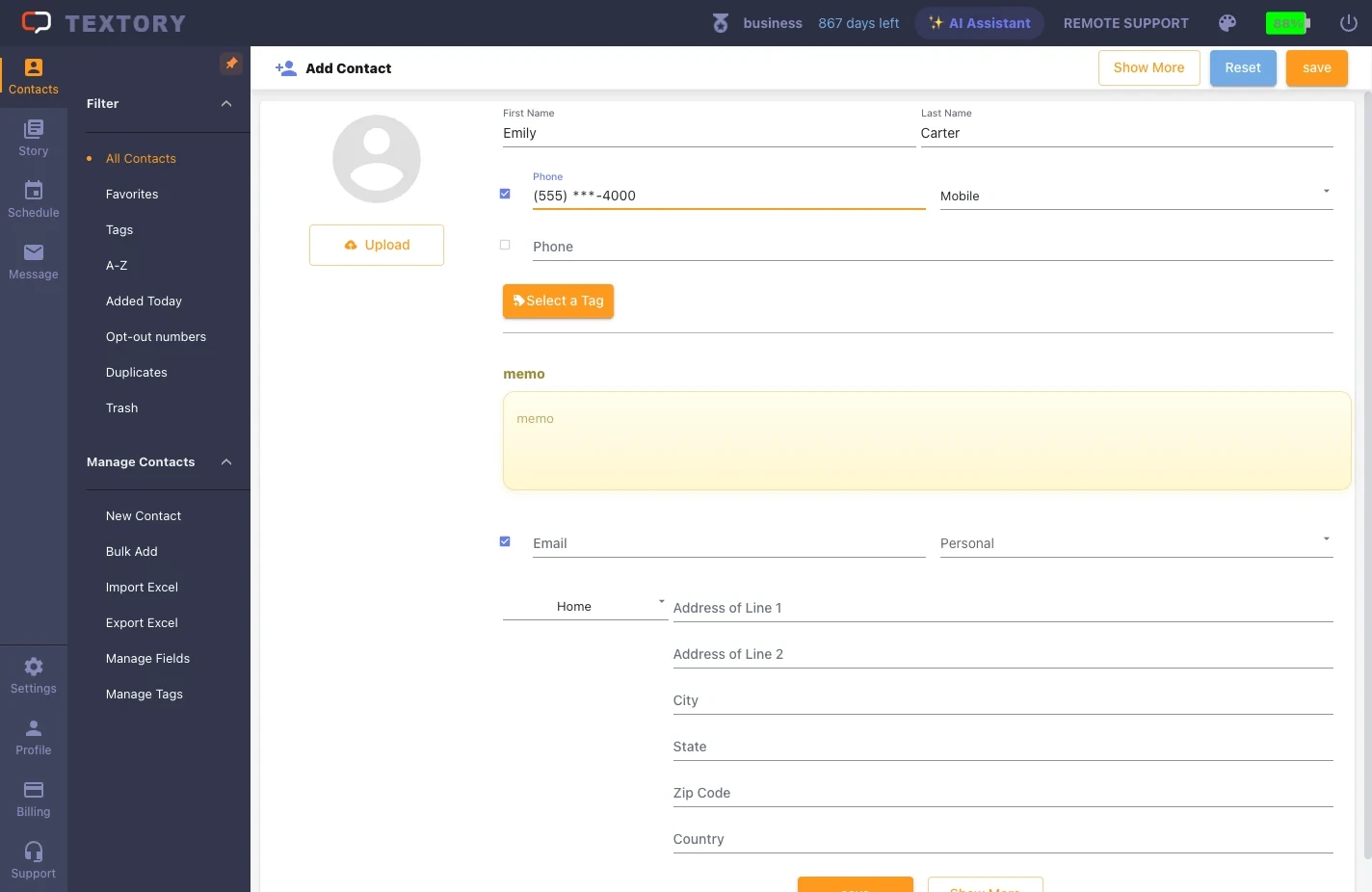
First name and last name are separate fields. Type the phone number and the hyphens are added automatically. Example: Emily Carter, (555) ***-4567.
3. Enter a memo and email
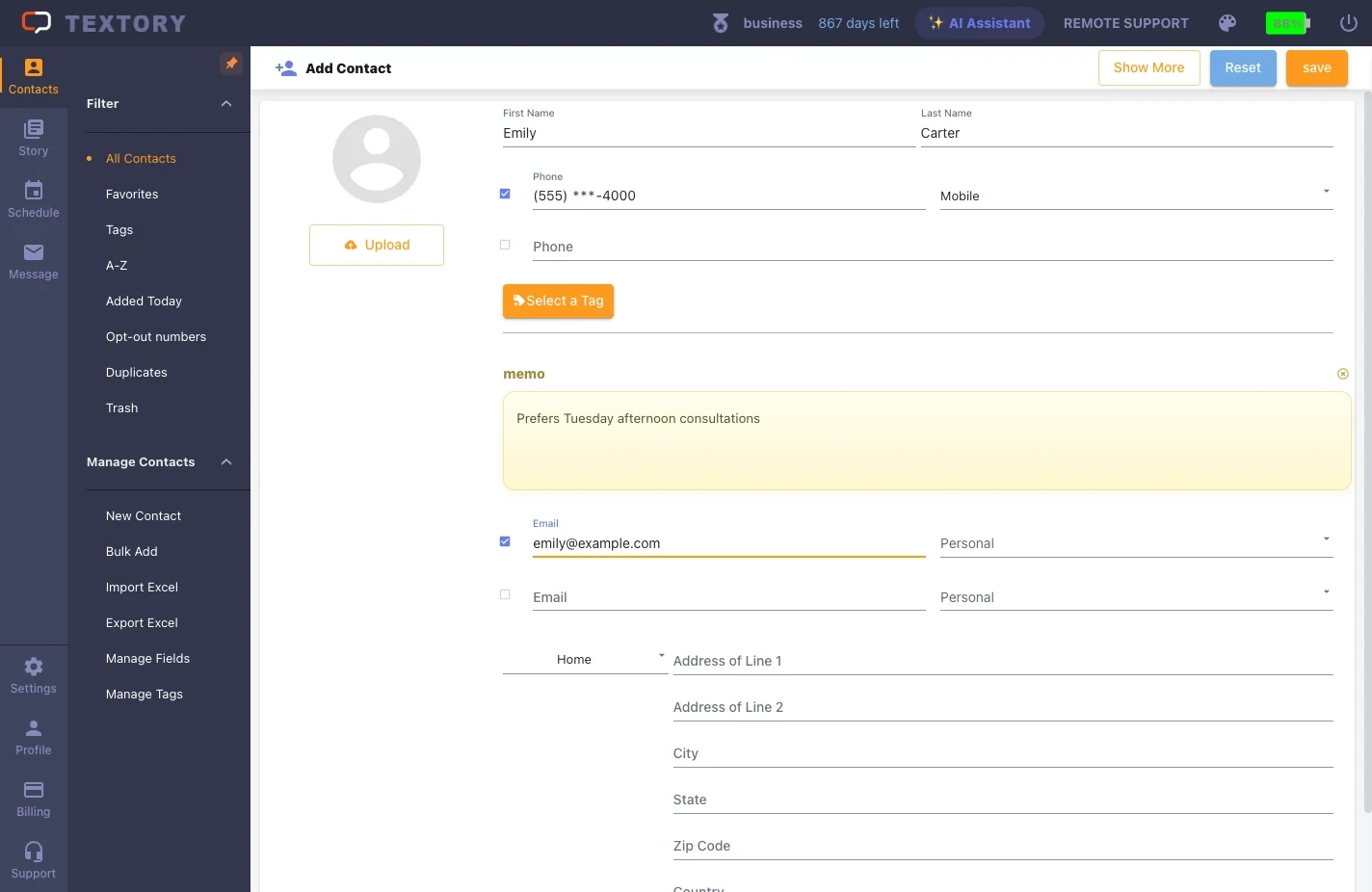
In the yellow memo box, note what to remember about this customer, like “prefers Tuesday afternoon consultations”. It’s one fixed memo per customer. Notes that build up with each consultation go in Story.
If you need fields like email or address, click More fields below.
4. Save
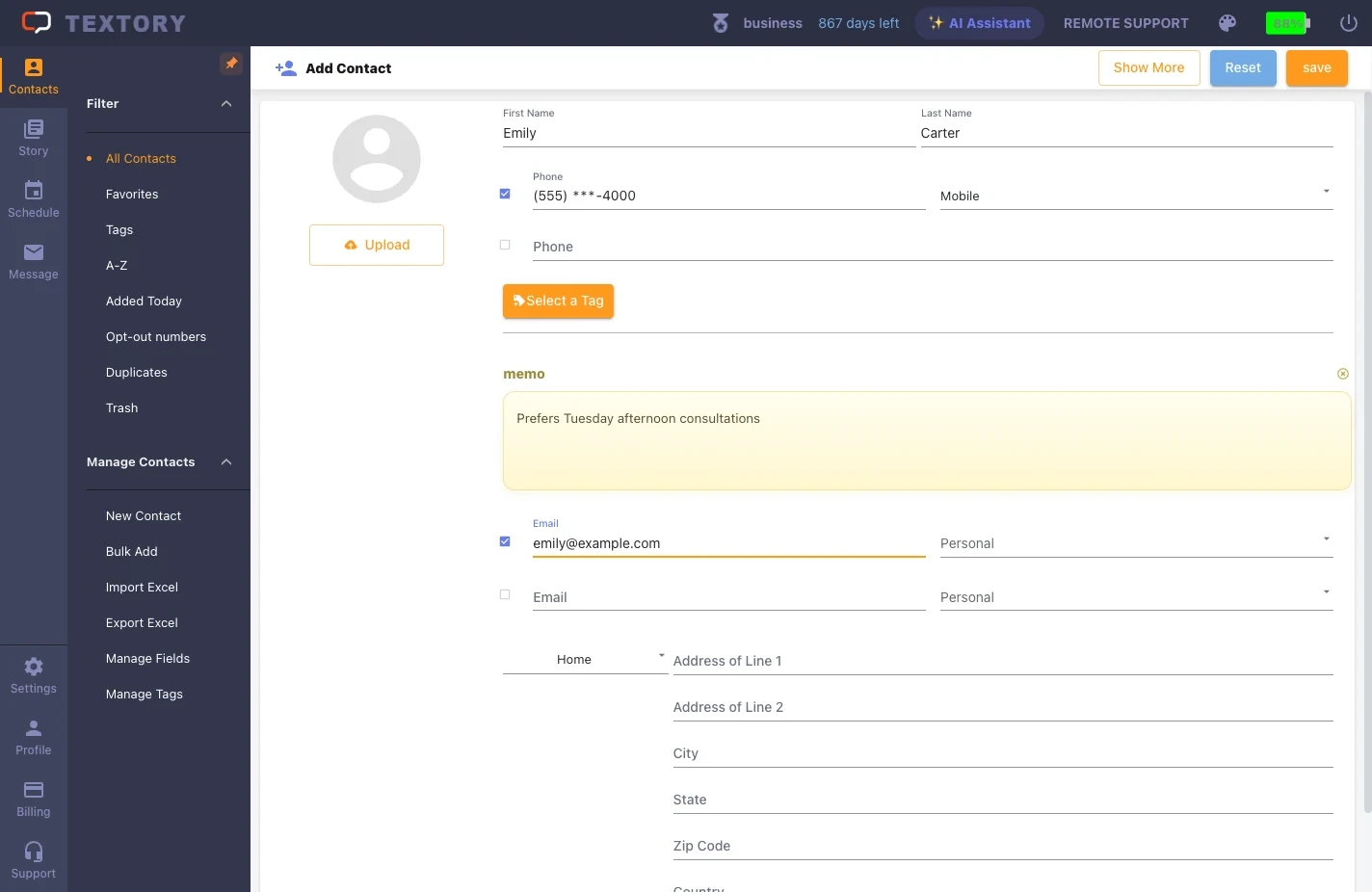
Double-check that the name, phone, memo and email belong to the same customer, then click Save at the top right.
5. Check in All contacts
In Contacts → All contacts, search for the name or number you just added. If they match what you entered, you’re done.
Next guides
Still stuck?