Organize customers with tags
1. Open Manage Tags
In the Contacts menu on the left, open Manage Contacts → Manage Tags.
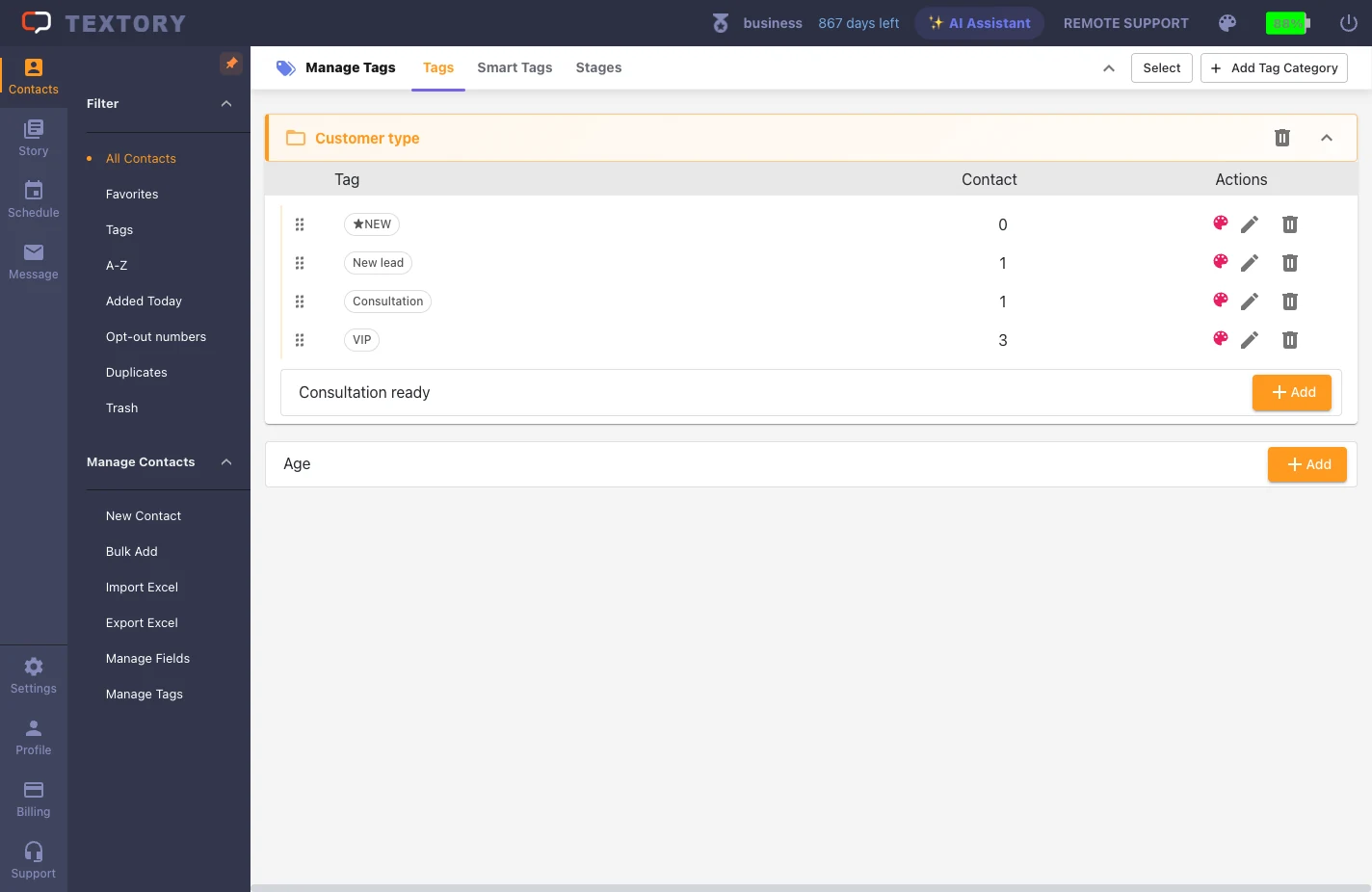
2. Create categories and tags
First create a category for each criterion, like “Age” or “Region”, then add tags under it, such as 20s/30s or New York/California. A new tag has 0 customers until you apply it — creating and applying are separate steps.
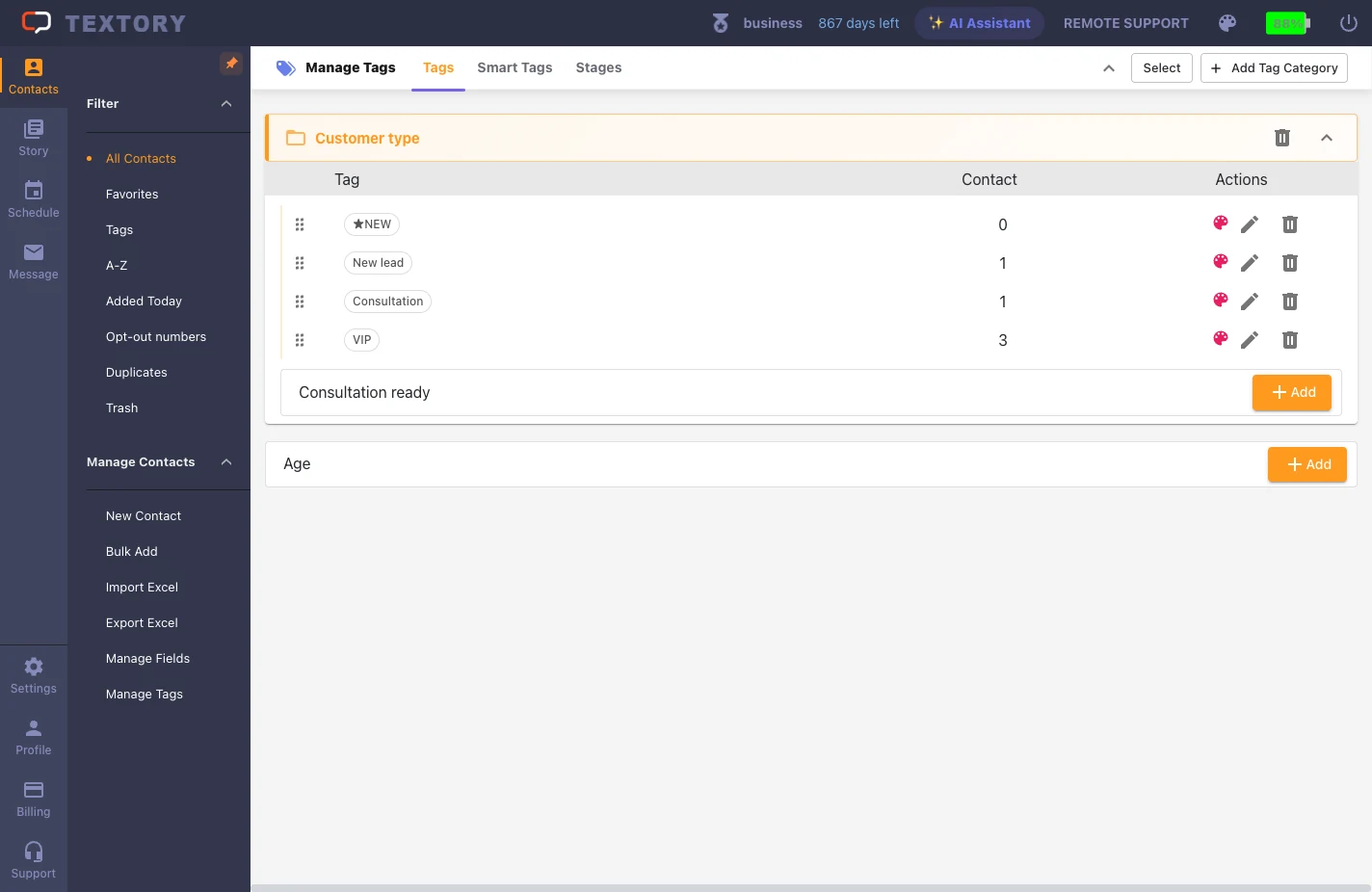
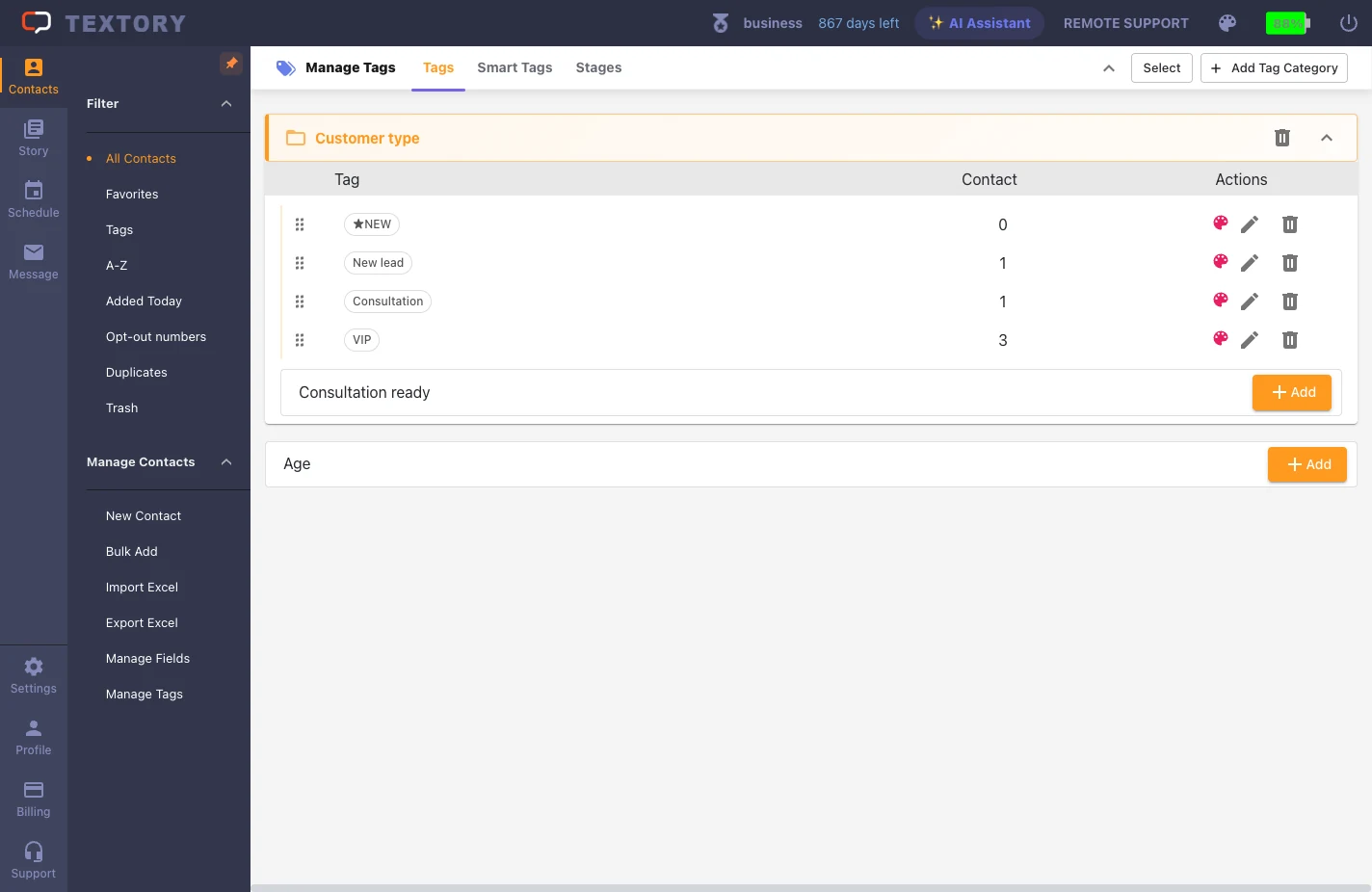
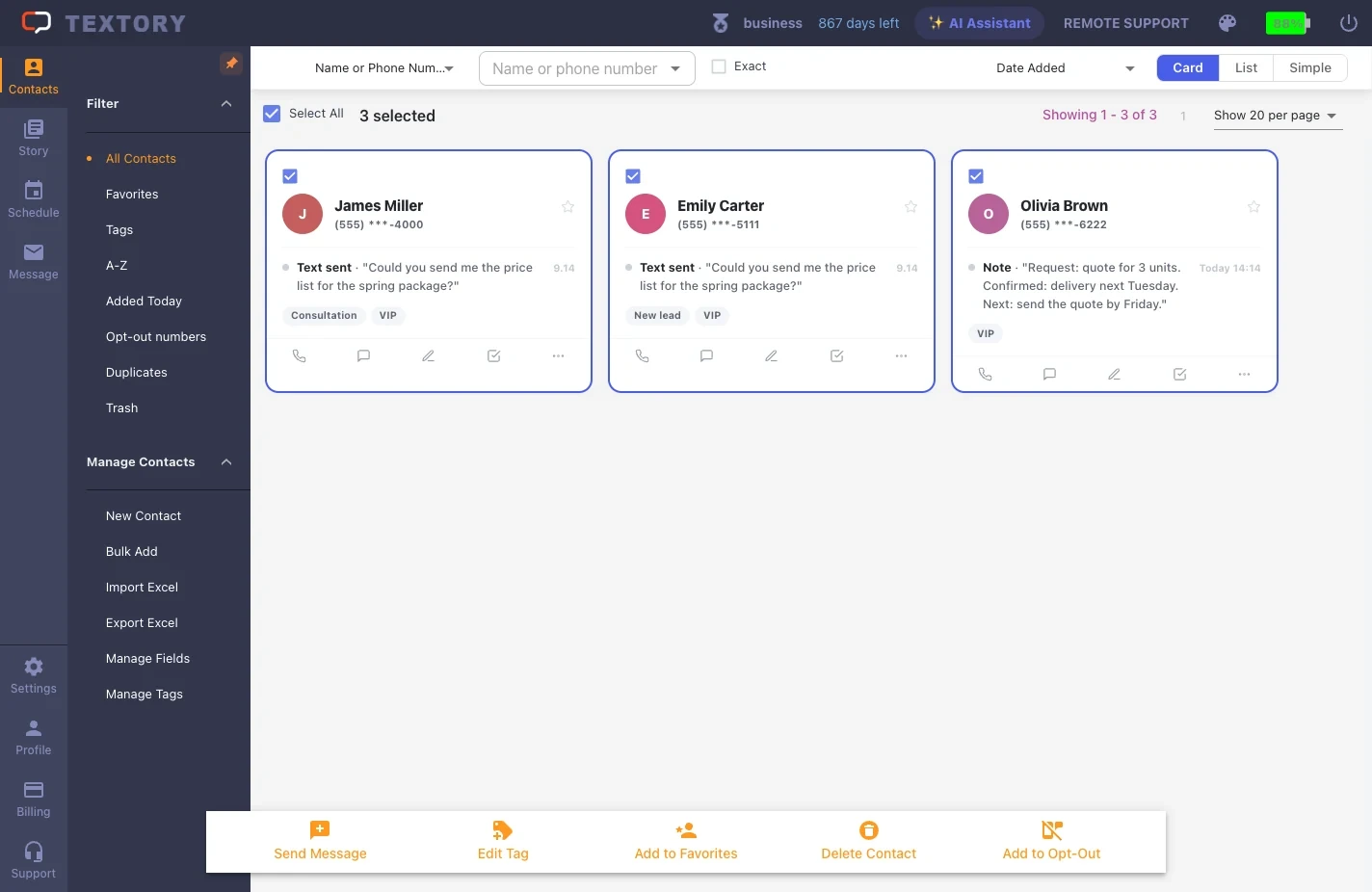
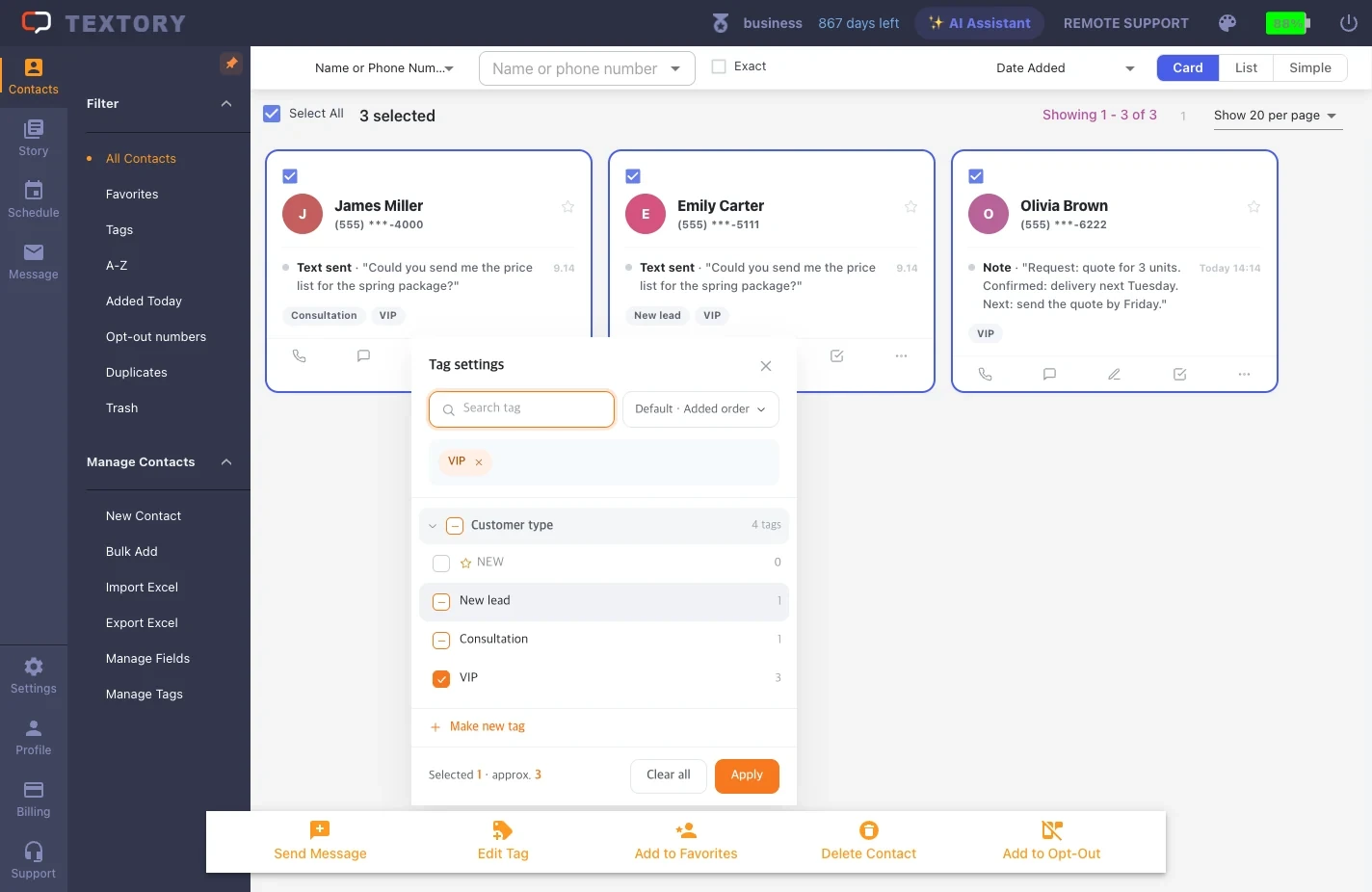
3. Add a tag to several customers
In All contacts, check the first customer, then hold Shift and check the last one to select everyone in between. In the action bar below, click Edit Tag, choose the tag and click Apply.
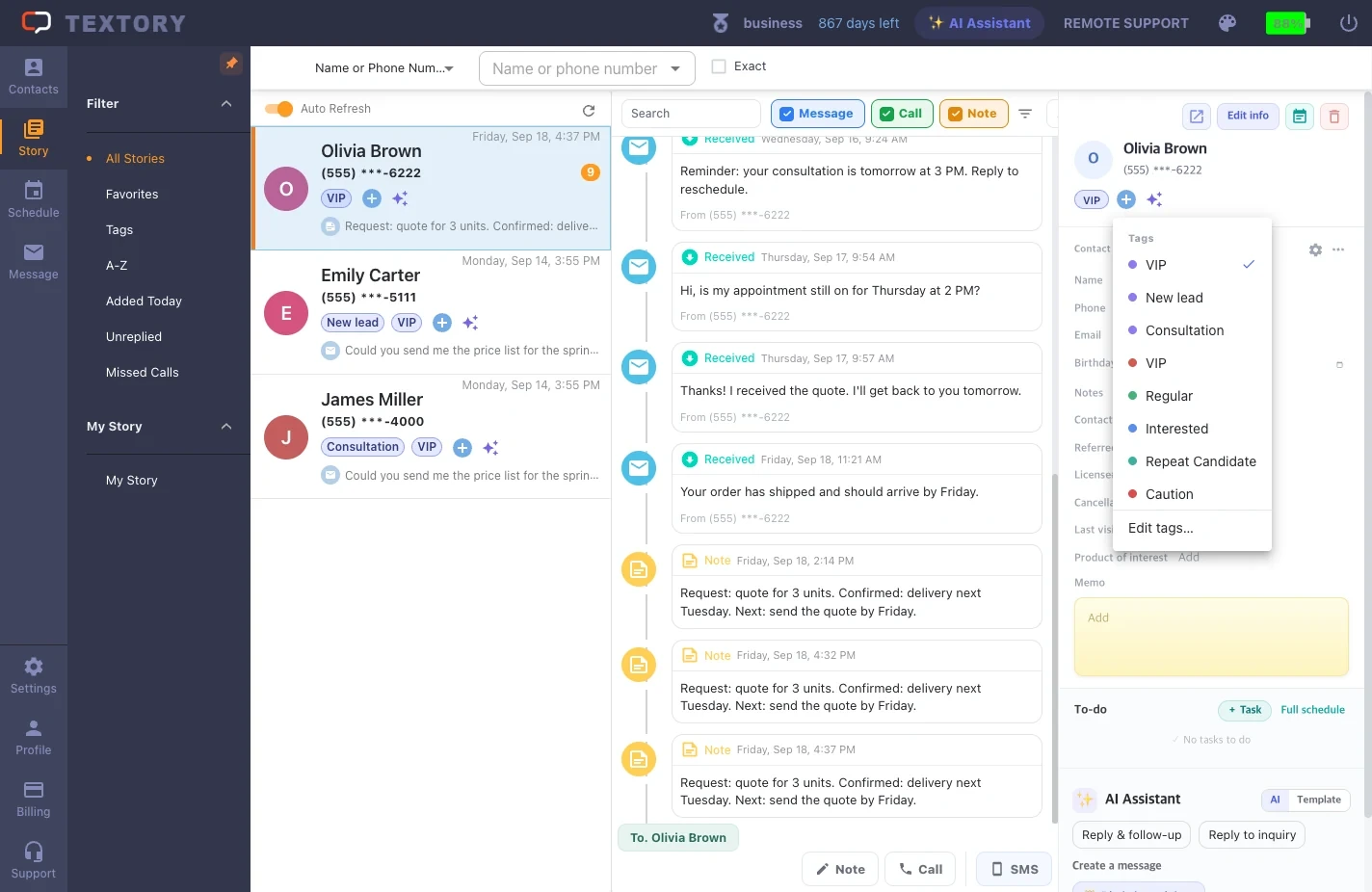
4. Add a tag from Story
Select a customer in Story and click the blue + next to the tags in the customer panel on the right. The tag list opens; tags already applied show a ✓.
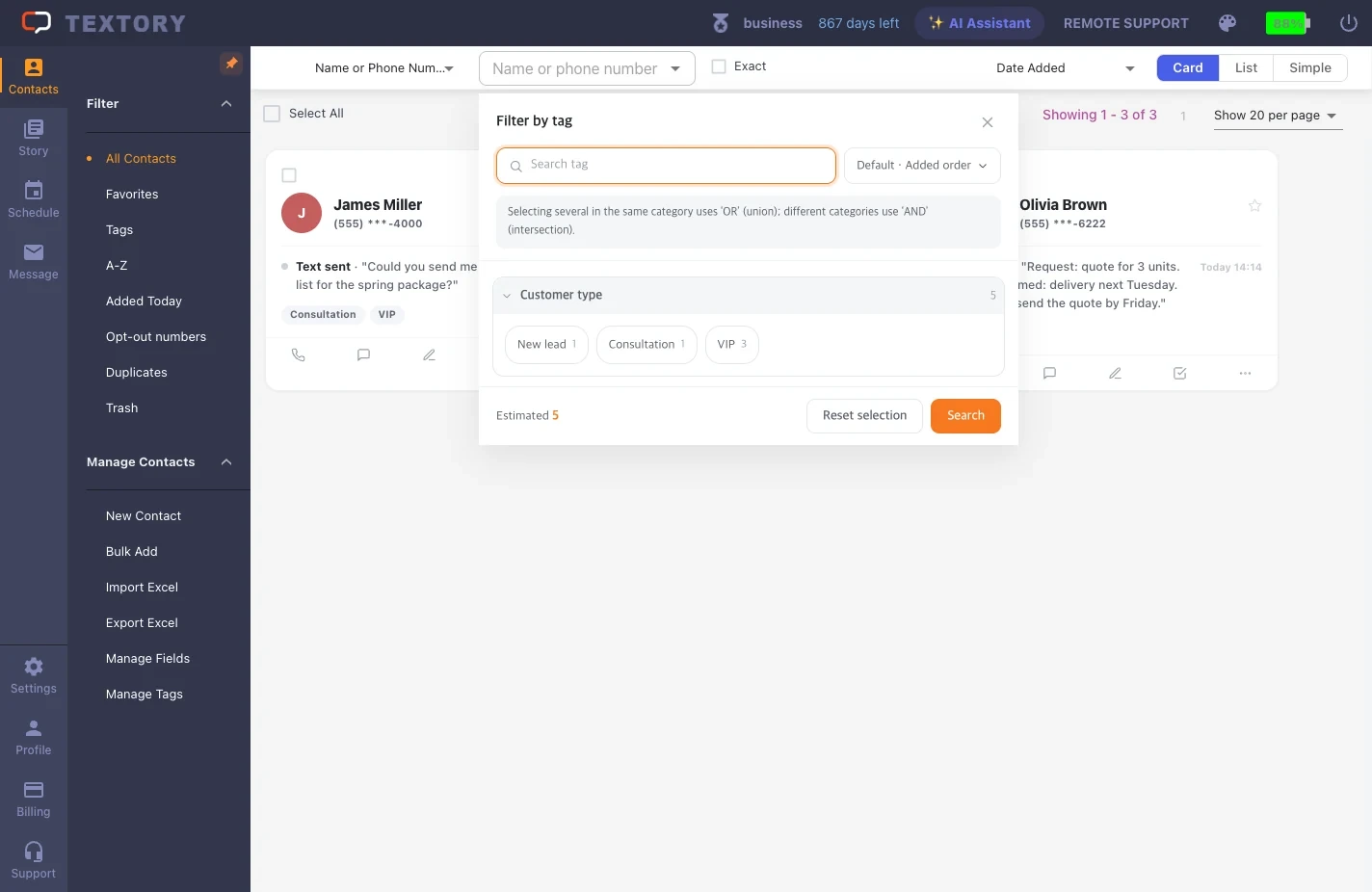
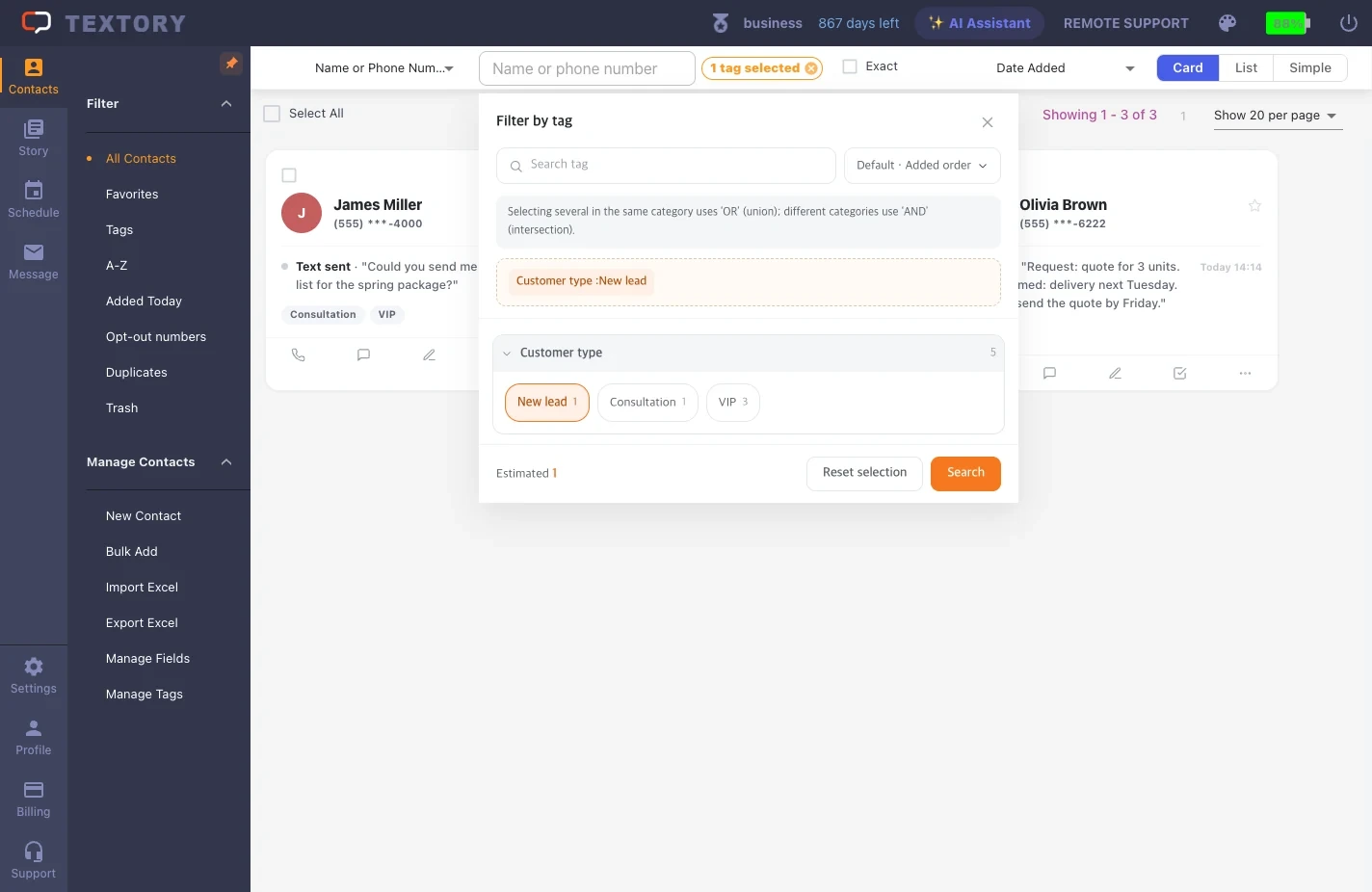
5. Search contacts by tag
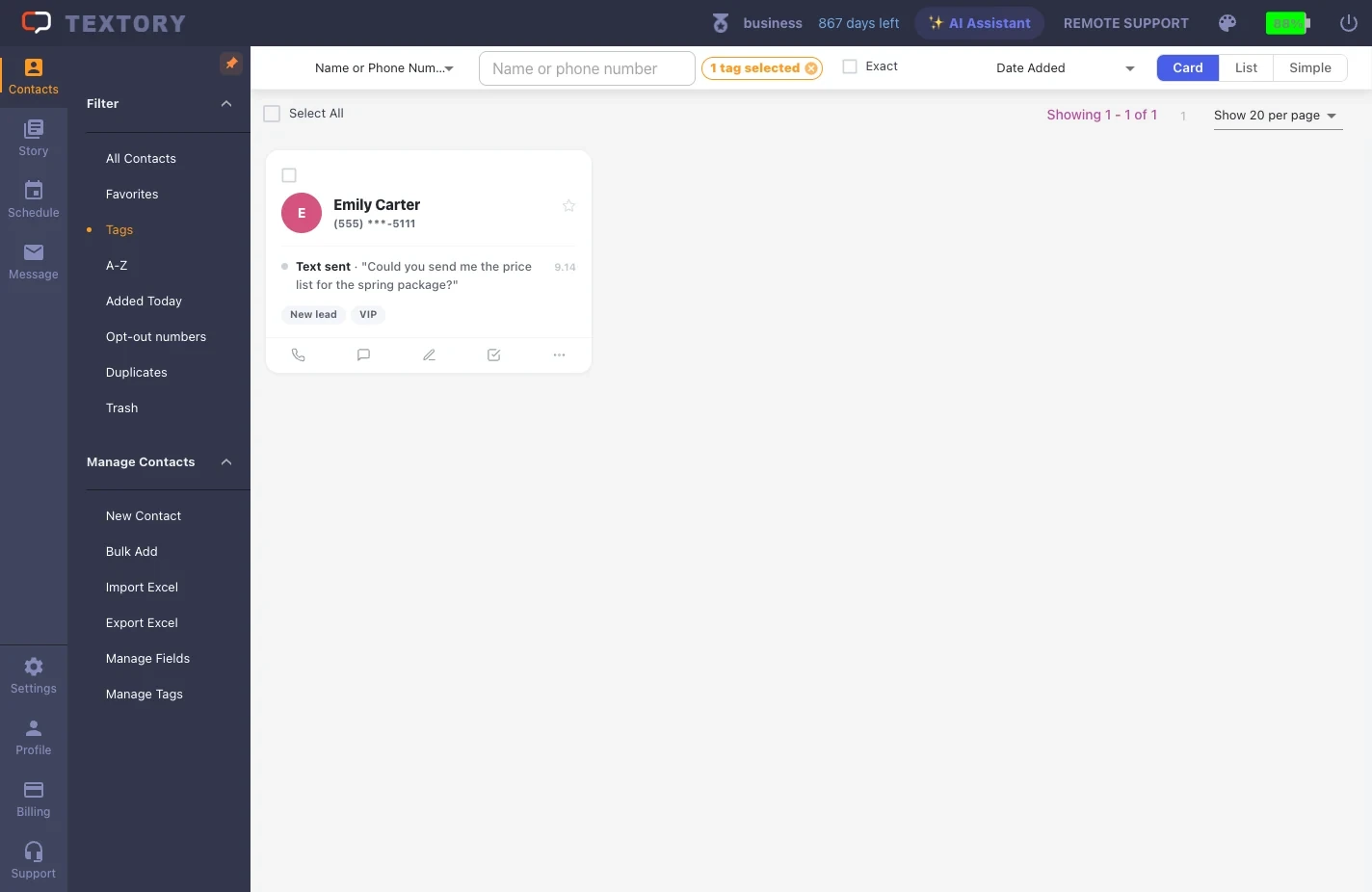
Click the down arrow to the right of the search box in All contacts to open the tag filter. Pick tags and click Search to show only those customers. Tags in the same category are combined with OR, different categories with AND.
Next guides
Still stuck?