Add to-dos and appointments
1. Open To Do
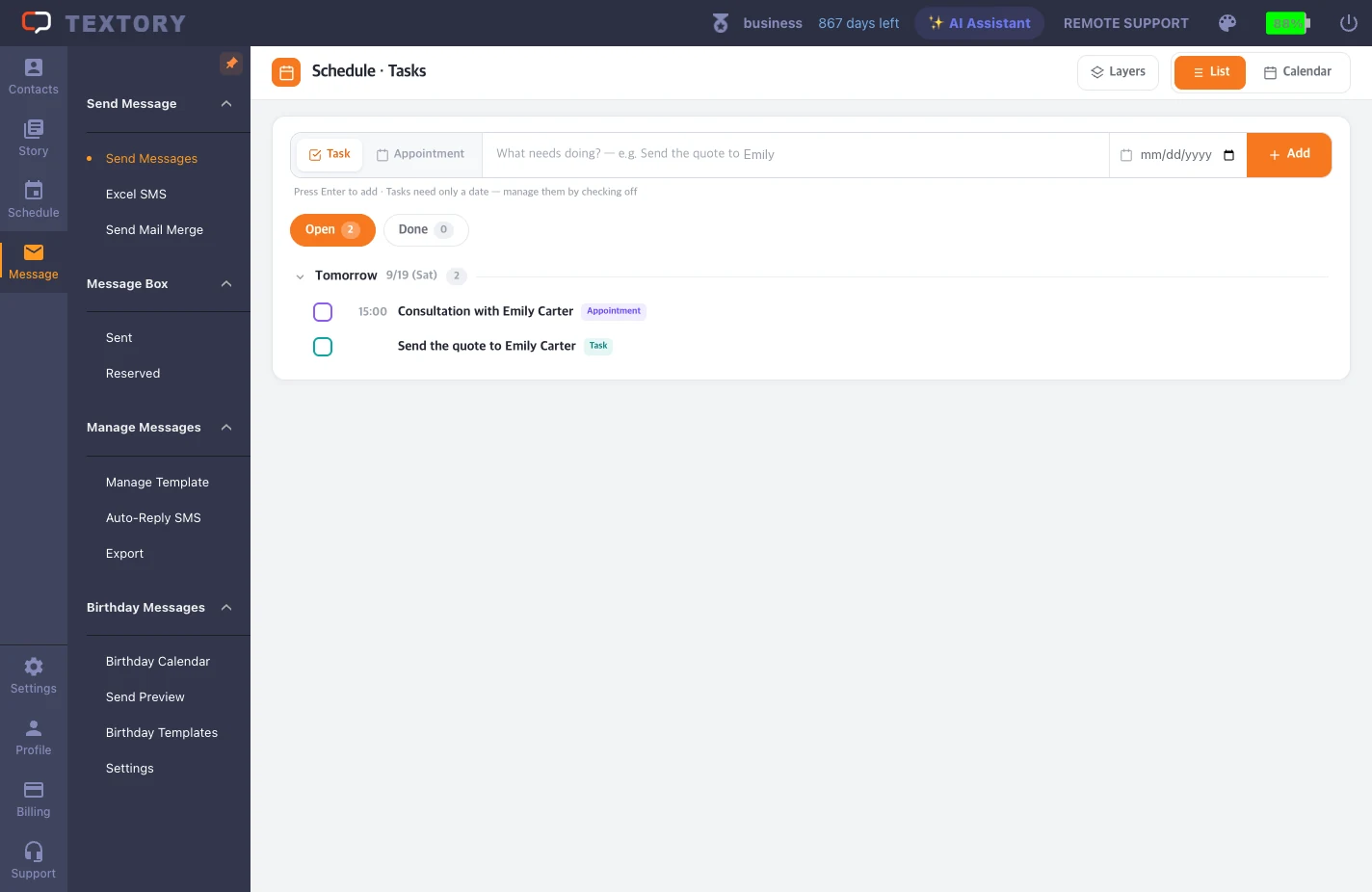
Open Schedule → To Do. A to-do only needs a due date, like “send the quote”; an appointment needs a time, like “consultation Friday at 3”.
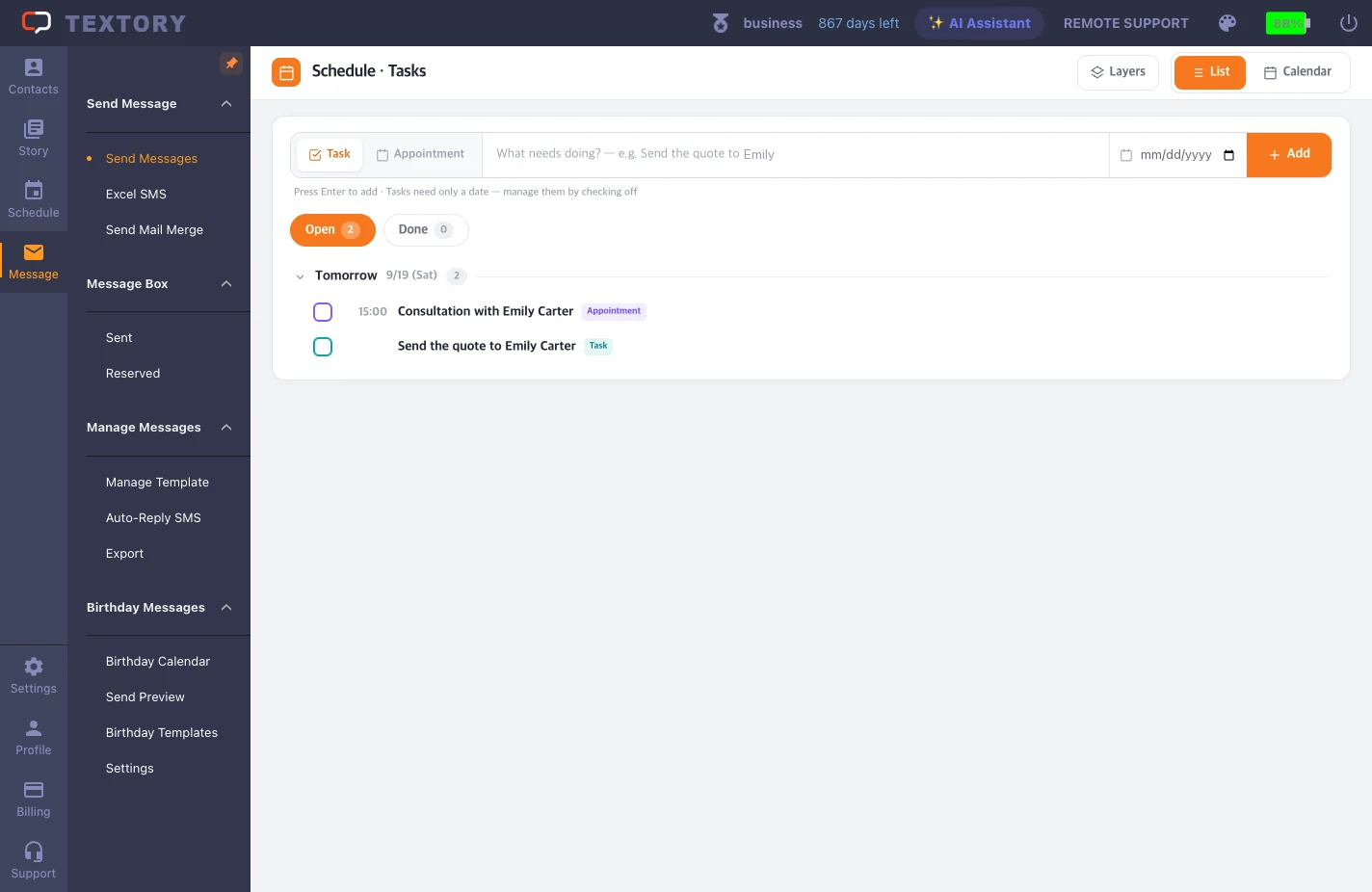
2. Add a to-do
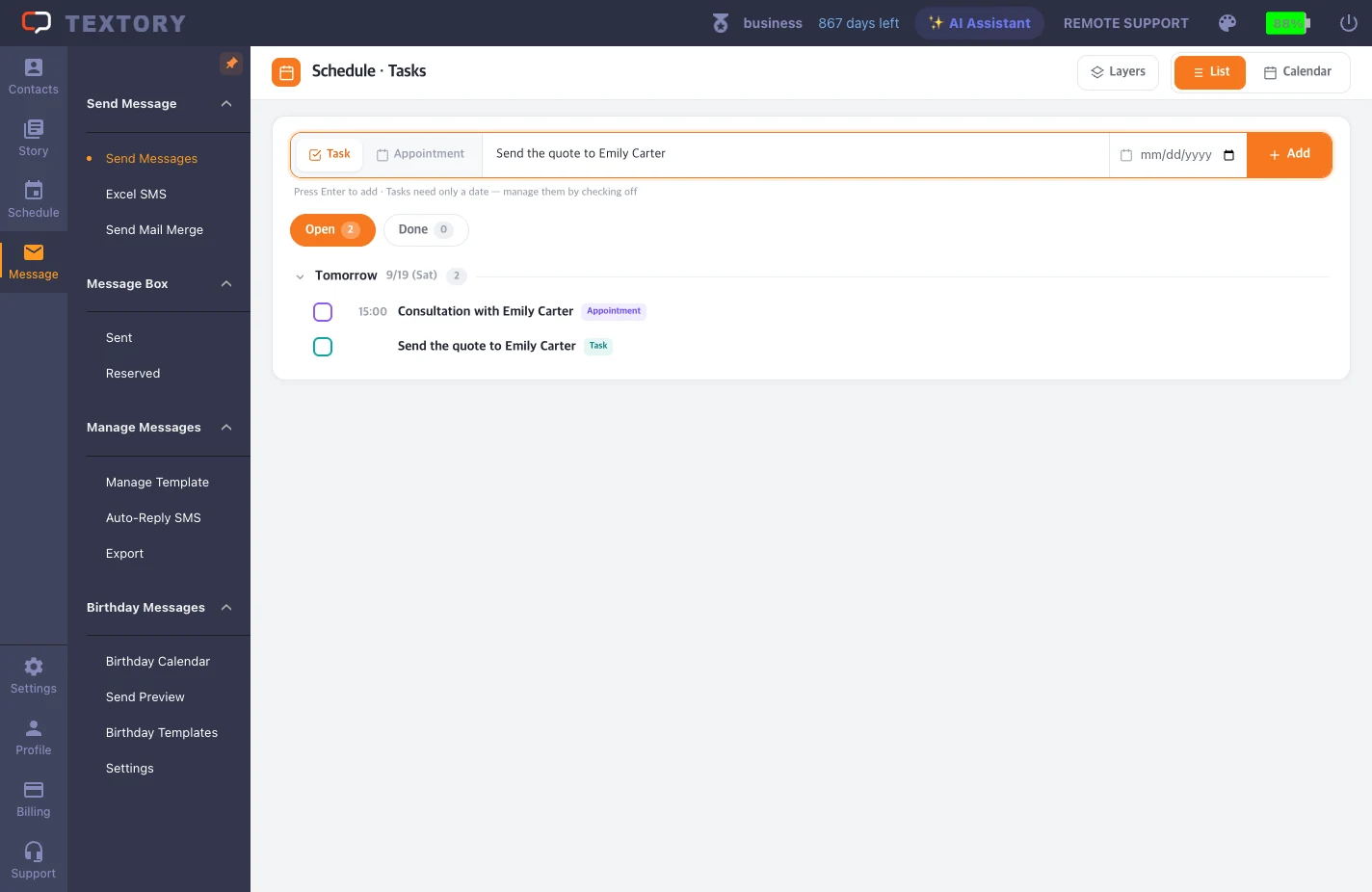
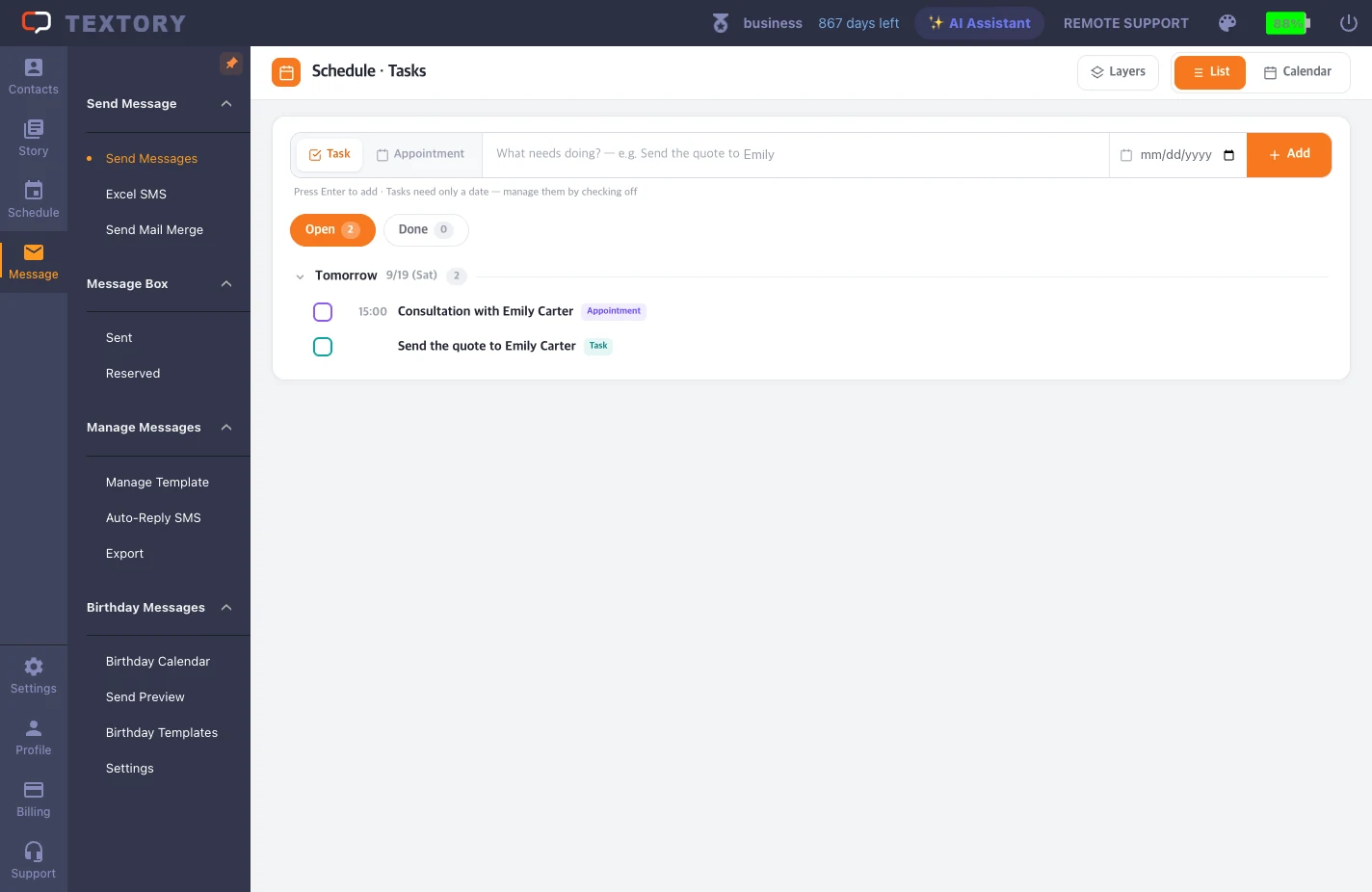
Choose To-do, enter the text and set the due date in the date field on the right. You can leave it empty if there’s no deadline. Click Add and it goes into the list.
3. Add an appointment
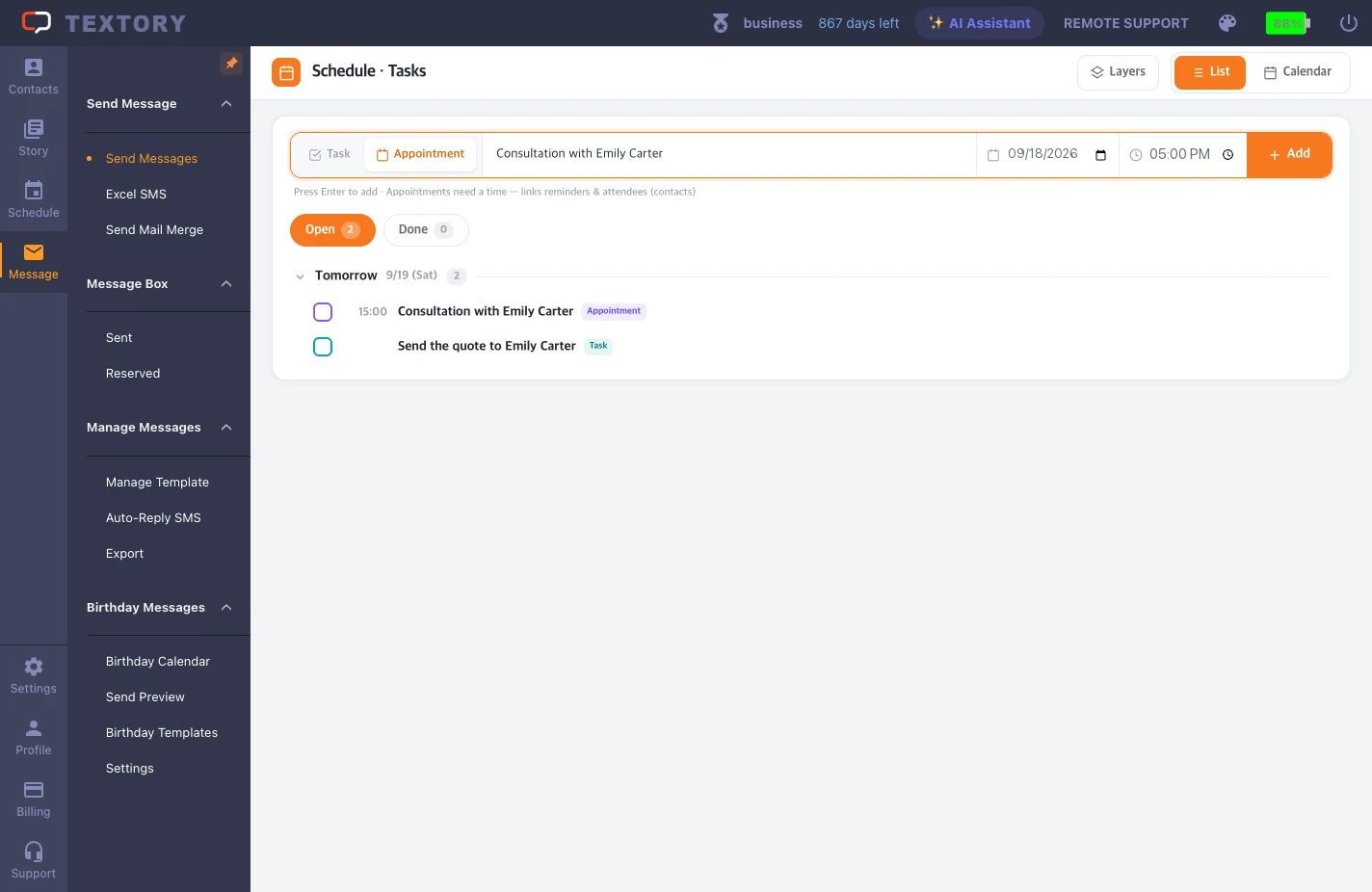
Choose Appointment and a time field appears next to the date. Fill in the text, date and time, click Add, and it shows in the list with its time.
4. View in the calendar
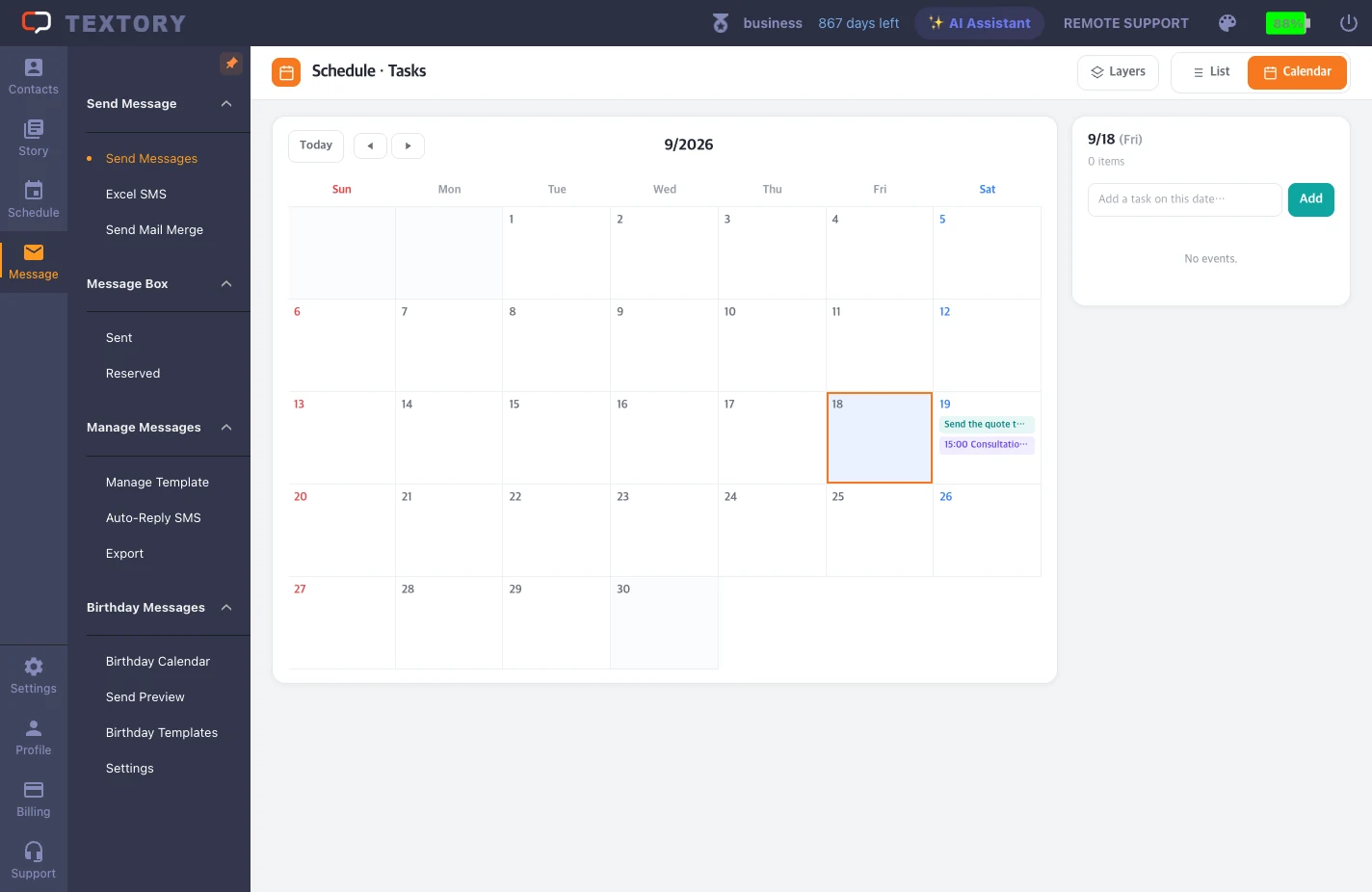
Click Calendar at the top right to see items by date. Click a date to see that day’s items next to it — you can add new ones there too.
5. Mark finished items as done
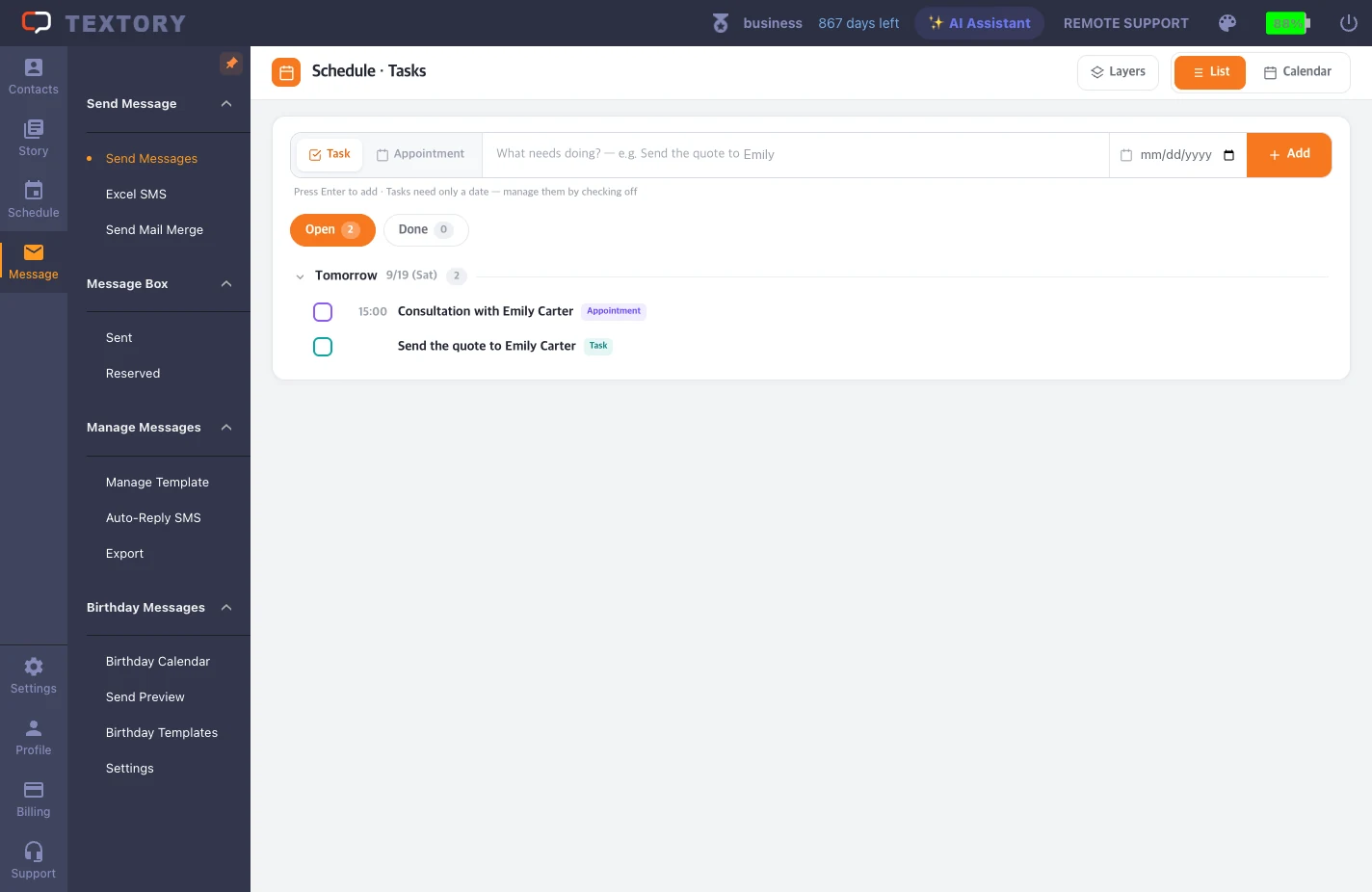
When something is finished, tick the checkbox on the left and it moves to the Done tab. If you’re waiting on the customer, don’t mark it done yet — set the next follow-up date instead.
Next guides
Still stuck?