View customer history
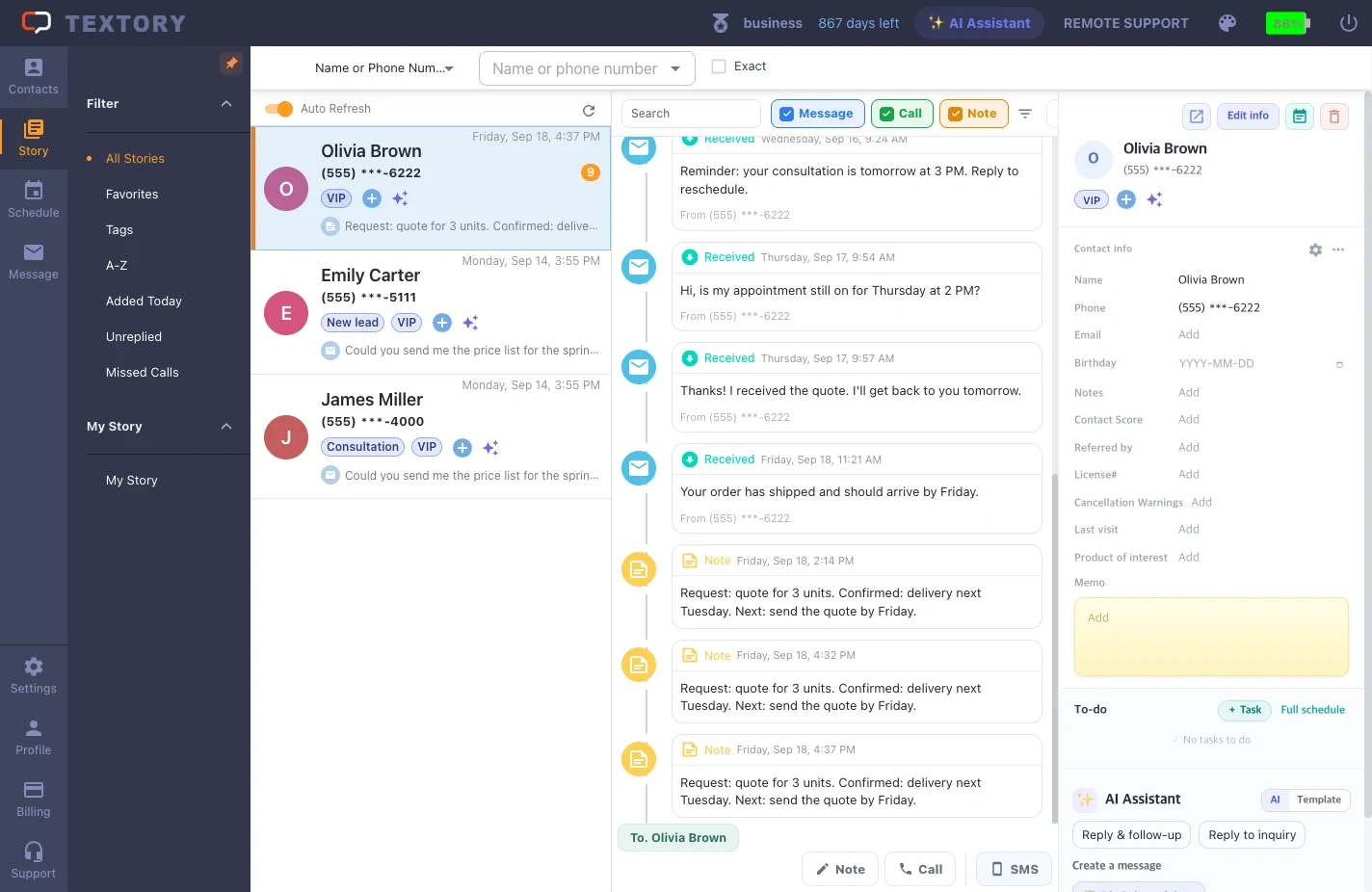
1. Open All stories and select a customer
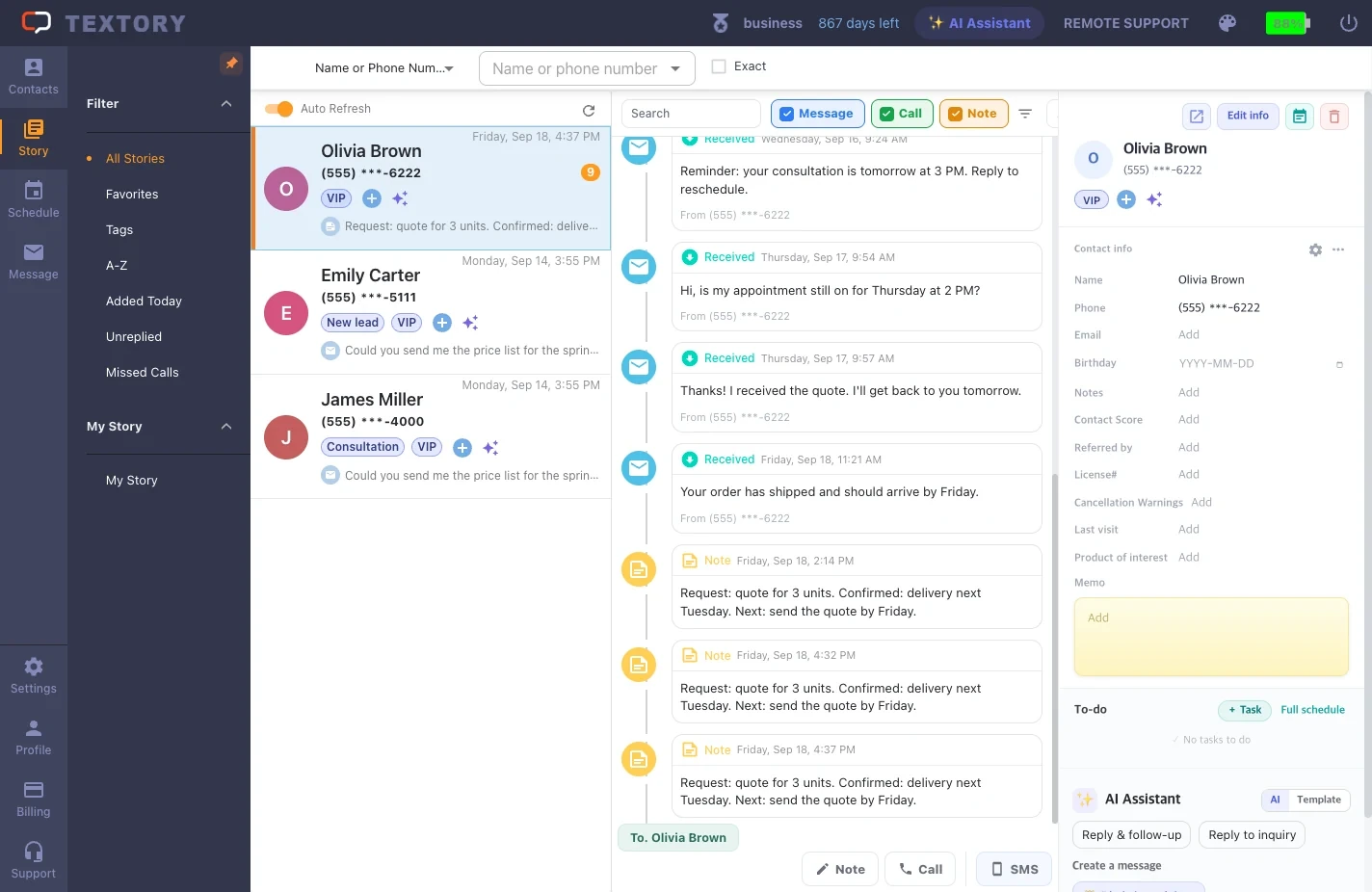
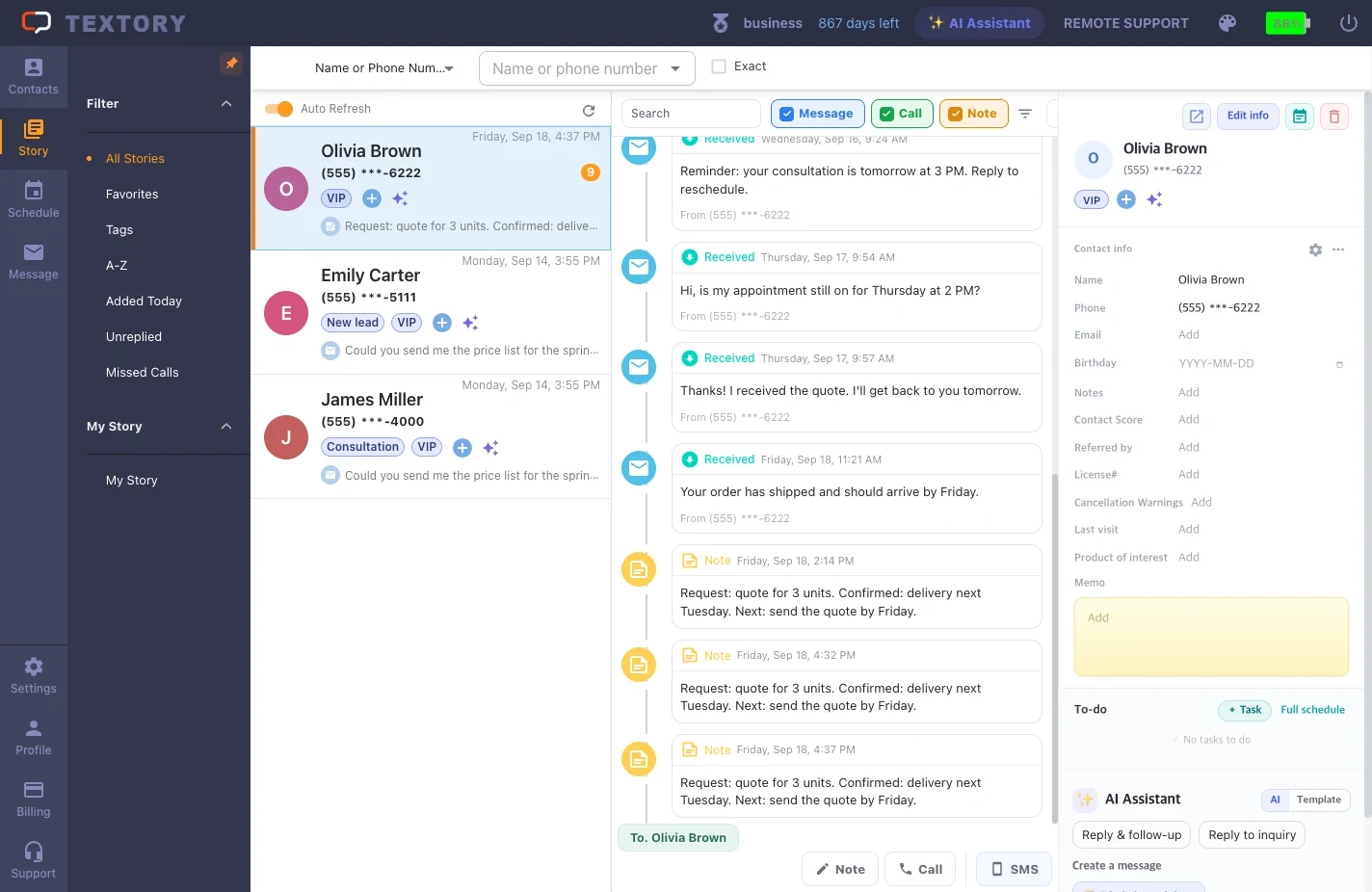
In Story → All Stories, select a customer. Messages, calls and notes appear in the middle in time order, with the customer’s details on the right. If several customers share a name, check the number on the right.
2. Filter by type
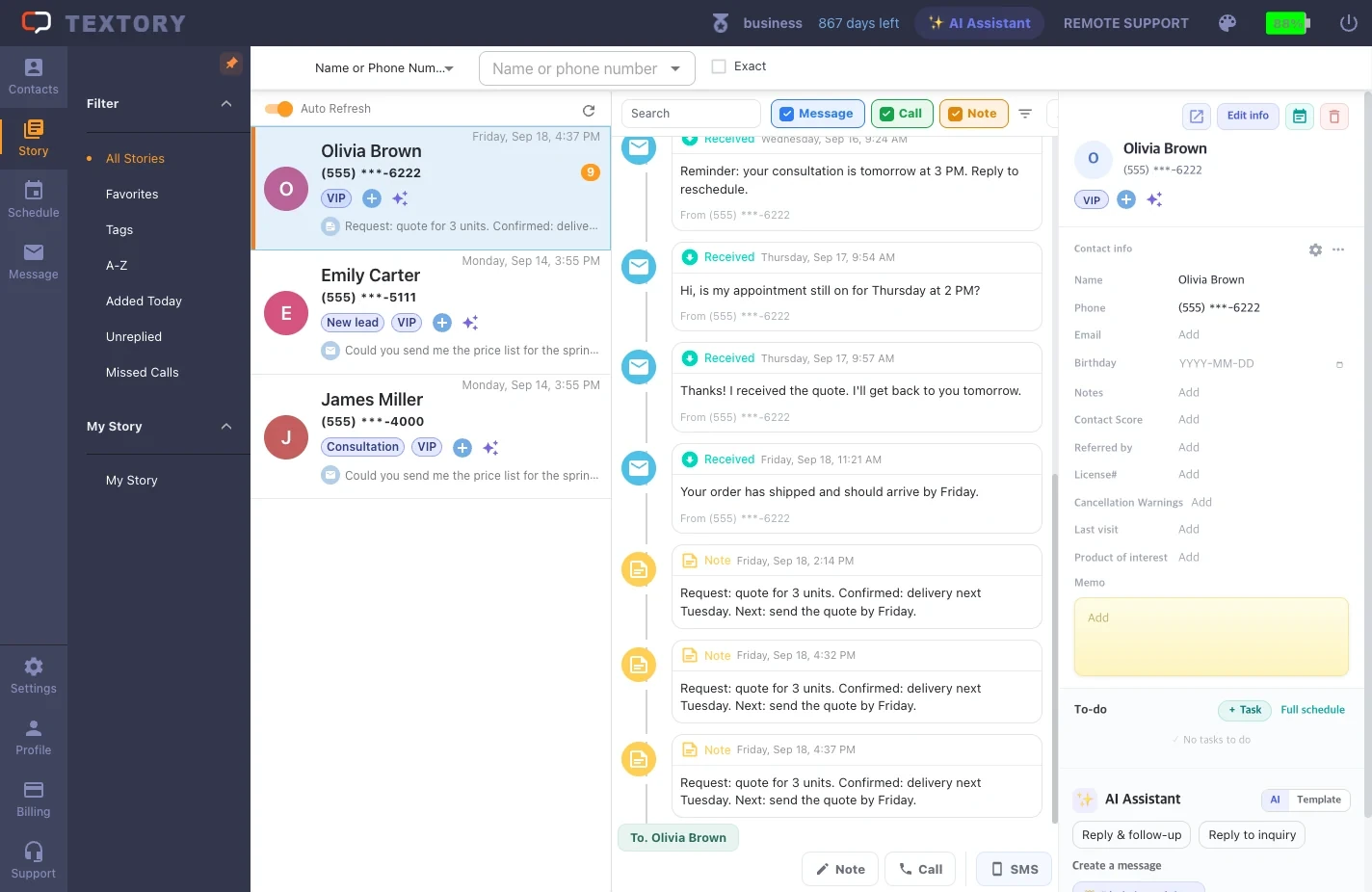
Use the Messages, Calls and Notes buttons above the timeline to show only what you need. Viewing just calls or just notes helps you catch up quickly.
3. See the memo and to-dos in the customer panel
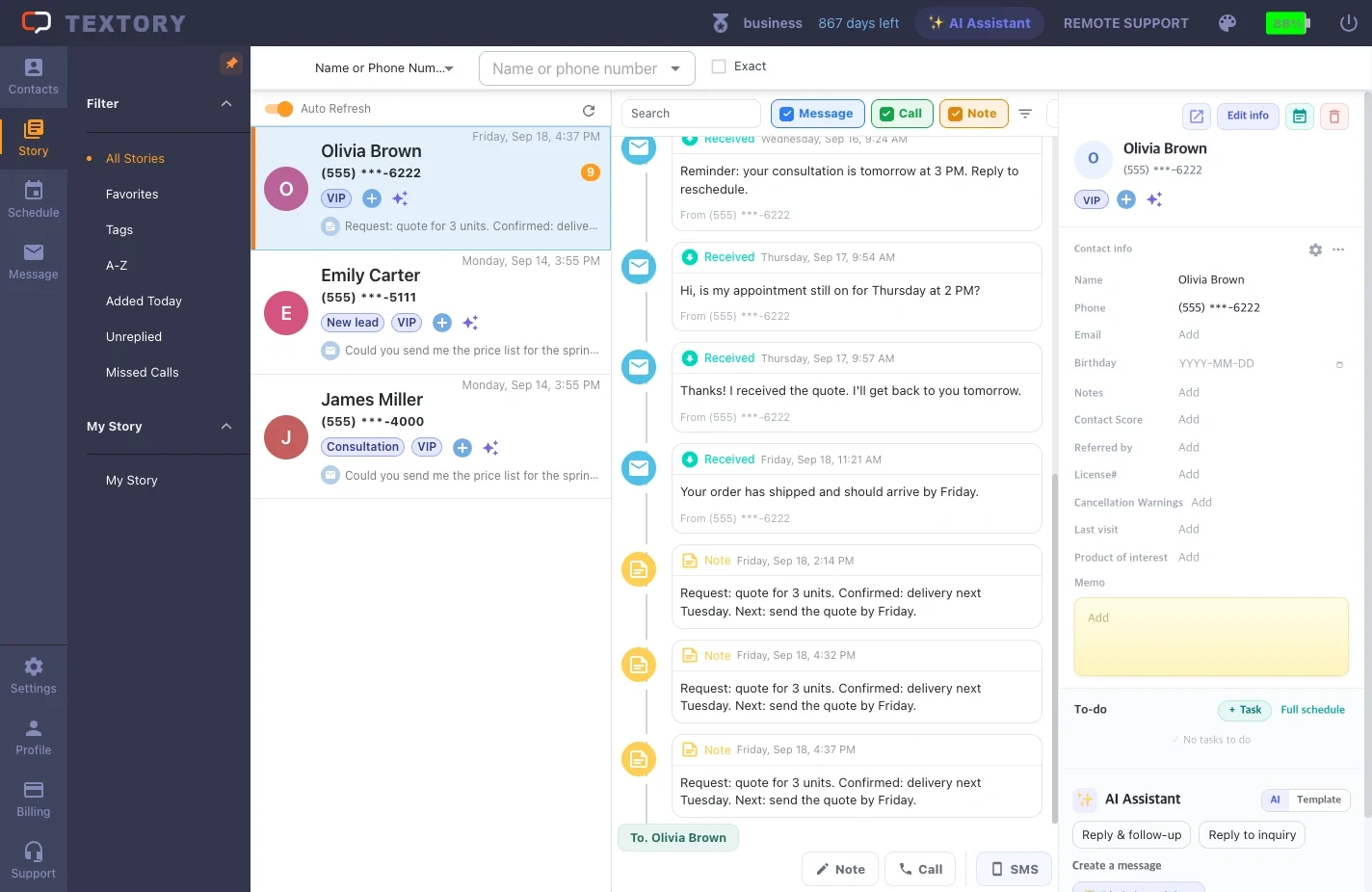
The customer panel on the right shows the fixed memo and to-dos. Look here before you reach out and you’ll know what the next consultation needs.
4. See unanswered messages and missed calls
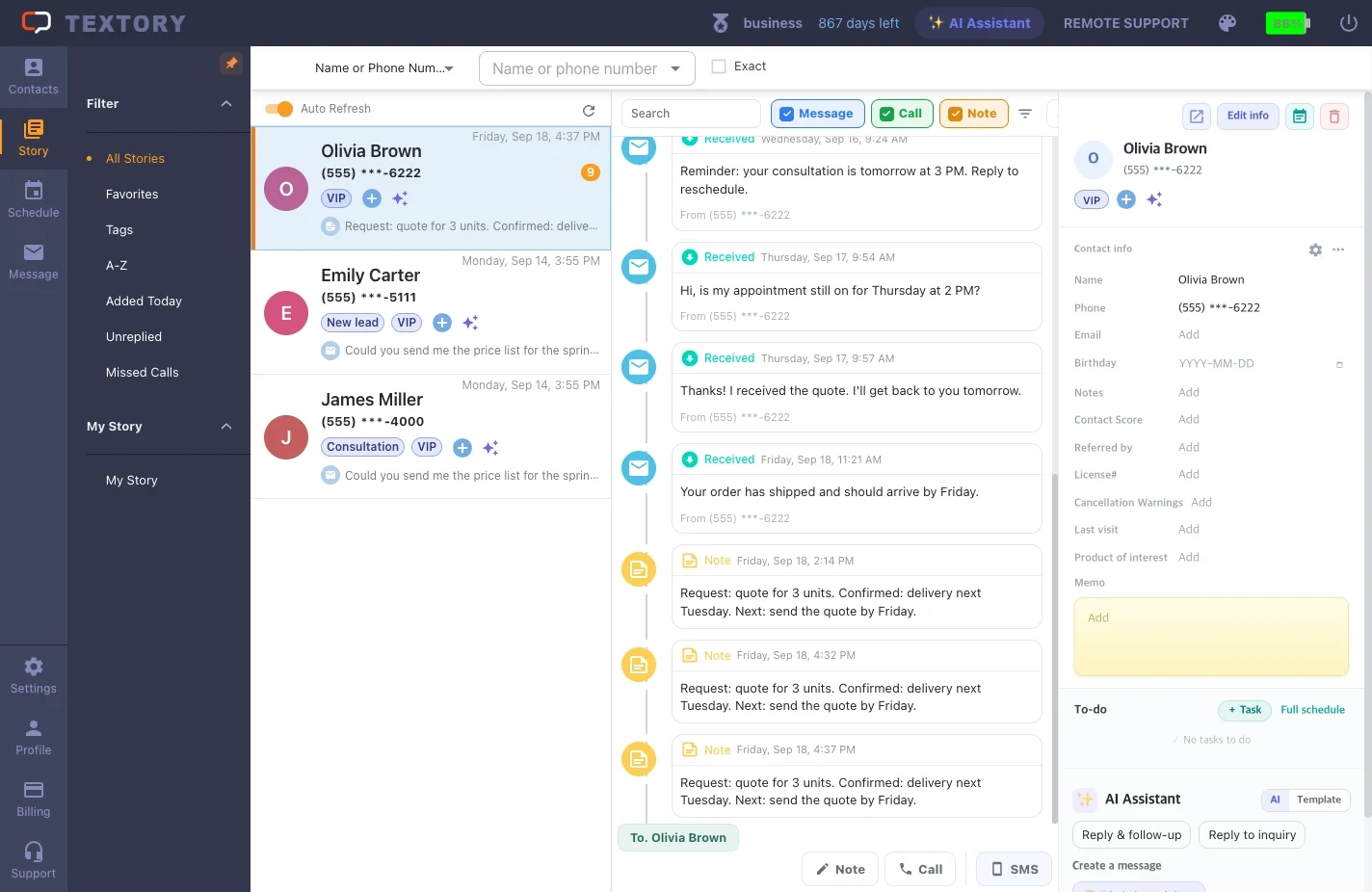
They’re collected under Unreplied and Missed Calls in the Story menu on the left. Check the customer and time, then get in touch.
5. Favorite important notes
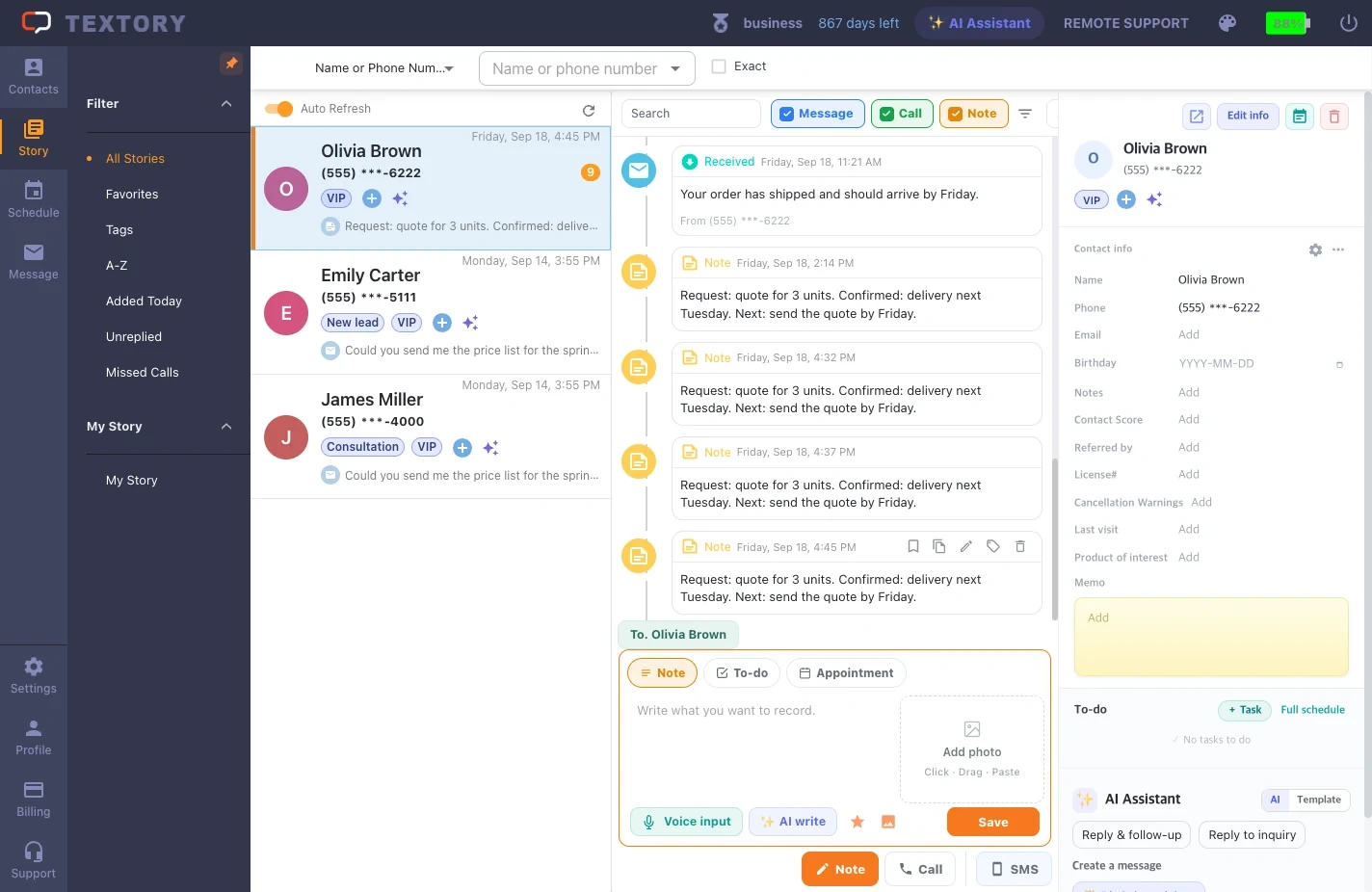
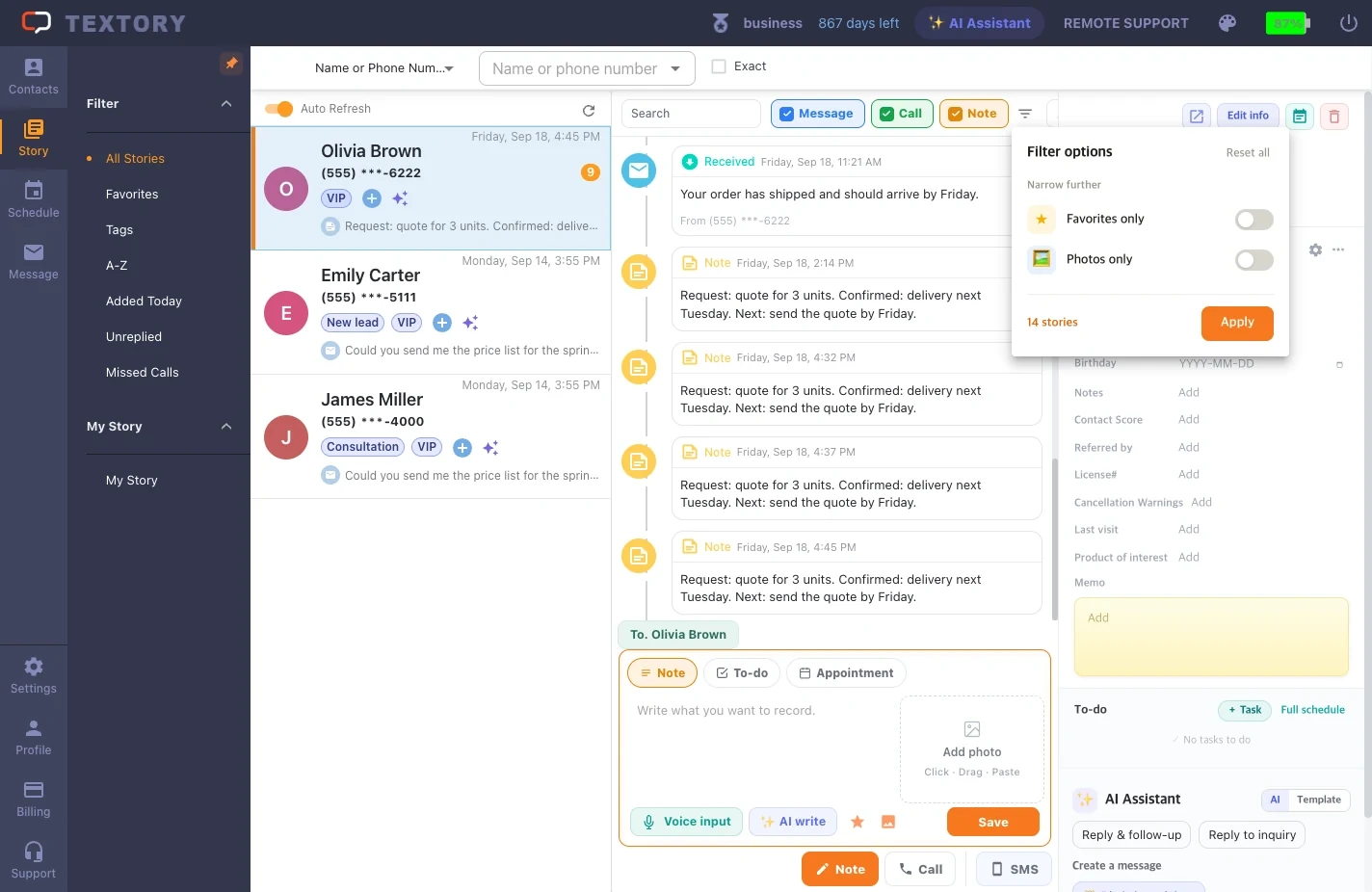
Hover over a note and the favorite icon appears at its top right. Turn it on, and Favorites only in Filter options shows just the important ones.
Next guides
Still stuck?