Set up callback messages
1. Open Auto-Reply SMS and add a template
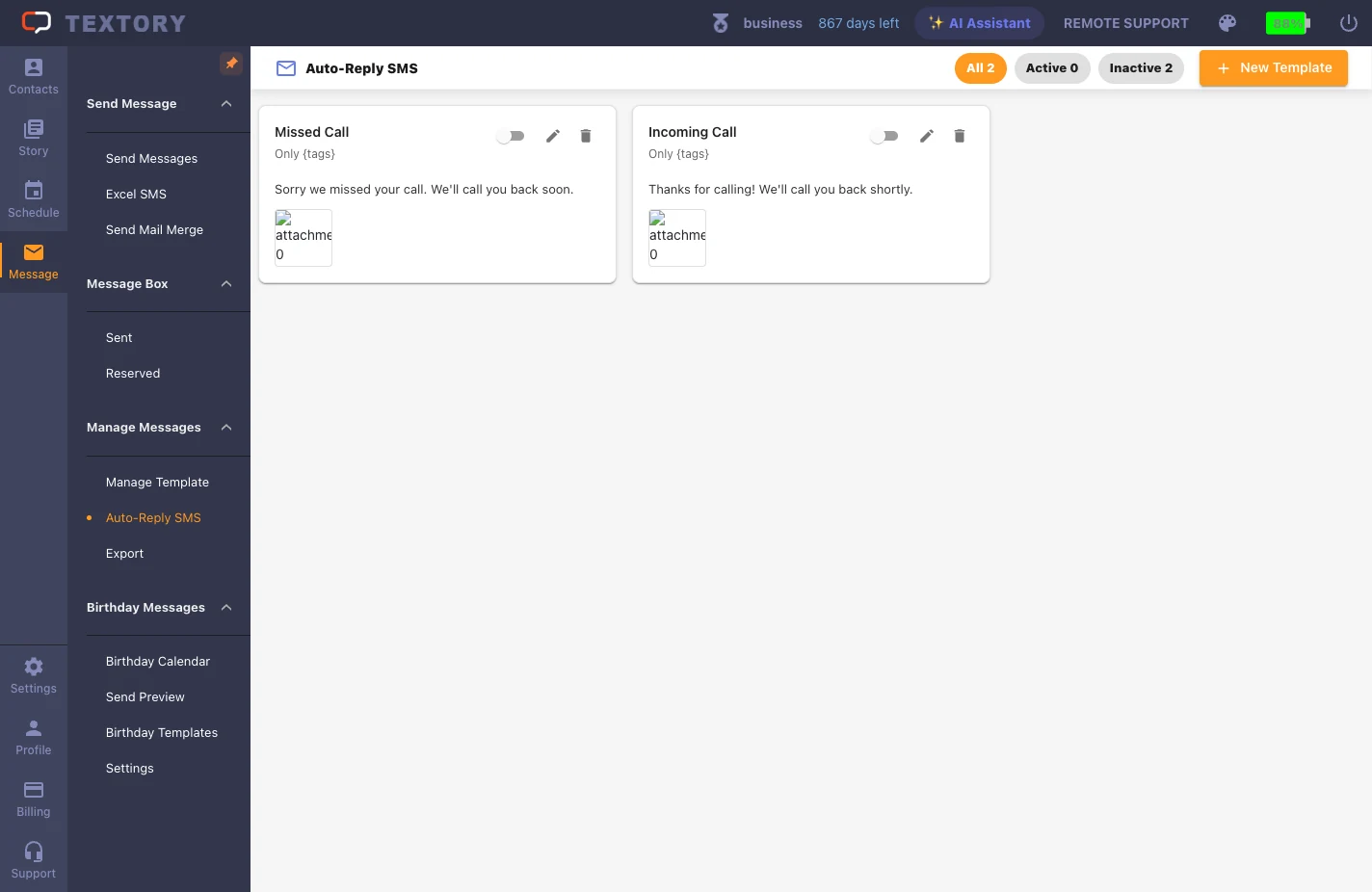
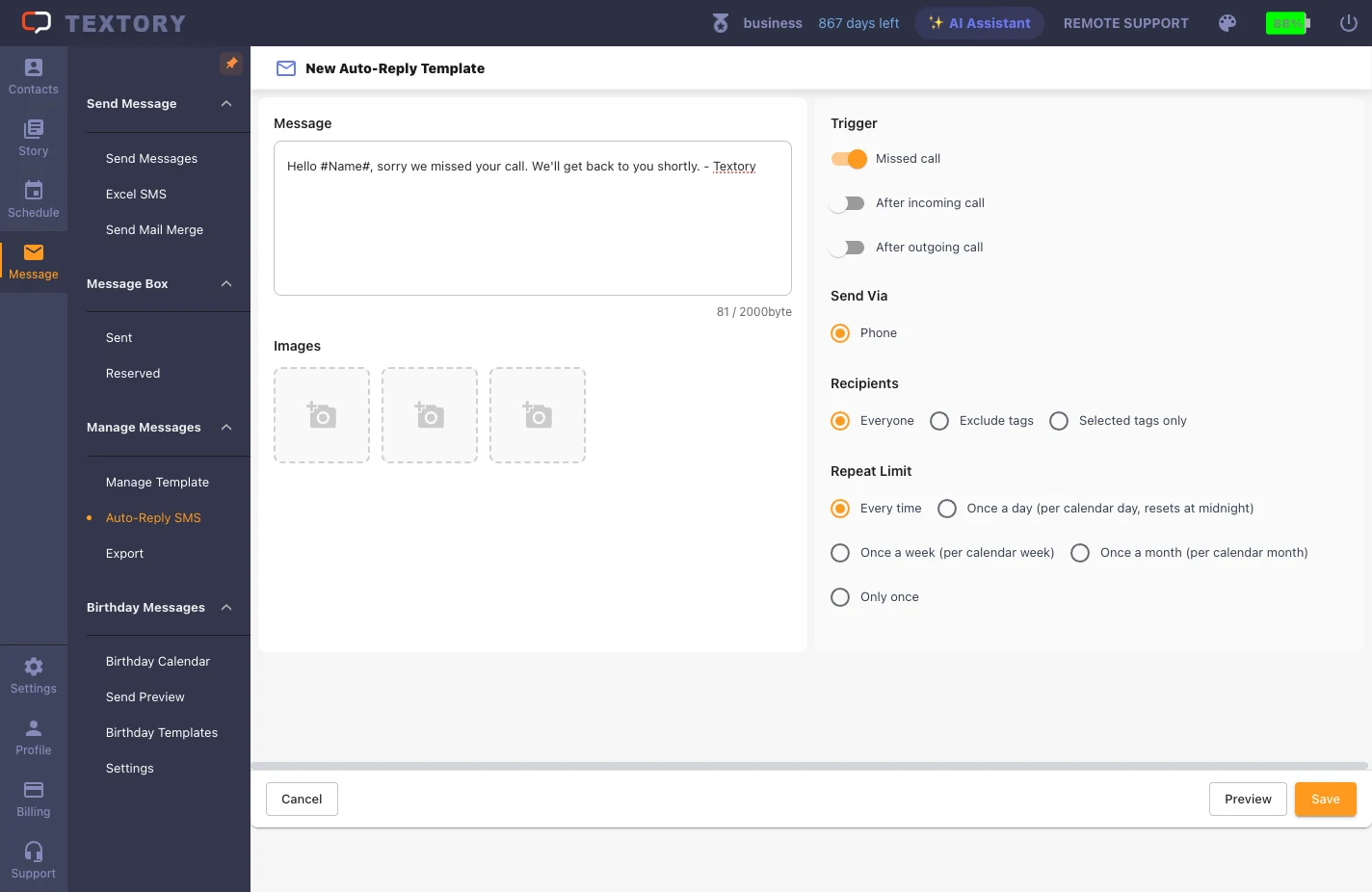
In Message → Auto-Reply SMS, click New Template. If you’re editing an existing template, check its on/off state and conditions first.
2. Enter the callback message
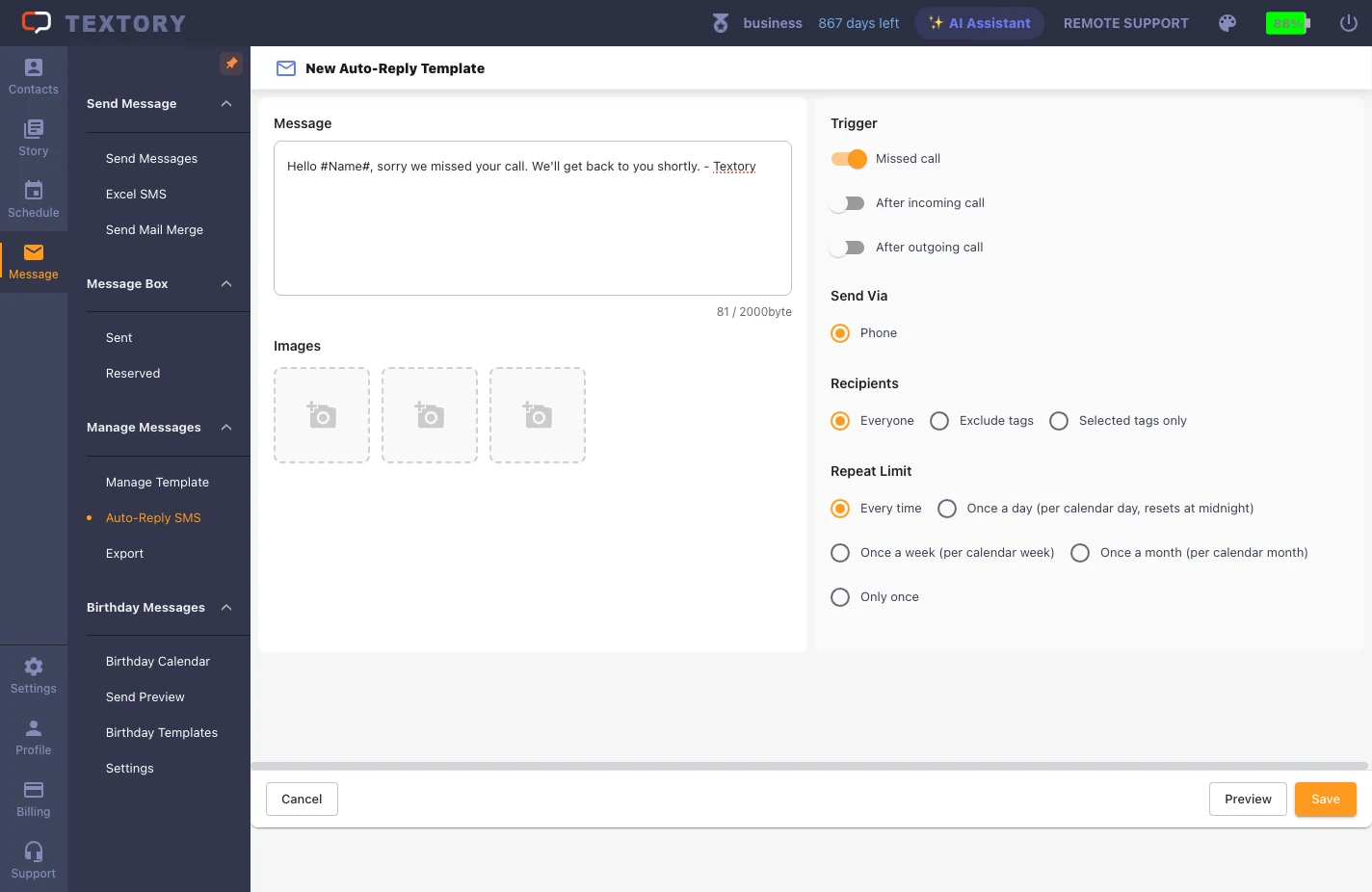
Write the text the customer receives when you miss their call. Add #name# and it becomes each customer’s name.
3. Turn on when to send
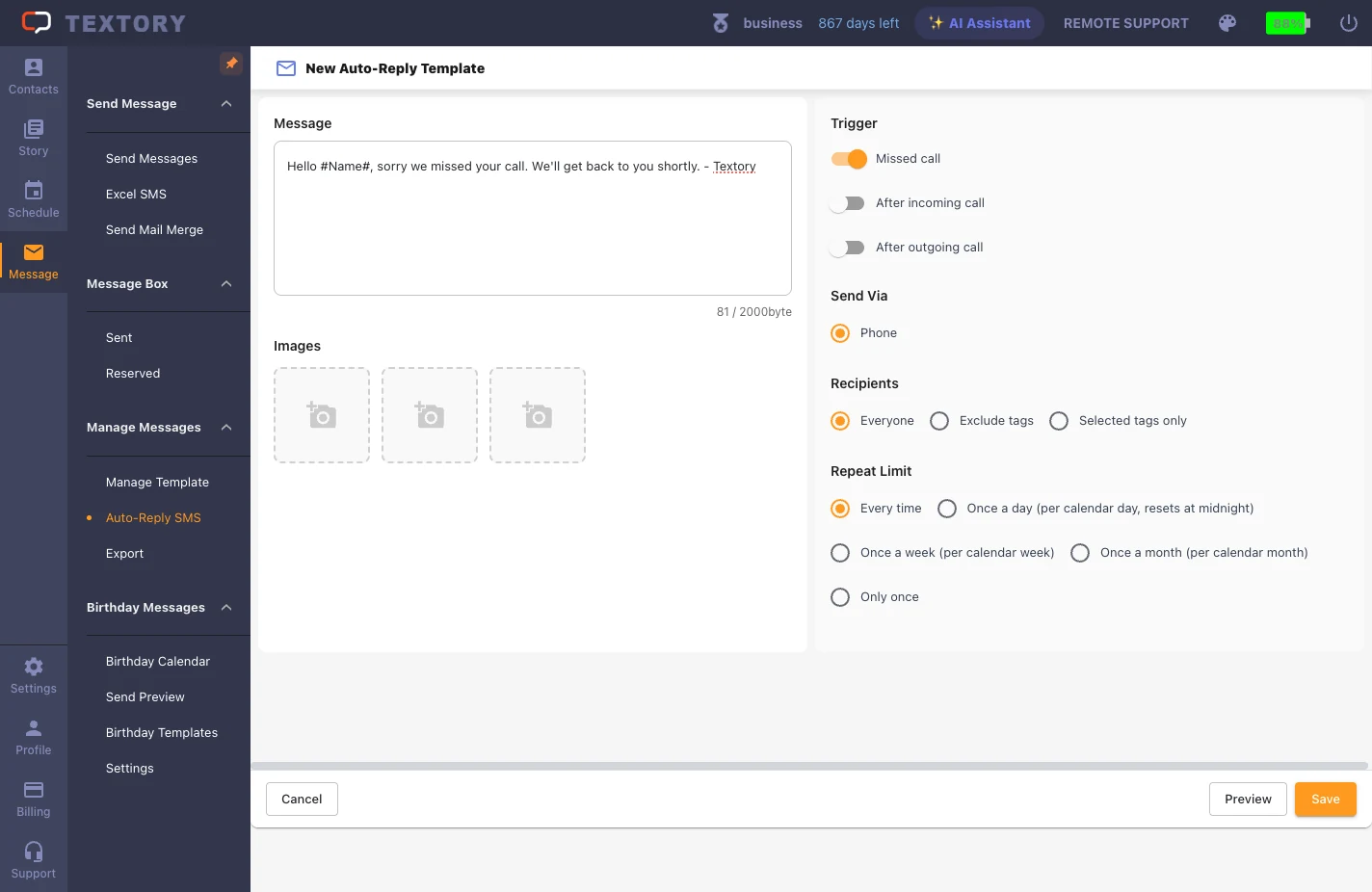
Turn on only the situations you need: missed call, after an incoming call, after an outgoing call. If all are on, a customer may get the same text several times.
4. Set the recipients and repeat interval
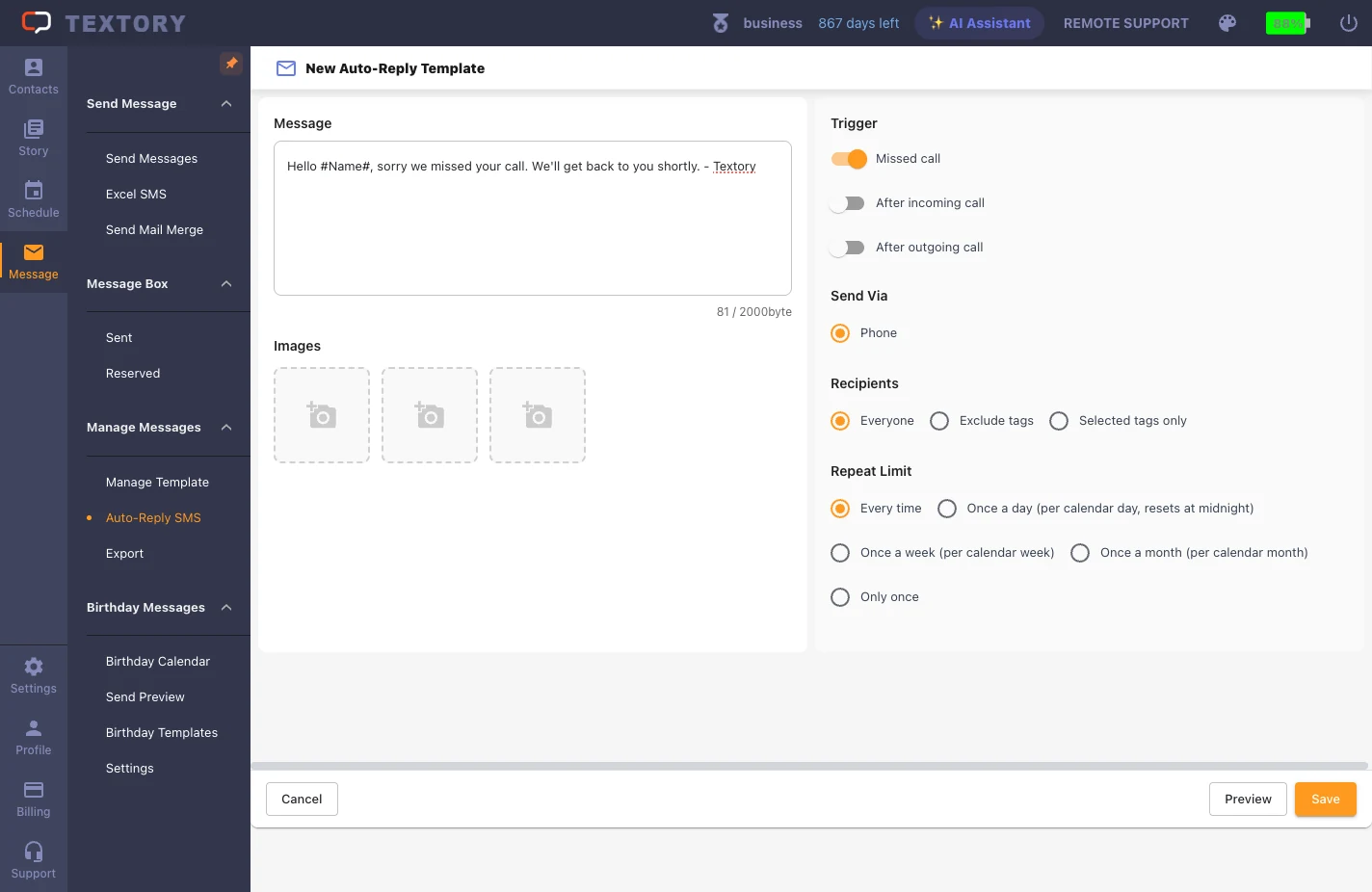
Choose the recipients (everyone, exclude certain tags, or selected tags only). The tags must actually be applied to contacts. For the same-number interval, choose every time, daily, weekly, monthly or once only. Messages go out from your connected phone.
5. Preview and save
Check what the recipient sees in Preview, then click Save.
6. Check it’s active in the list
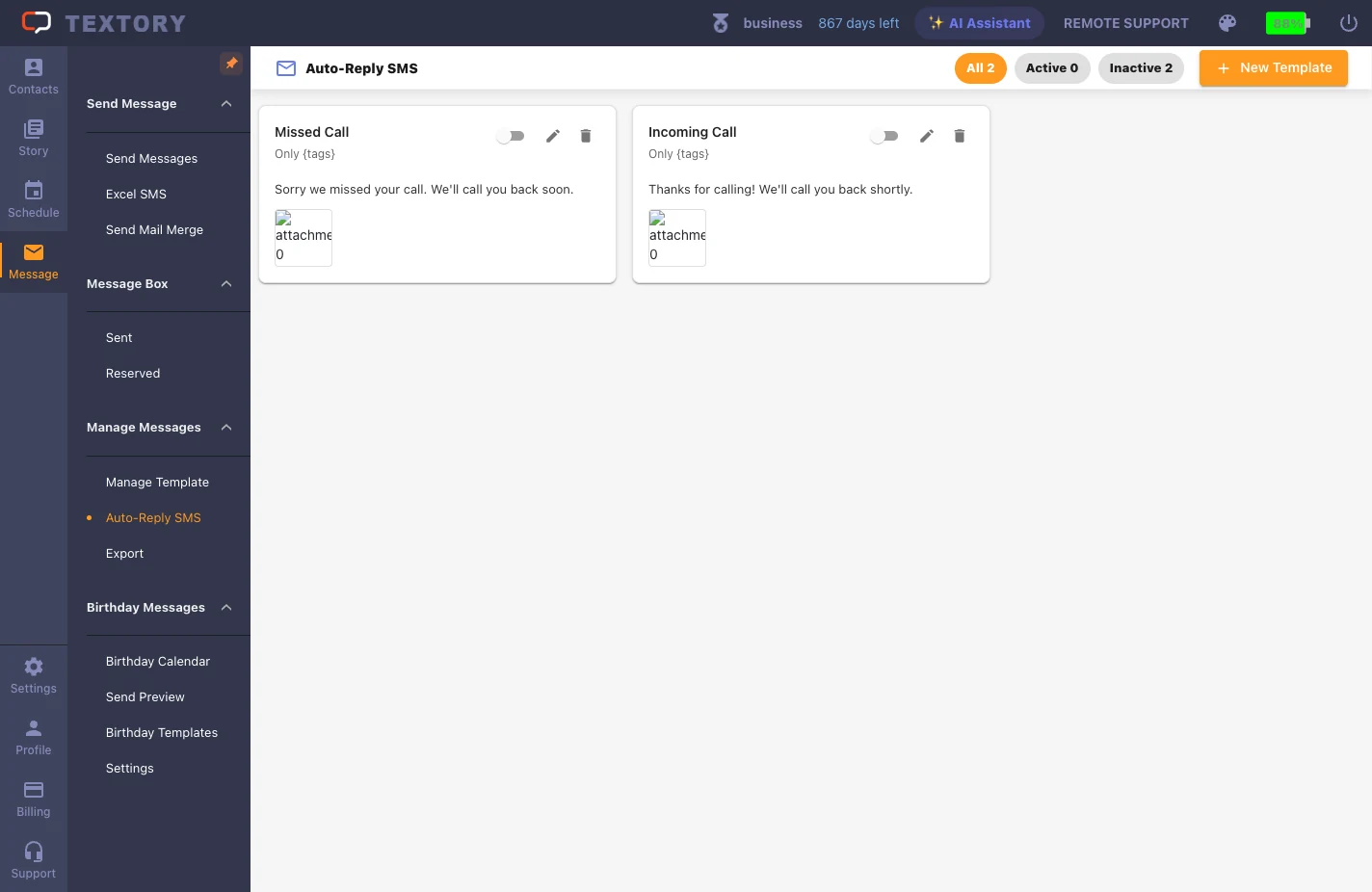
In the list, check that the new template’s toggle is on and no other template has overlapping conditions. If messages don’t go out, check in this order: active state → call conditions → recipient tags → repeat interval → app connection.
Next guides
Still stuck?