Create contact fields
1. Open Manage Fields
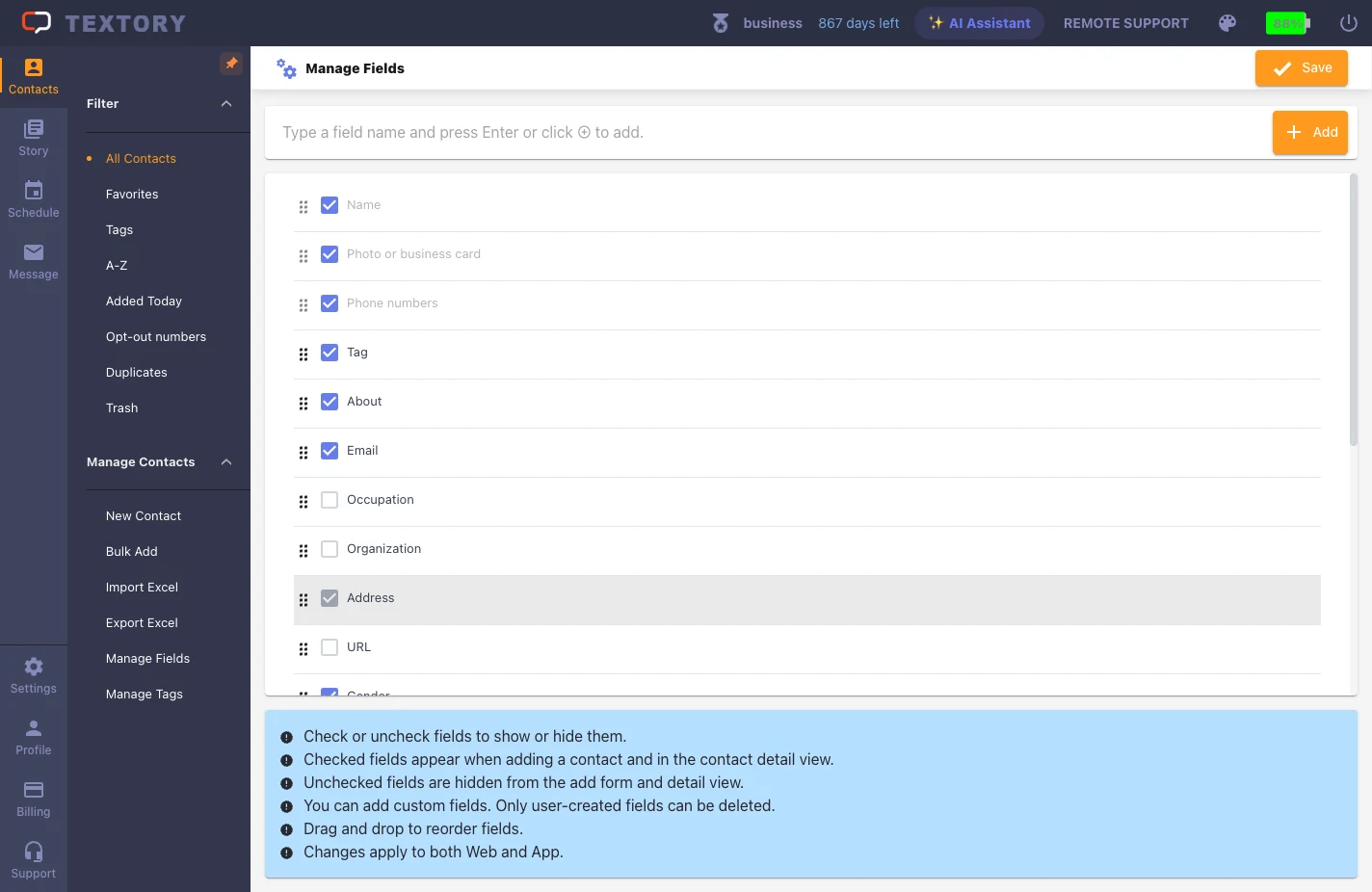
In the Contacts menu on the left, open Manage Contacts → Manage Fields. The grey default fields (name, phone number, etc.) can’t be changed; the fields below them can be turned on and off with the checkbox.
2. Enter a new field name and add it
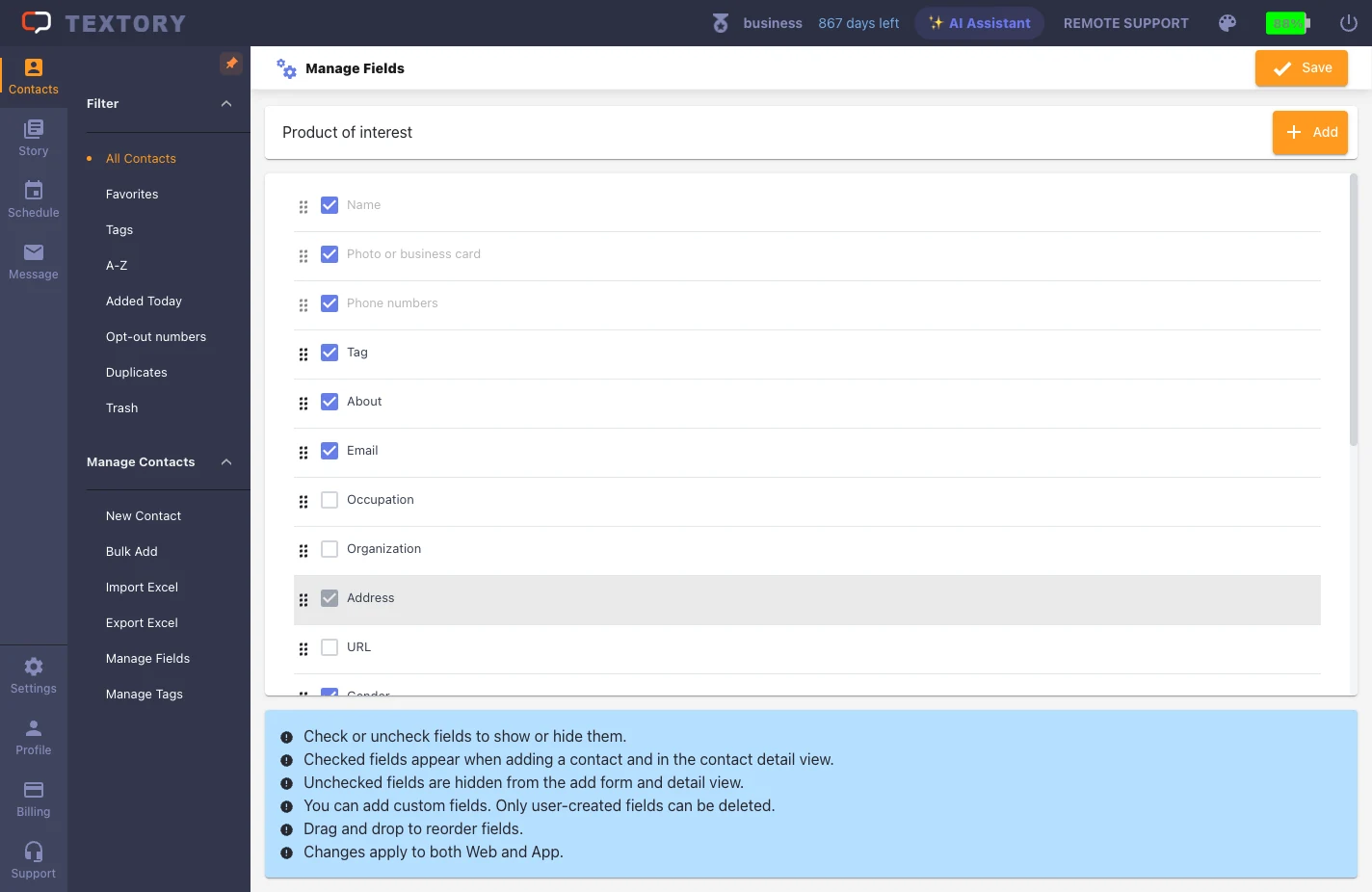
Type the field name (e.g. Product of interest) in the box at the top and click Add. You’re naming the field, not entering customer data.
3. Check the new field in the list
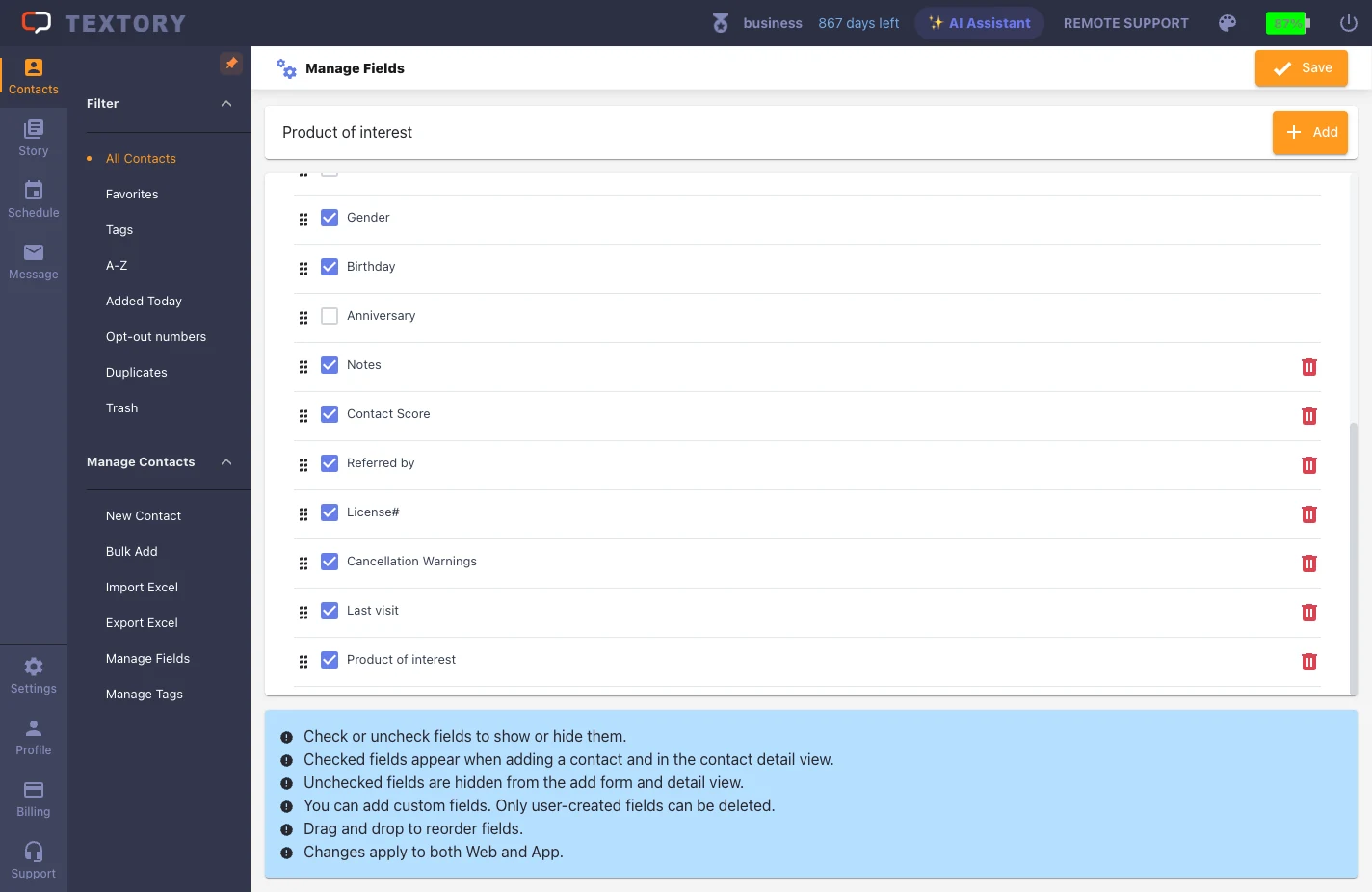
The new field appears at the bottom of the list, checked. Uncheck it to hide it from the contact screen, and drag the handle on the left to reorder. Only fields you created can be deleted.
4. Save changes
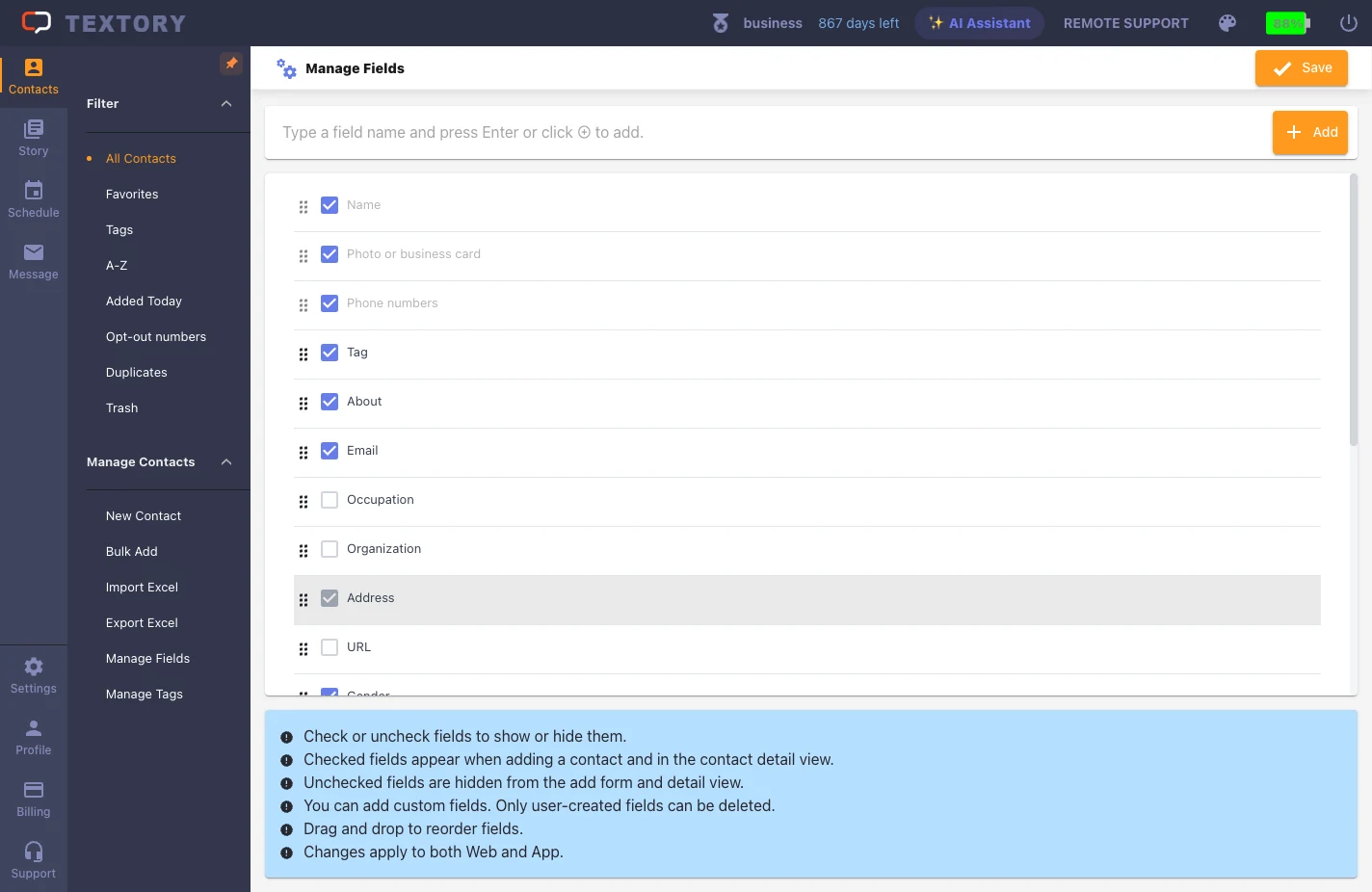
Click Save changes at the top right to apply. If you close the screen before saving, the changes are lost.
5. Check the new field on the contact screen
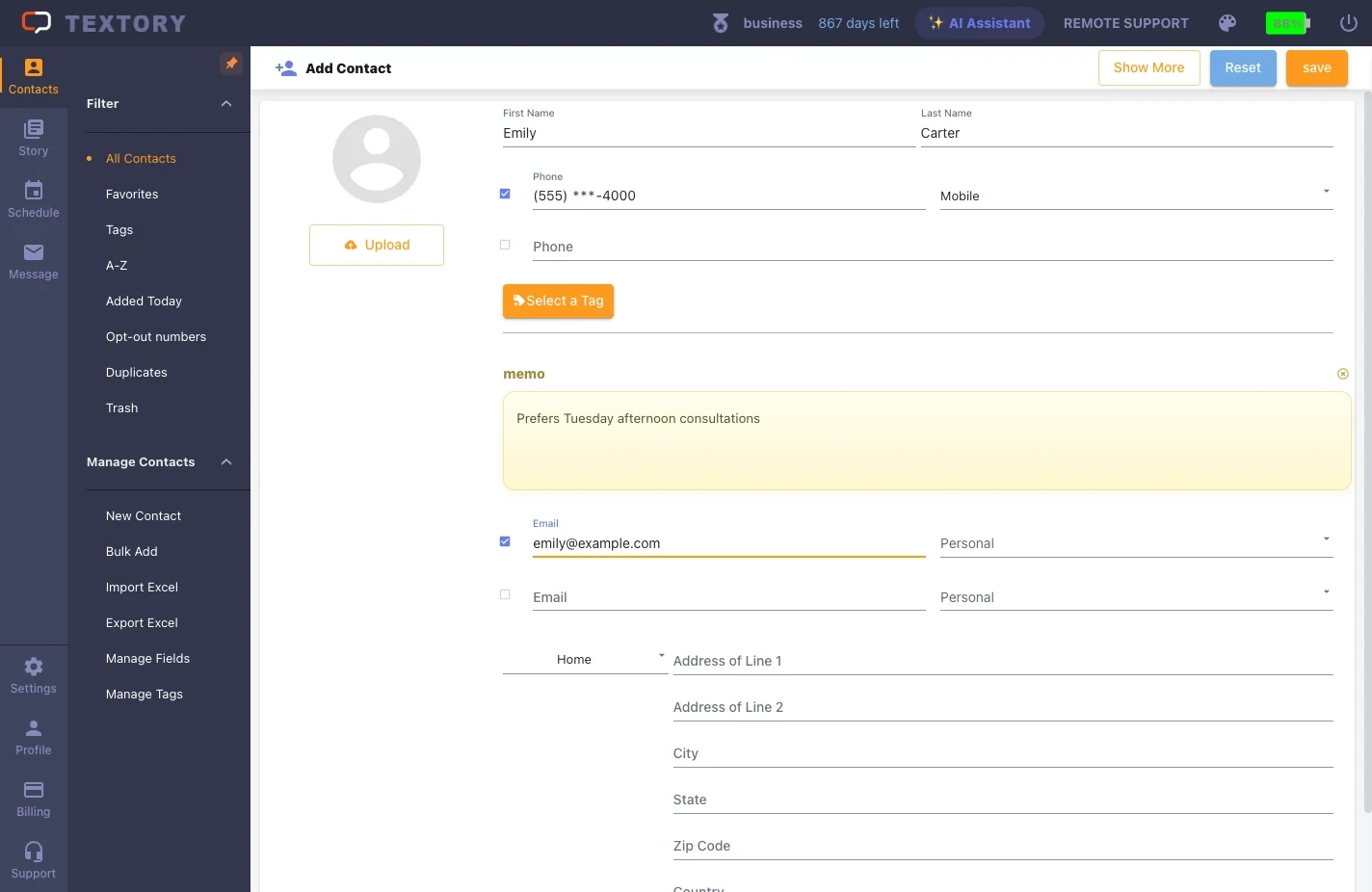
On the add or edit contact screen, click More fields and the new field appears. Enter that customer’s value, like “Product A”, and save. The same field also appears on the contact screen in the Android app.
Next guides
Still stuck?